

TL;DR
- Added detailed in-product message tracing to debug agent runs end-to-end
- Shipped 6 new production-ready templates (with updated thumbnails)
- Big UI/UX polish across Chat, Flow Editor, Agent Cards, Node Inspector, Conversations
- Improved integration + connection handling (better status + notifications + management access)
- Upgraded conversation inputs: Markdown, JSON parsing, boolean fields, improved state handling
- Free plan users now see a clearer upgrade path (redirect to pricing with messaging)
What’s new
1) In-product message tracing (debug agents end-to-end)
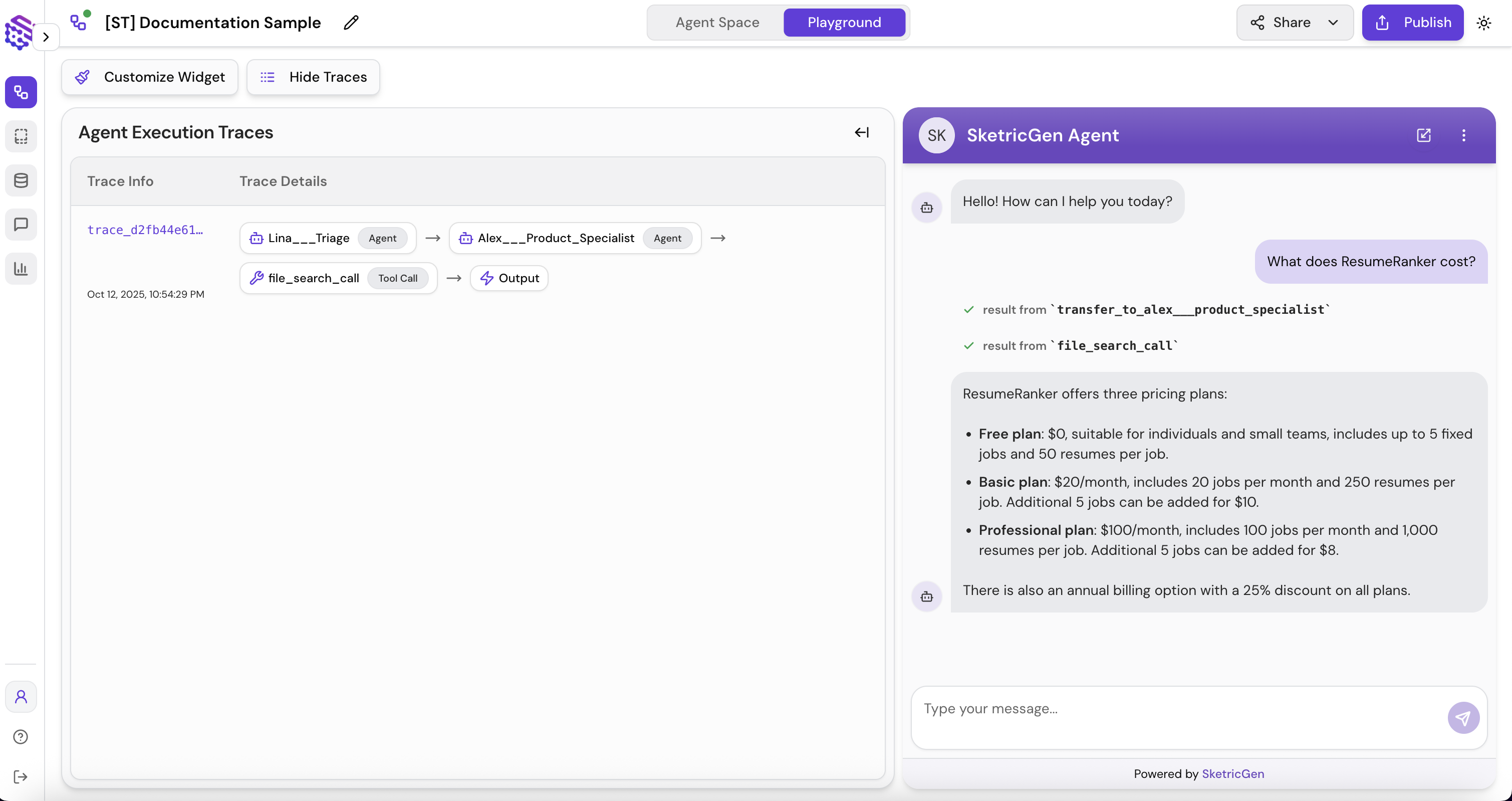
SketricGen now provides detailed tracing inside the product for messages and workflow testing so you can see what happened during an agent run, including:- The user message and the agent’s internal reasoning steps (high-level)
- Tool calls made by the agent
- Inputs and outputs for each tool call
- The final response, with the full execution path visible
Screenshot/GIF placeholder: “Message trace view showing tool calls + inputs/outputs”
2) Six new templates (launch faster)
We replaced the previous template set with six new, fully tested templates, each with a professional thumbnail. Why it matters: templates reduce time-to-value—start from a working pattern instead of building every workflow from scratch.3) UI & experience improvements (cleaner, more consistent)
We shipped a broad polish pass across:- Chat Window
- Flow Editor
- Agent Cards
- Node Inspector
- Conversations Page
4) Better connection & integration handling (less friction)
Integrations now feel more reliable with:- Improved connection tracking for agent nodes
- Better success/error notifications during app disconnections
- Easier access to manage connected apps and APIs
5) Conversation & input handling enhancements (better structured data)
Conversation fields now support:- Markdown formatting
- JSON parsing
- Boolean inputs
- Improved state management
6) Subscription & access flow update (clearer upgrades)
Free plan users are now redirected to the pricing page with clearer upgrade messaging. Why it matters: less confusion around plan limits and a more explicit path to unlock advanced capabilities.Who this release is for
- Teams building and testing workflows that need fast debugging and clear visibility
- Builders who want to ship faster using ready-to-use templates
- Anyone relying on tool integrations and needing reliable connection status
- Workflows that pass structured data and benefit from JSON/boolean inputs + Markdown
How to use (quick steps)
Debug a workflow test with message tracing
- Run a test message in Chat or during workflow testing
- Open the Trace / Run Details view for that message
- Review the execution timeline:
- tool calls
- inputs/outputs
- intermediate steps
- Fix prompts/nodes/connections and re-run
Start from the new templates
- Go to Templates
- Pick one of the new templates (look for the updated thumbnails)
- Duplicate/customize for your use case
- Connect tools/apps and run a test message
Use structured conversation fields (JSON/boolean/Markdown)
- Open the relevant conversation input configuration
- Choose the expected type (JSON / boolean) or add Markdown
- Test the workflow to confirm parsing and display behavior
FAQ
What is “message tracing” in SketricGen?A run-level view that shows how an agent responded, including tool calls and the inputs/outputs between each step, so you can debug quickly. Can I see tool call inputs and outputs during testing?
Yes—traces show the tool calls made by the agent along with what was sent and what came back. Is tracing available during workflow creation and testing?
Yes—tracing is designed to help during workflow building and test runs so you can iterate faster. Do templates work out of the box?
They’re tested and ready to use, but you’ll still connect your own tools (apps/APIs) and customize prompts/settings. How do I pass structured data to an agent (JSON/boolean)?
Use the updated conversation fields that support JSON parsing and boolean inputs so your workflow steps receive the right shape of data. What happens when an integration disconnects?
You’ll now get clearer success/error notifications and improved connection tracking so you can fix issues faster.
Get Started
- Try SketricGen: https://www.sketricgen.ai/
- Browse Templates: https://www.sketricgen.ai/template
- Docs: Traces & Optimization: /user-guides/traces-and-optimizations
- Docs: Orchestration and Structured Data: /user-guides/orchestration-and-handoffs
- Docs: Managing Tools: /user-guides/tools