
- Wix App (Recommended)
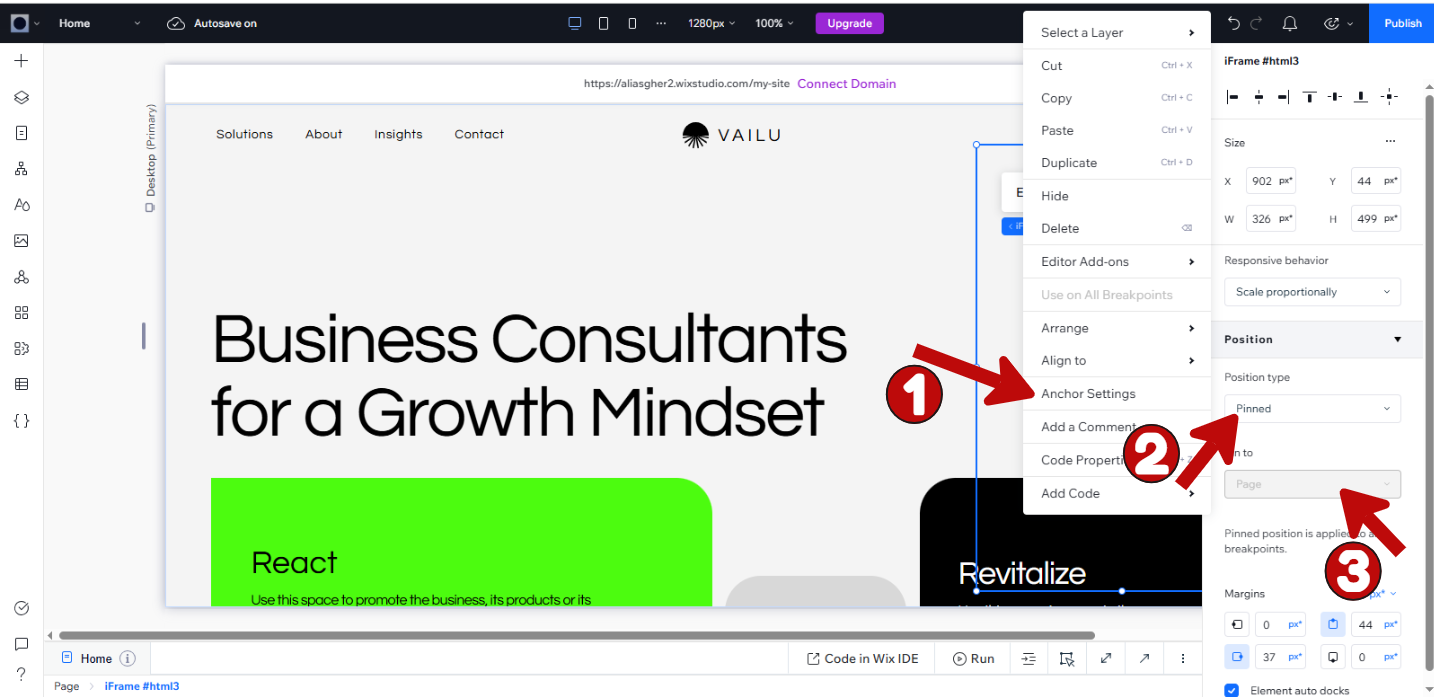
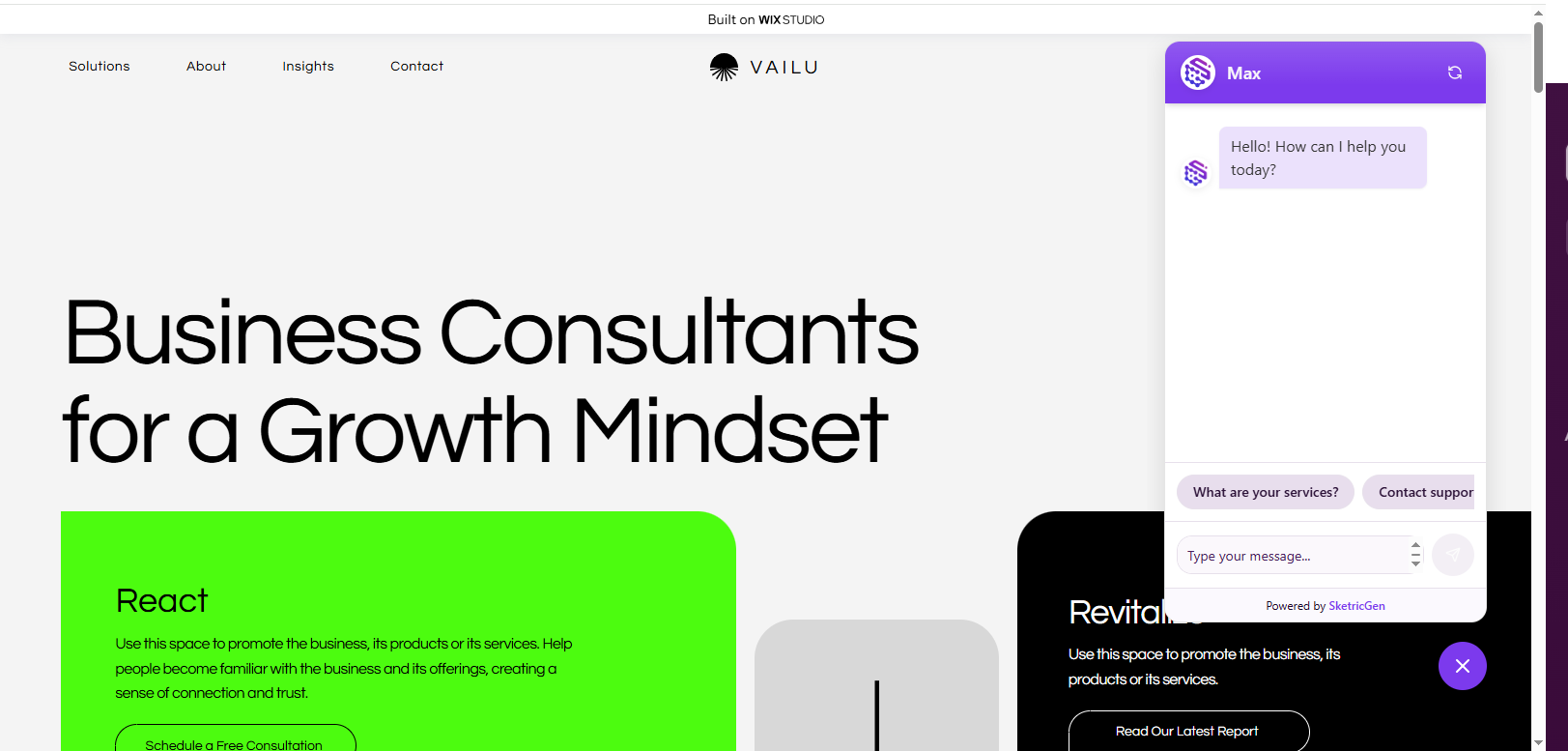
- Floating Chat Bubble (Manual)
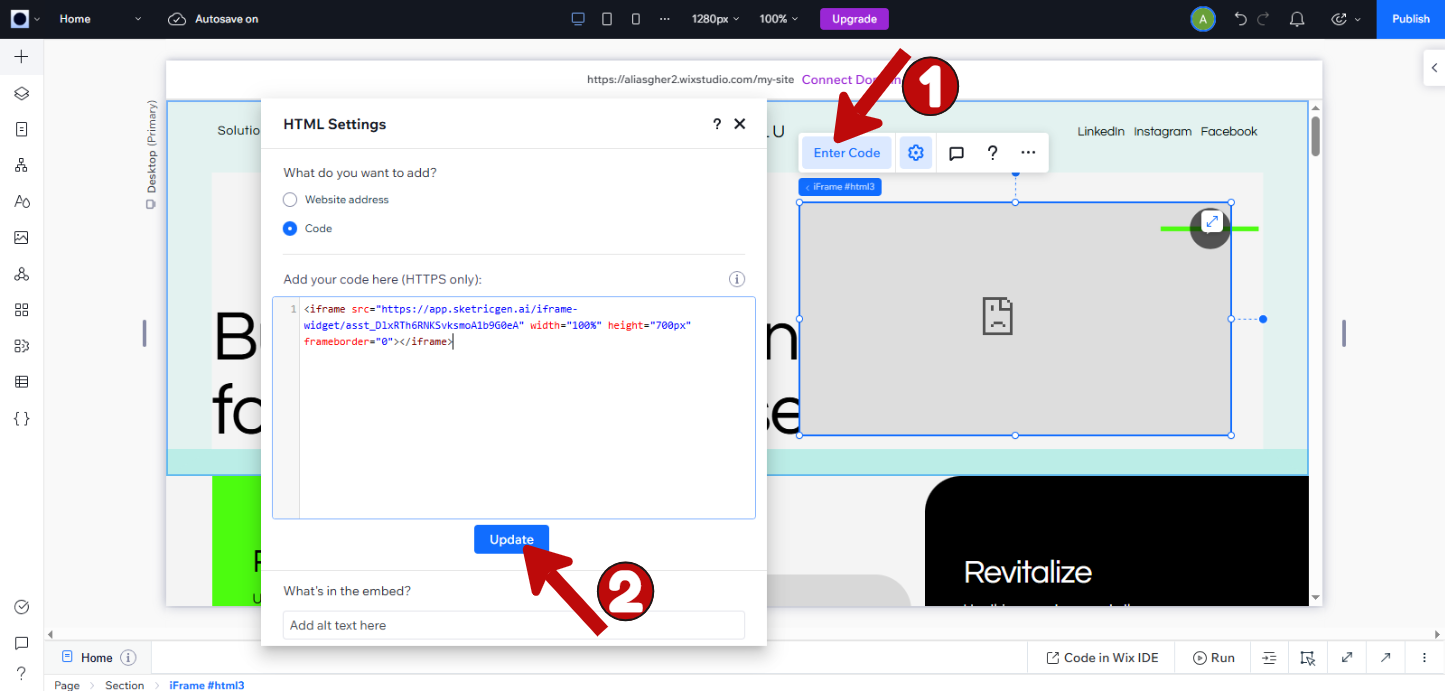
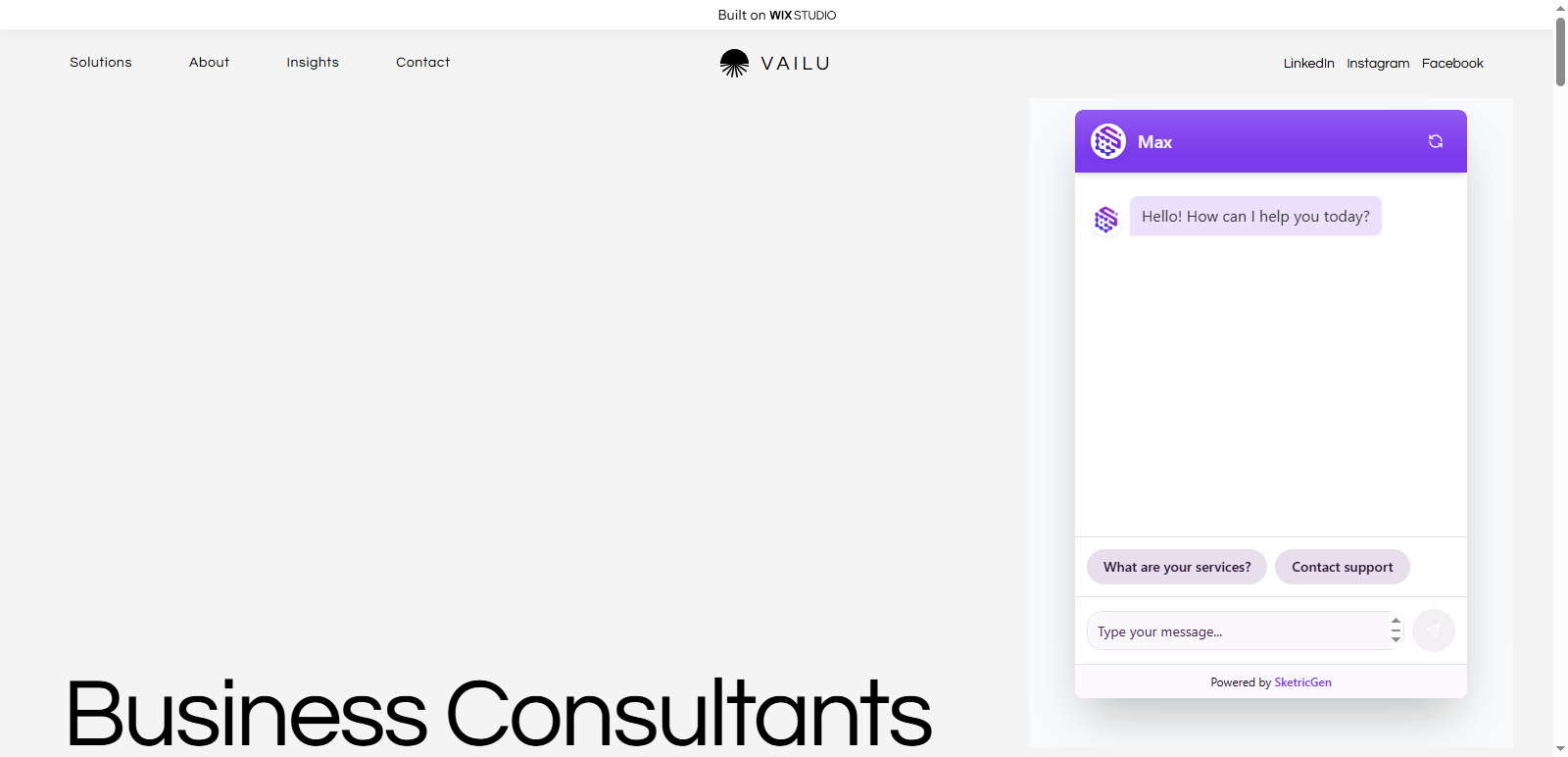
- Inline iFrame (Manual)
Before you start
You need:- A SketricGen account with at least one Brand Agent. If you do not have one yet, create a Brand Agent.
- Wix permission to install or manage apps and publish the site. A site owner, co-owner, or collaborator with an appropriate custom role can complete the setup.
Step 1: Make your Brand Agent public and published
In SketricGen, open your Brand Agent and select the Deploy tab.- Set Visibility to Public. The page confirms that your agent is publicly accessible.
-
Select Publish Now if the agent has unpublished changes.
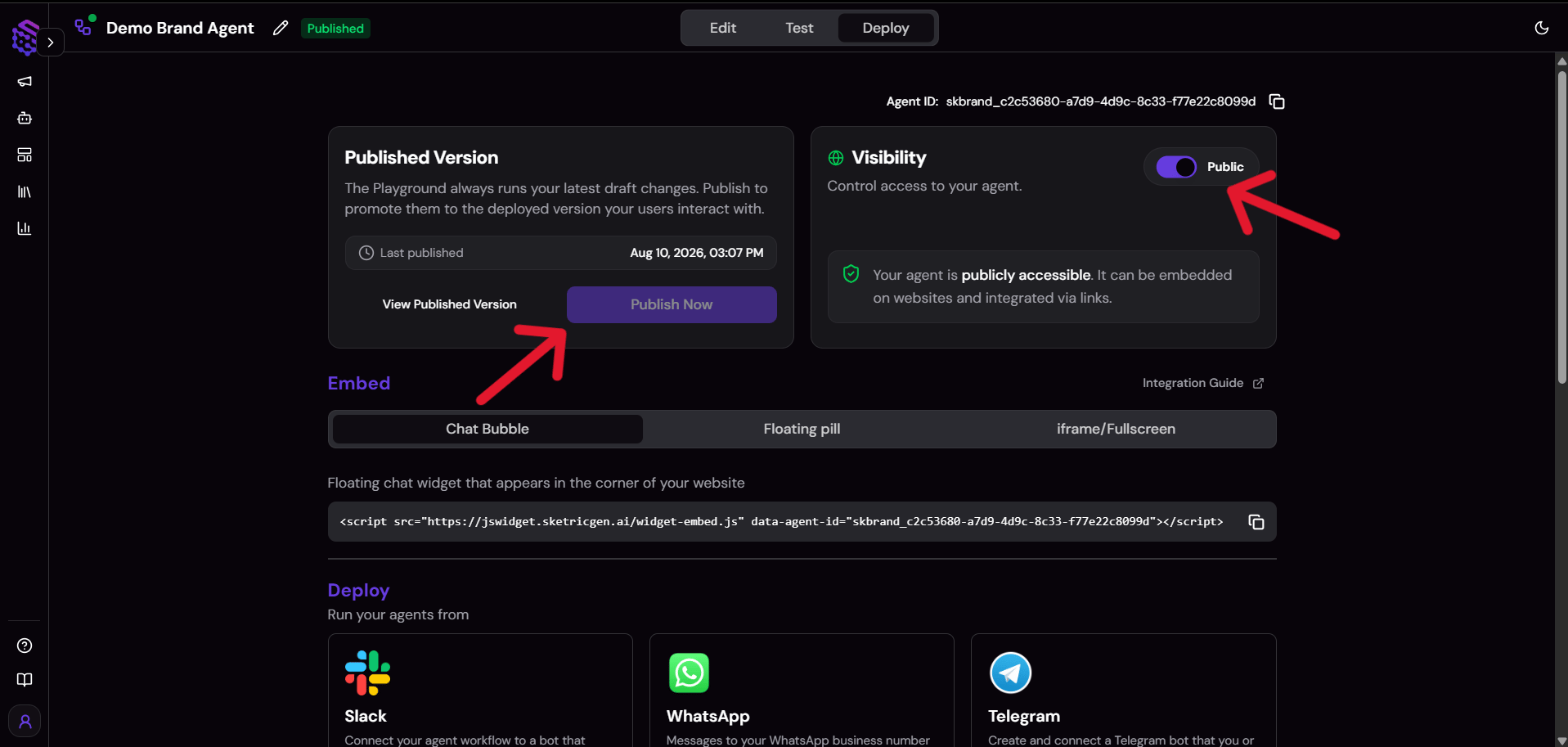
Note: Wix lists only Brand Agents that are active, published, set to Public, and editable by your account. If an agent is missing from the connection list, verify these settings before trying again.
Step 2: Open the Wix App Market
From your Wix site dashboard, go to Apps → App Market.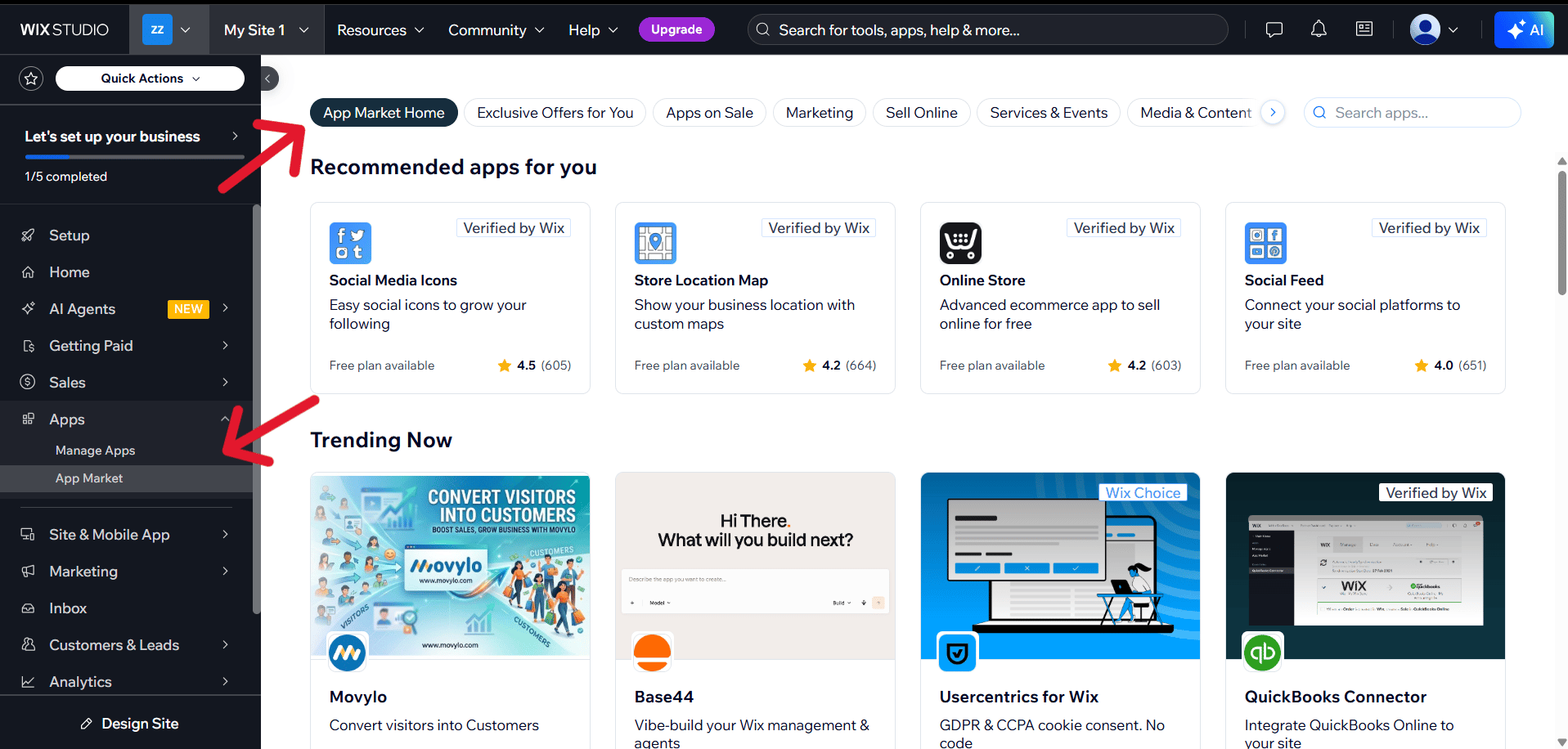
Step 3: Find the SketricGen Brand Agent app
Search for SketricGen, then select SketricGen Brand Agent from the results.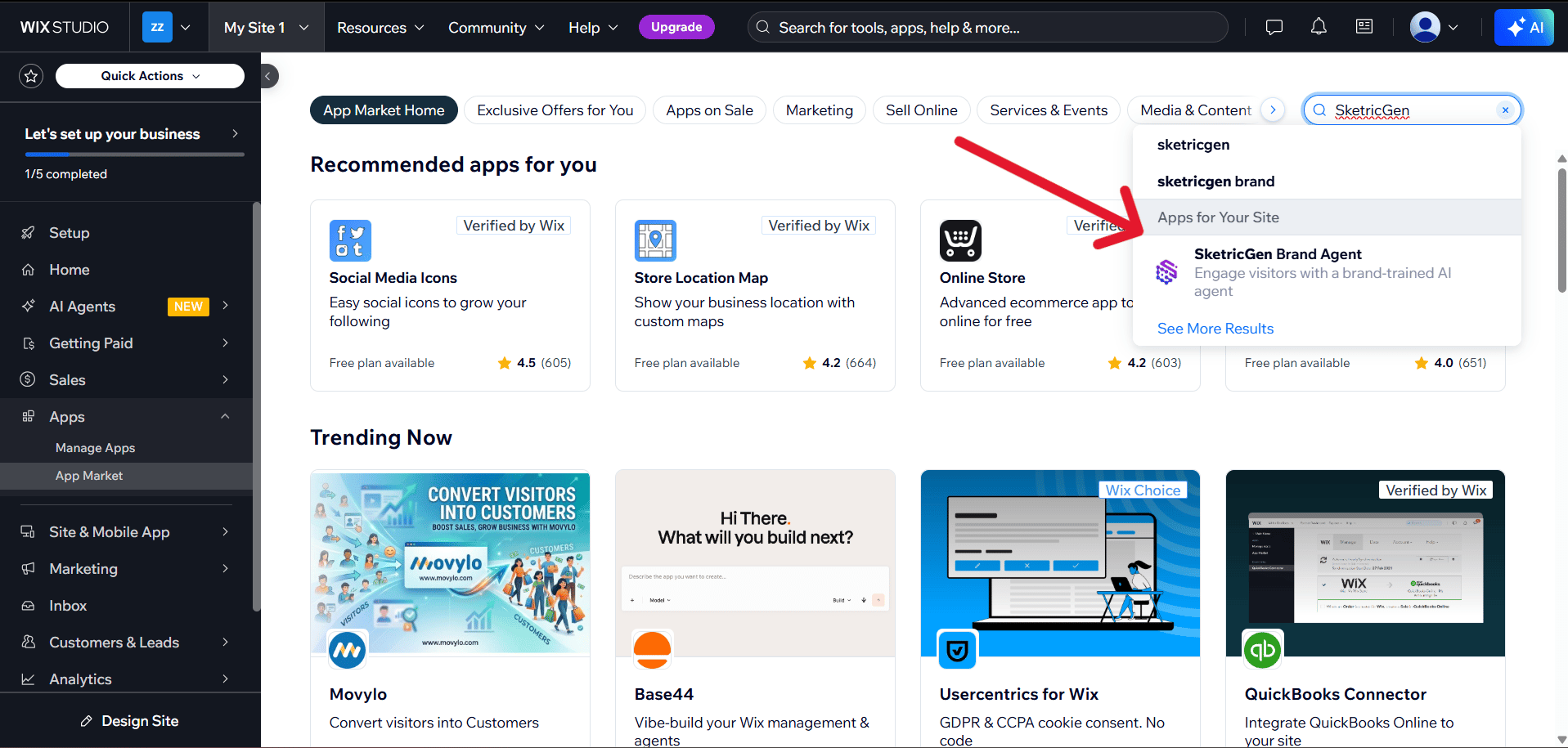
Step 4: Add the app to your site
On the app page, select Add to Site and accept the permissions requested by Wix. The app is free to install.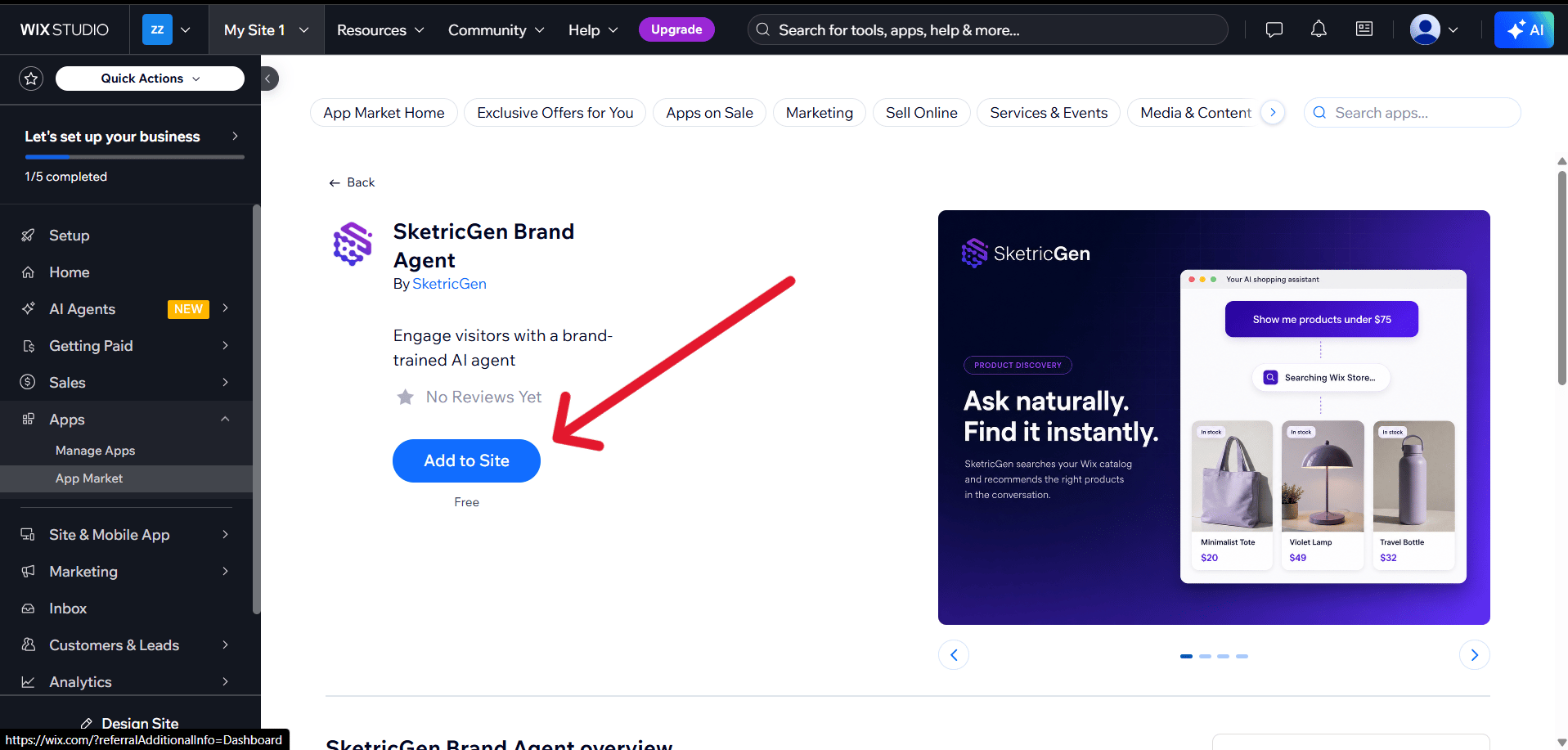
Step 5: Start the connection
The app appears in your dashboard under Apps → SketricGen Brand Agent. Open it, then select Connect Brand Agent in 01 Connect your Brand Agent. A SketricGen window opens.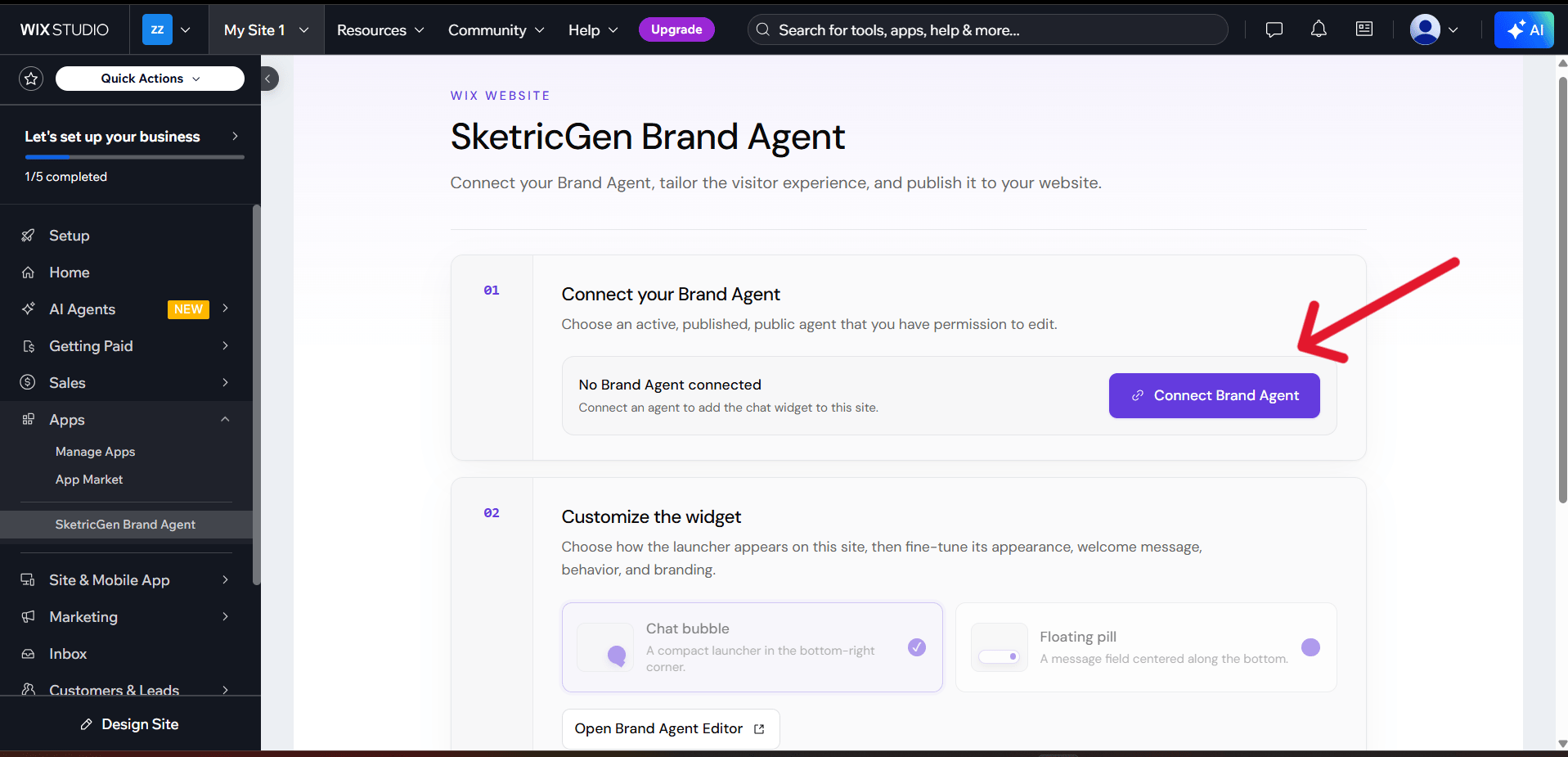
Note: If the connection window does not open, allow popups for Wix and select Connect Brand Agent again.
Step 6: Sign in to SketricGen
Sign in with the account that can edit the Brand Agent you want to connect. Continue with Google or your email address.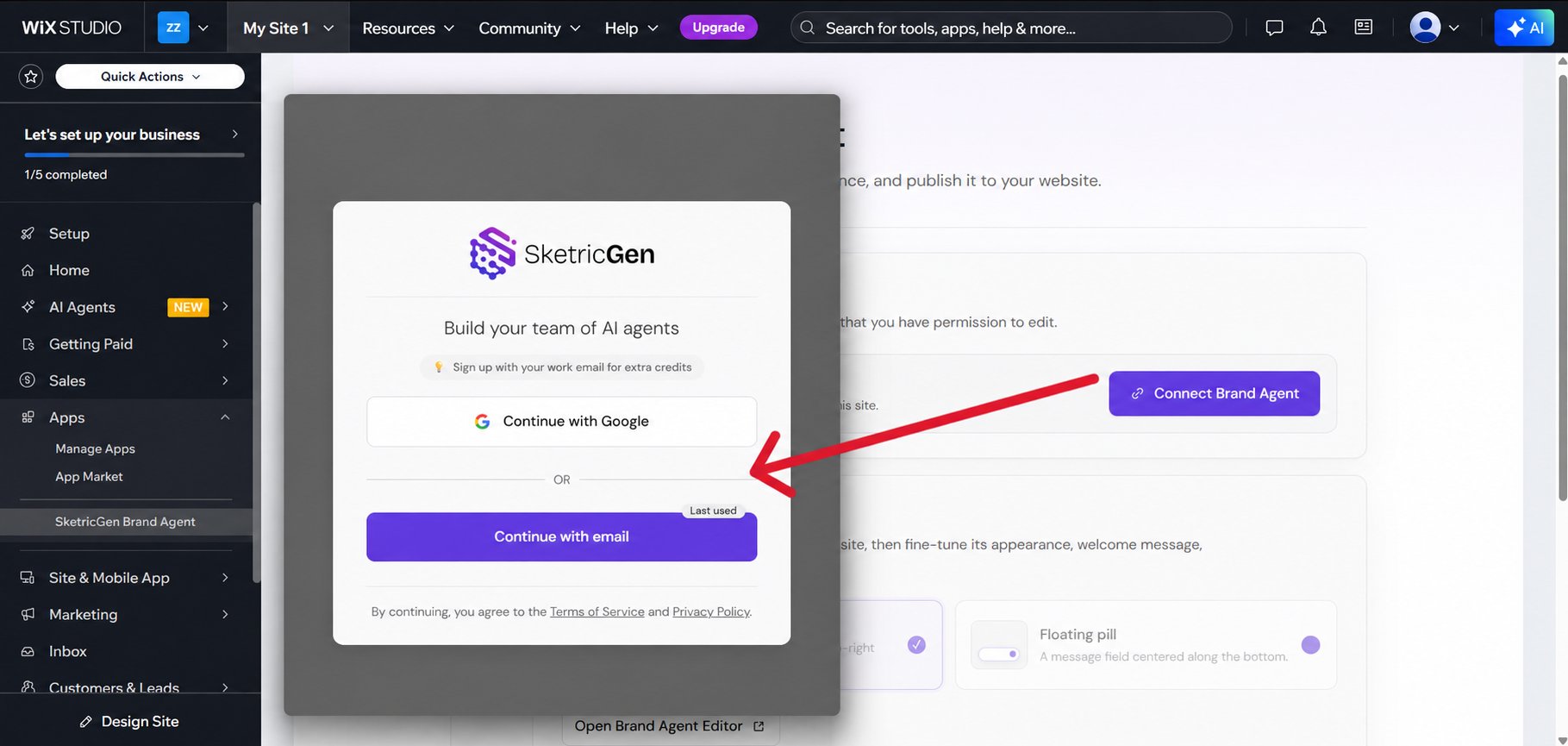
Step 7: Choose and connect your Brand Agent
Open the Brand Agent list and select the agent you want to use. Each entry includes its Teamspace and Project so that you can distinguish agents with similar names. Then select Connect agent.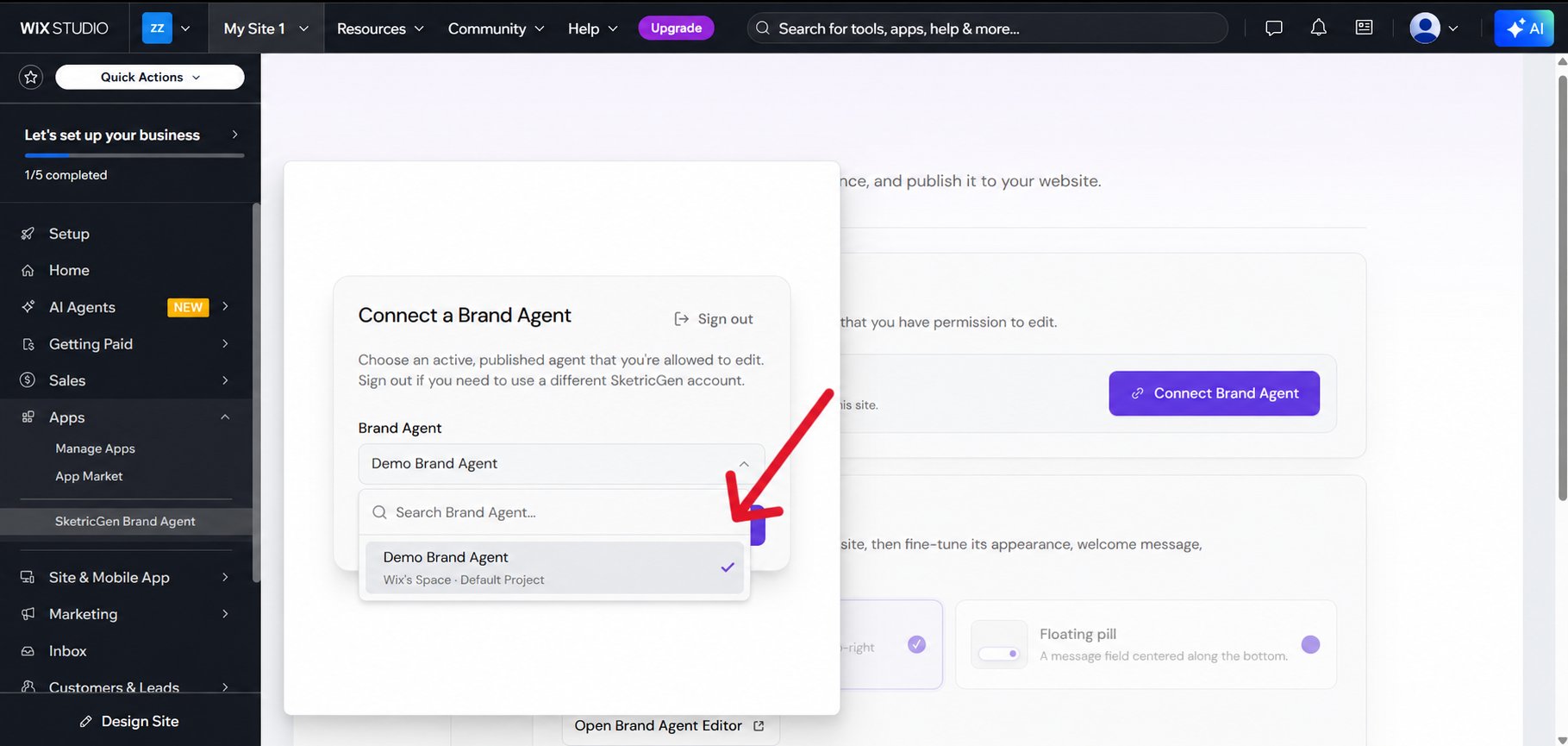
Step 8: Choose the launcher and enable the widget
Under 02 Customize the widget, choose how visitors open the Brand Agent:- Chat bubble: A compact launcher in the bottom-right corner.
- Floating pill: A message field centered along the bottom of the page.
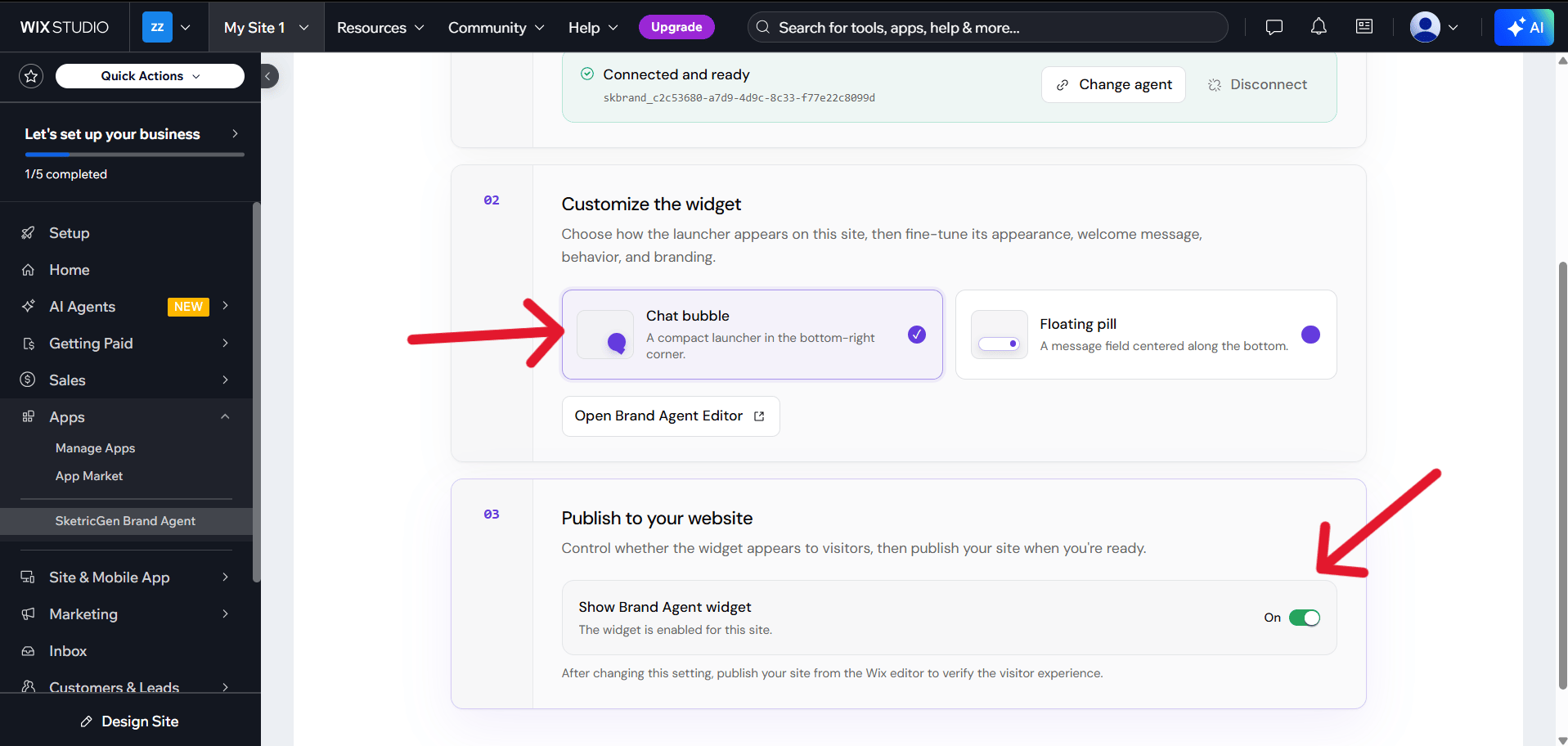
Step 9: Publish and test your site
Publish your site from the Wix editor, then open the live site. The Brand Agent widget appears with the welcome message configured in SketricGen.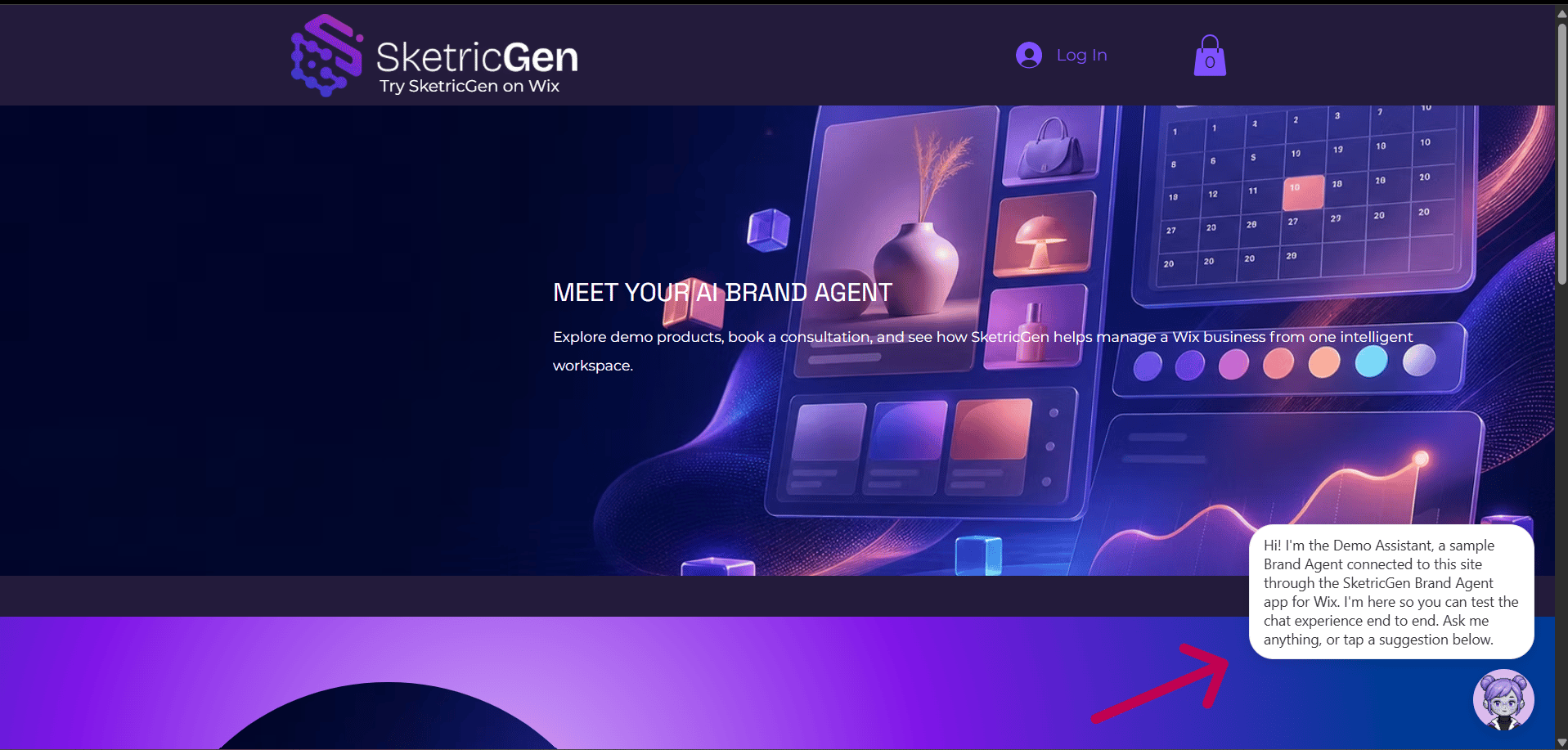
Customize the widget
Appearance, welcome message, suggested questions, knowledge, and behavior are managed in SketricGen. From the Wix app, select Open Brand Agent Editor, or open the agent directly at sketricgen.ai, and then select Customize Widget.Publish changes in SketricGen to send them to the live Wix widget without republishing your Wix site.Note: The launcher style is stored in Wix. After switching between Chat bubble and Floating pill, publish the Wix site again.
Change, hide, or disconnect the agent
From the app setup page:- Change agent: Connect a different Brand Agent to the site.
- Disconnect: Unlink the agent and remove its widget. The Brand Agent and its content remain in SketricGen.
- Show Brand Agent widget → Off: Hide the widget without disconnecting the agent.