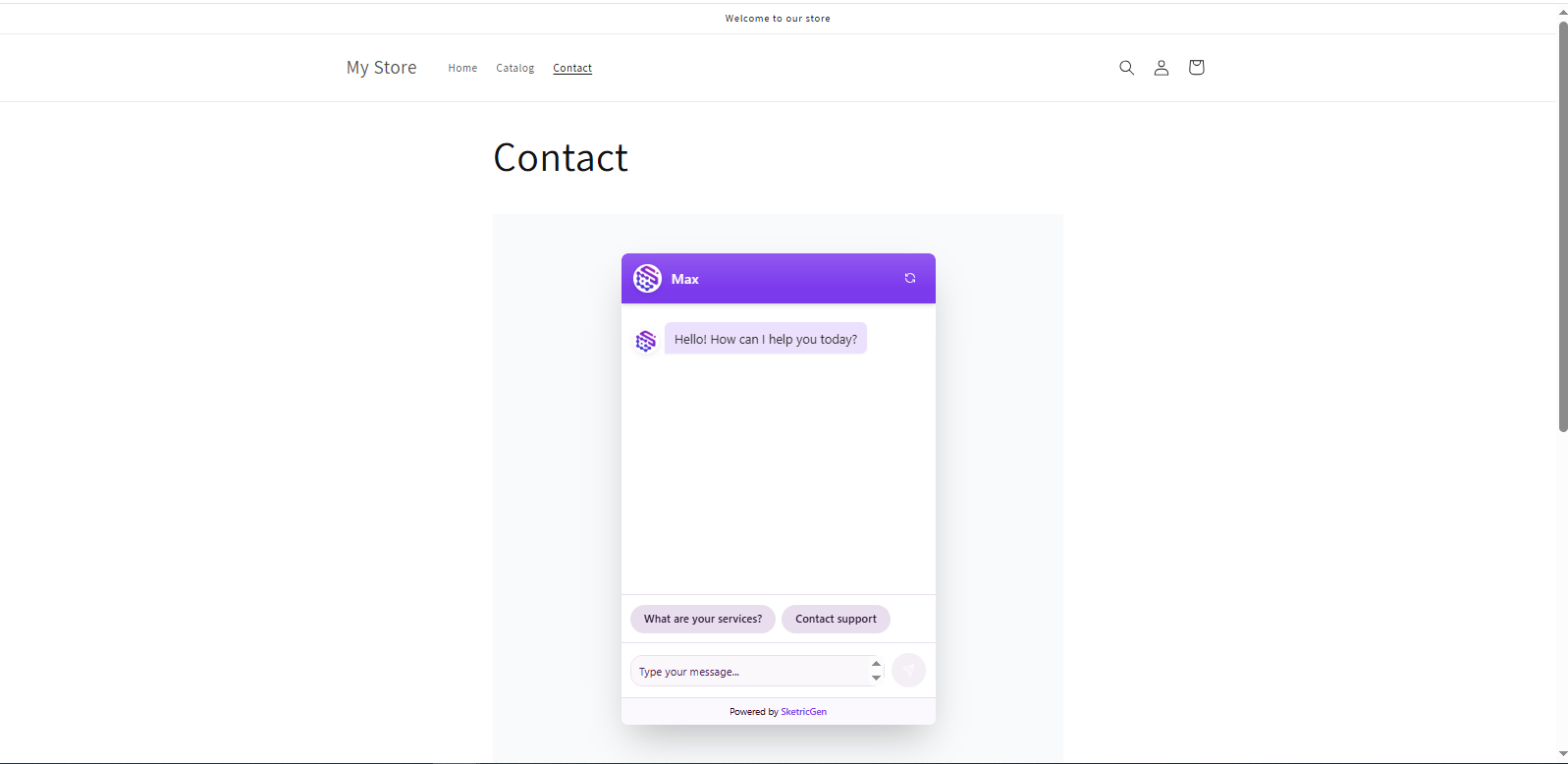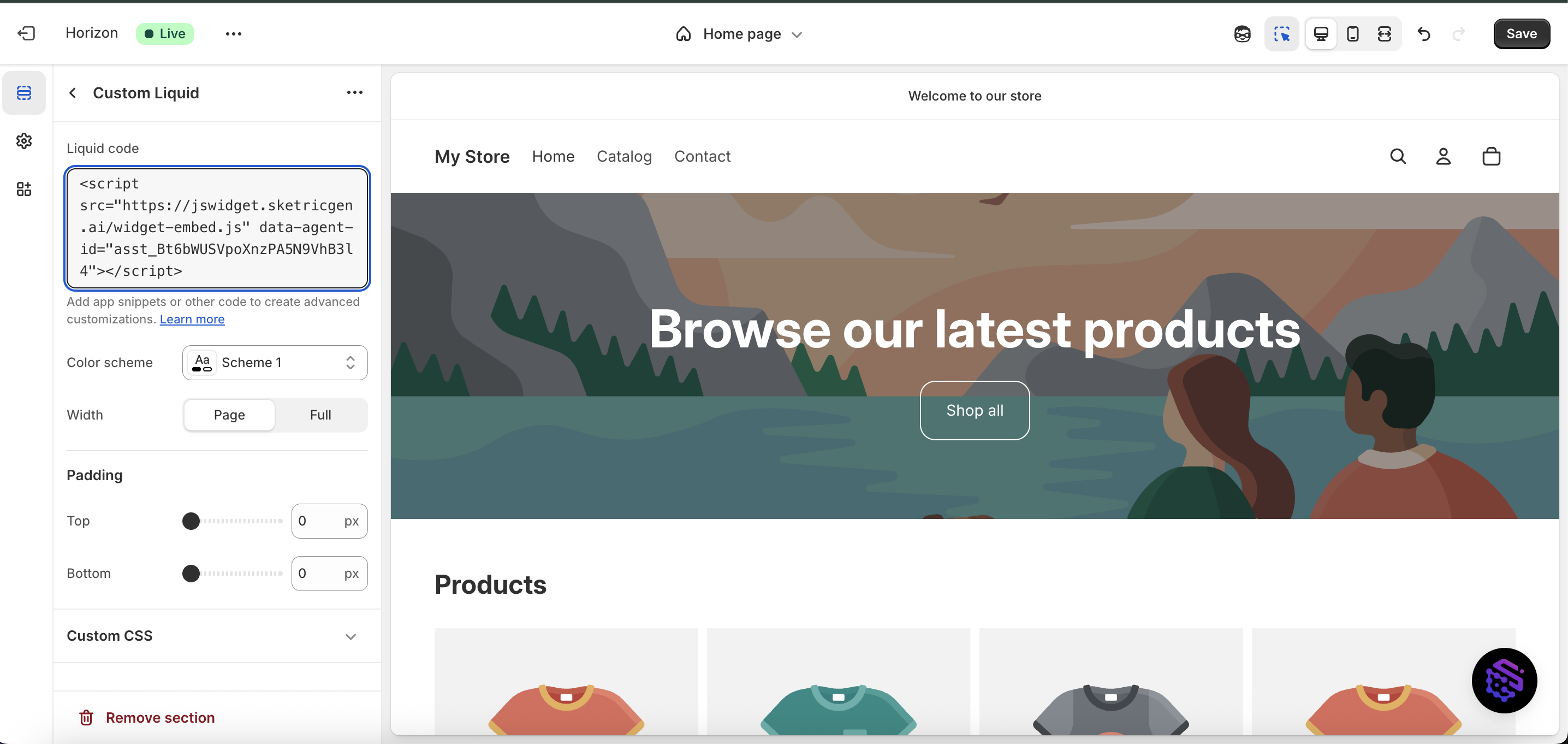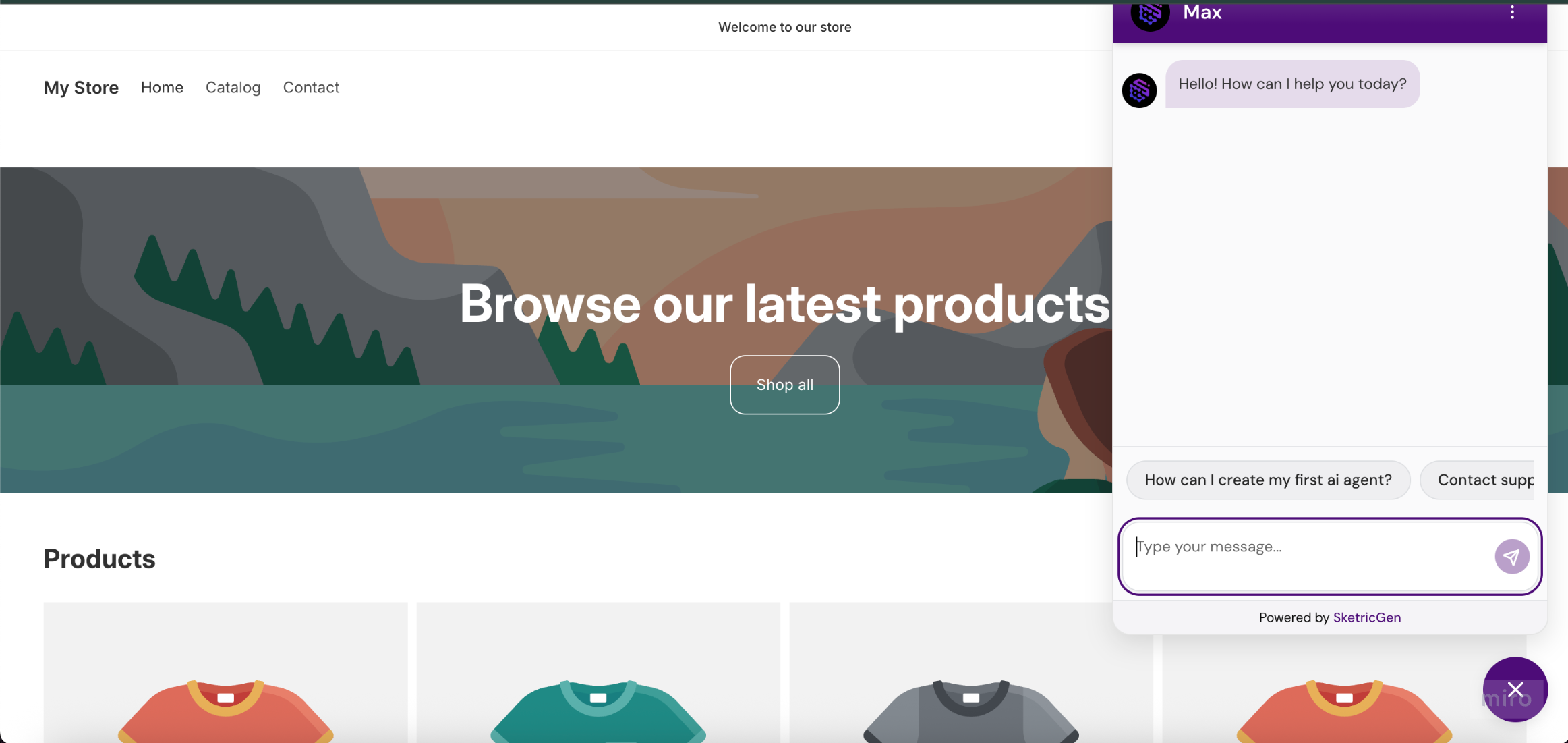

- Inline iFrame Embed
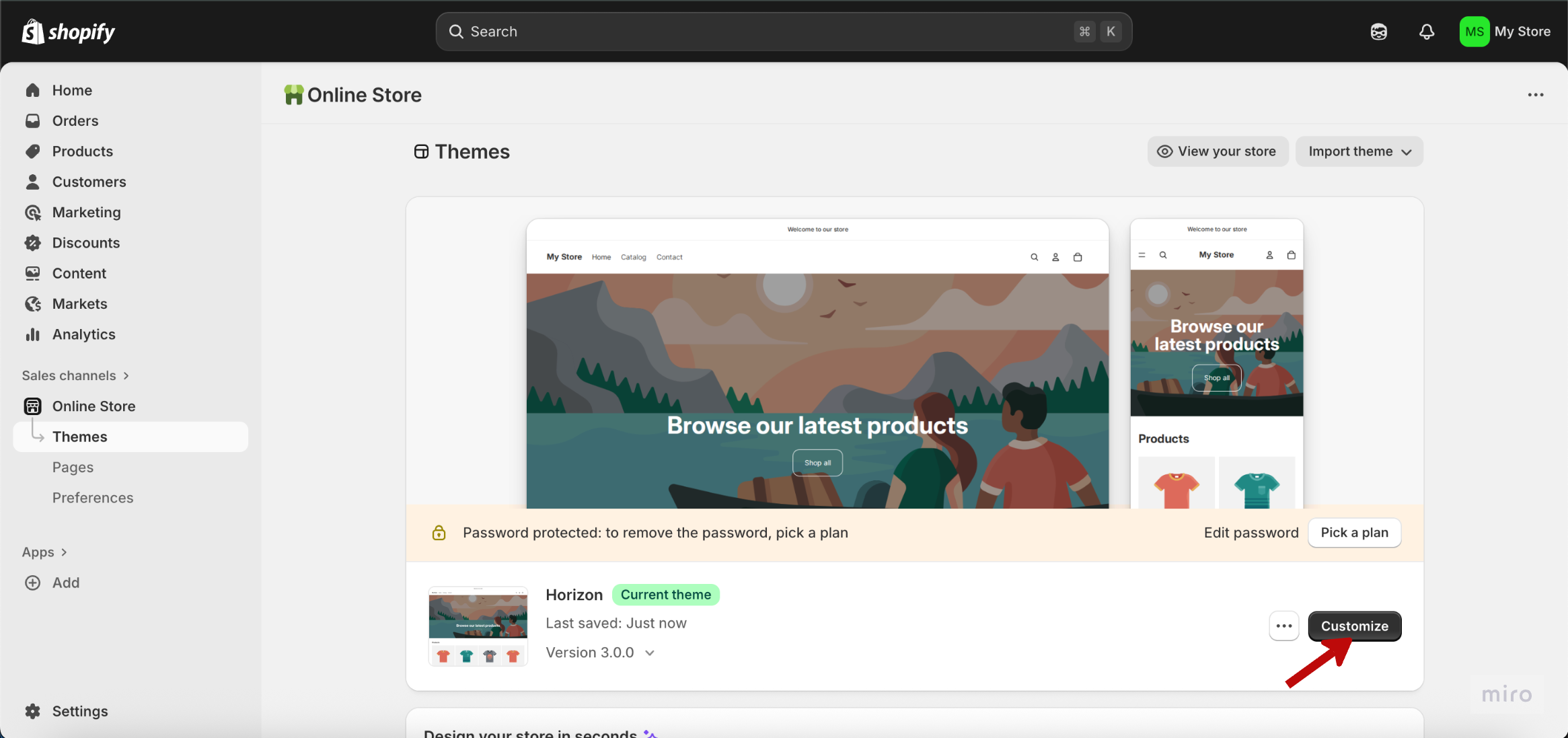
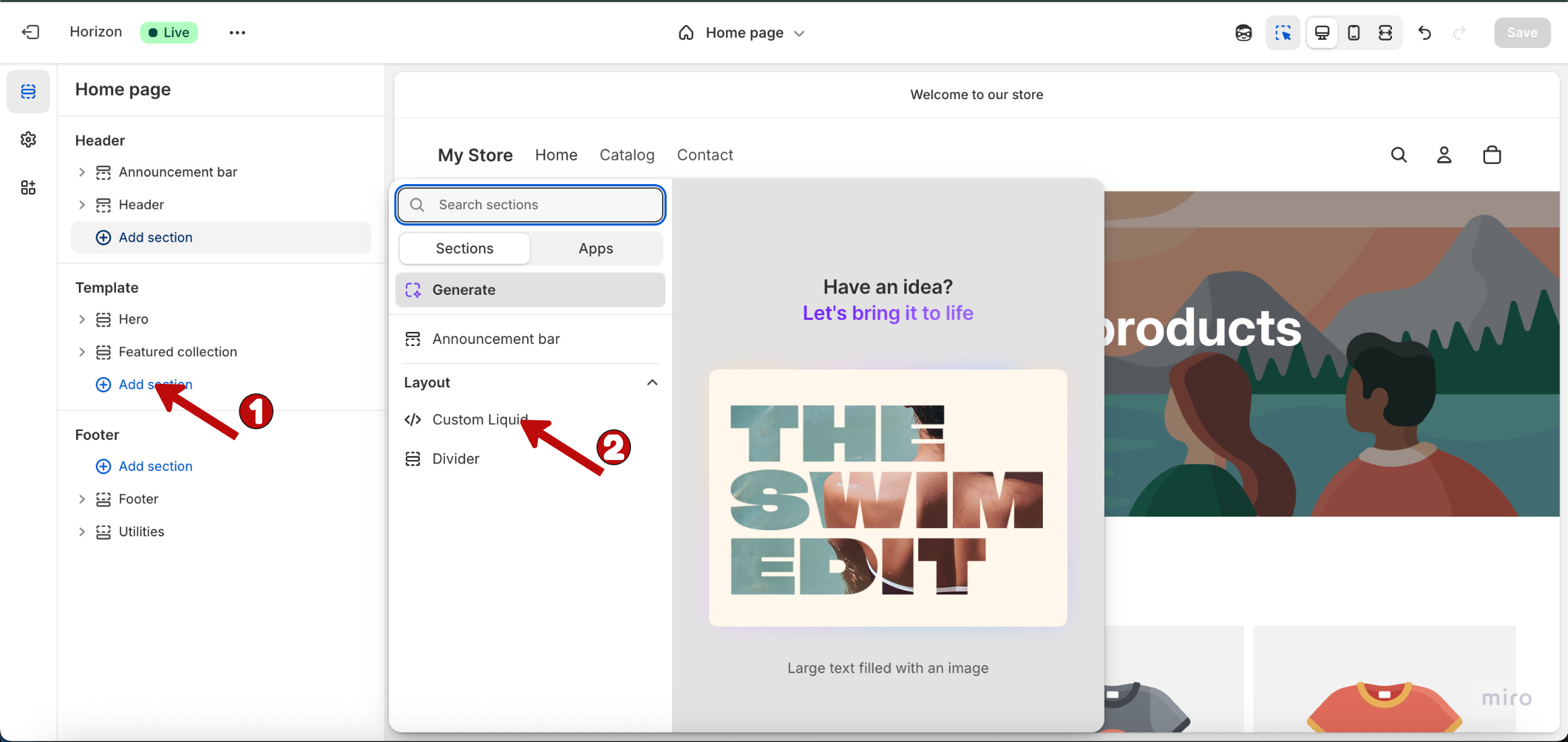
- Floating Chat bubble
Step 1: Create your SketricGen account
To get started with the integration, sign in to your SketricGen account. If you don’t have an account yet, you can create one for free. Once you’re logged in, begin setting up your Brand Agent by uploading your data sources. These can include files, text snippets, websites, or Q&A pairs, which will serve as the knowledge base for your Brand Agent.Use this path when you want an ecommerce chatbot on a specific Shopify page, such as Contact, FAQ, product guidance, or demo request pages.If you need assistance with setting up a working SketricGen Brand Agent, refer to the step-by-step guide for creating and deploying your Brand Agent.Step 2: Copy the SketricGen Brand Agent embed code
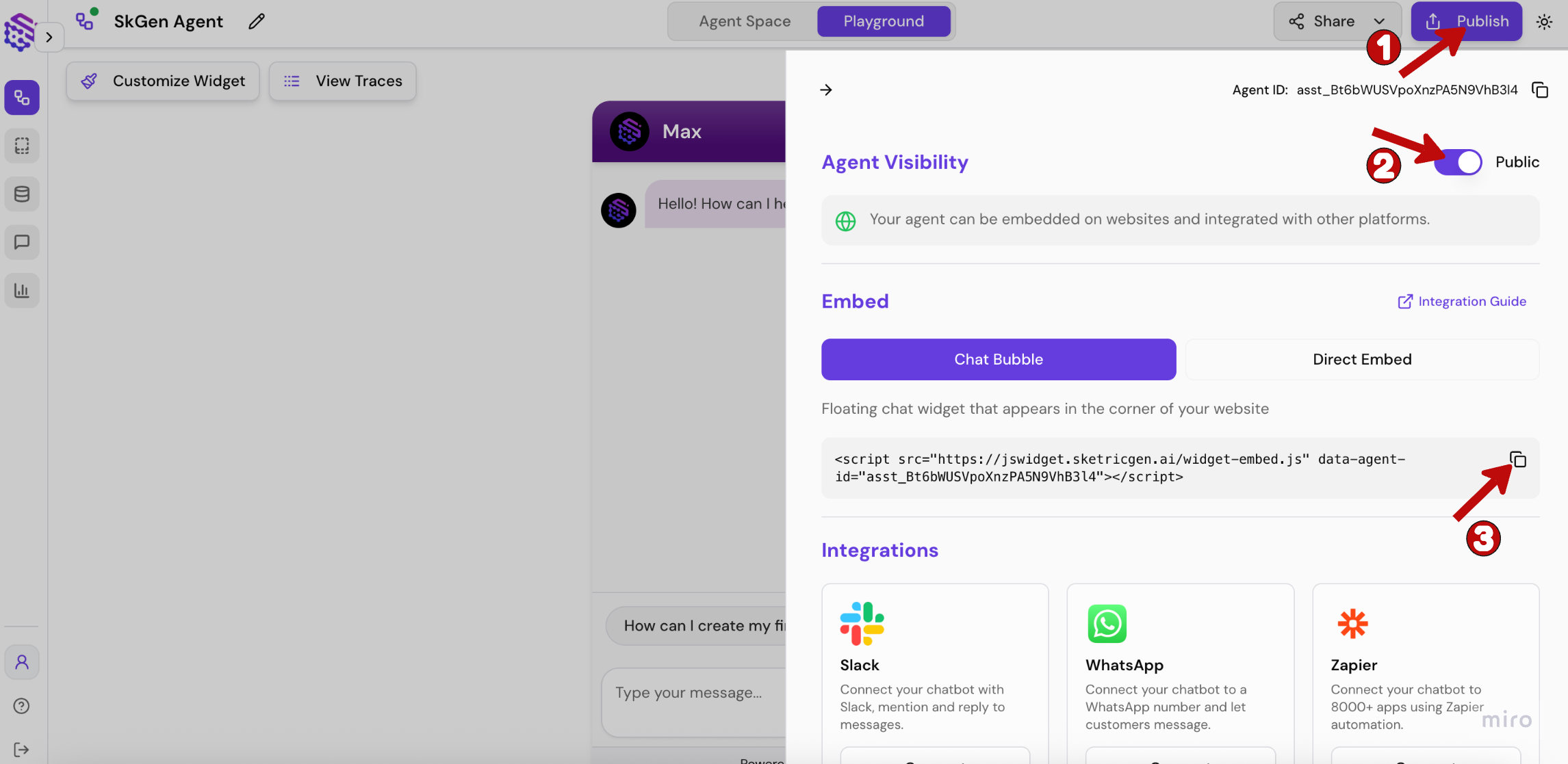
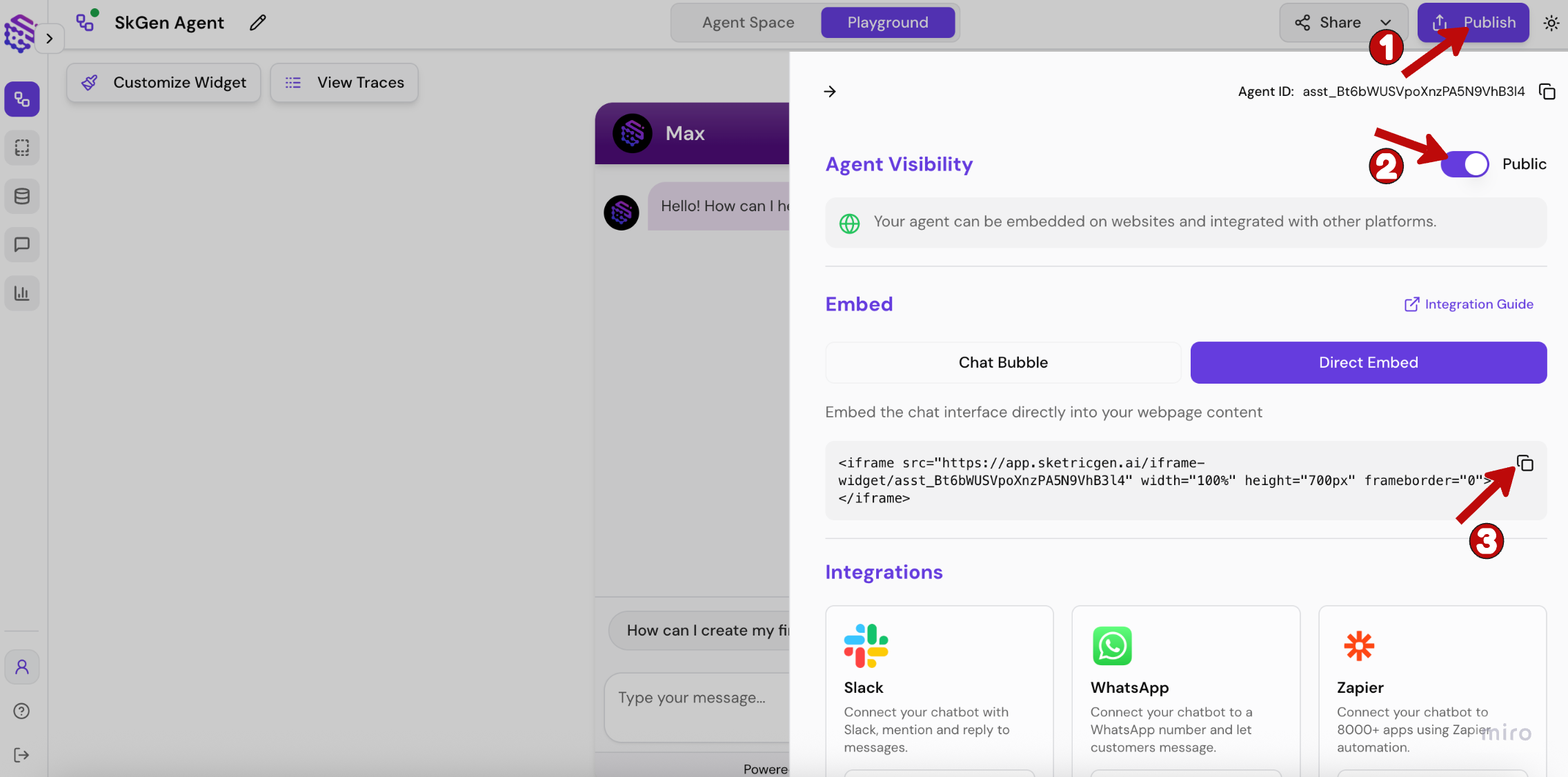
After configuring your Brand Agent, go to the Brand Agent dashboard and click Publish > Direct Embed to copy the iframe embed code.Note: Ensure your Brand Agent is set to Public to make it accessible on your Shopify website.
Step 3: Sign into your Shopify website and embed your Brand Agent
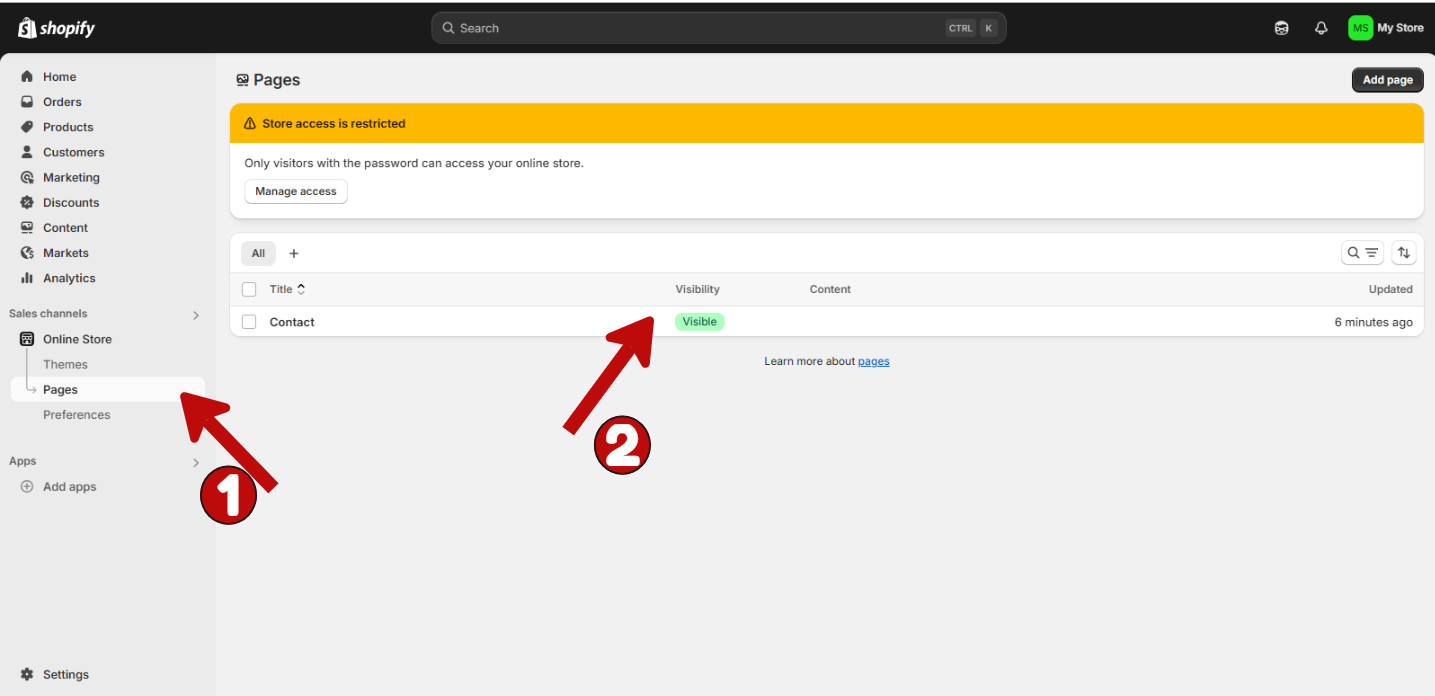
1. Log into your Shopify admin dashboard.
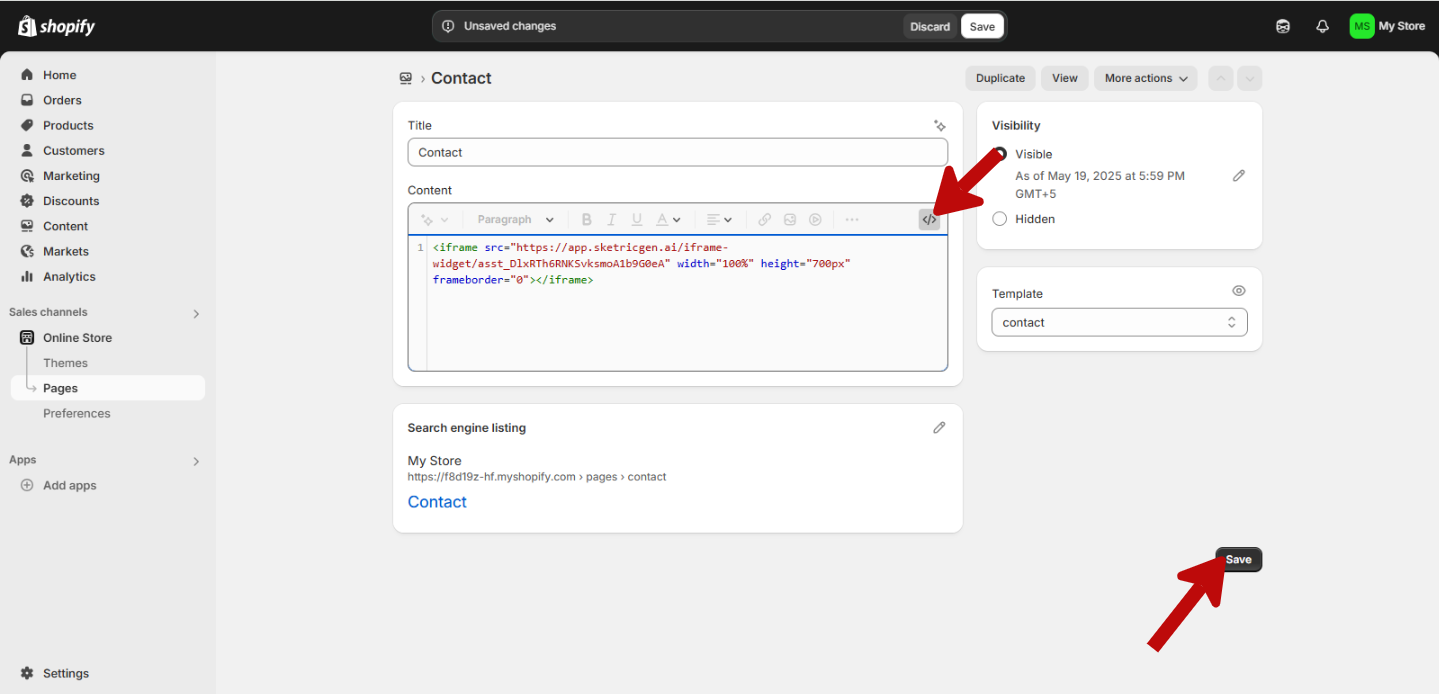
2. From the left-hand menu, go to Online Store → Pages.
3. Choose the page you want to edit. (In this example, we’re embedding the Brand Agent on the Contact page.)
4. Paste the embed code into the HTML/code editor, then click Save.
Step 4: Test your widget after publishing