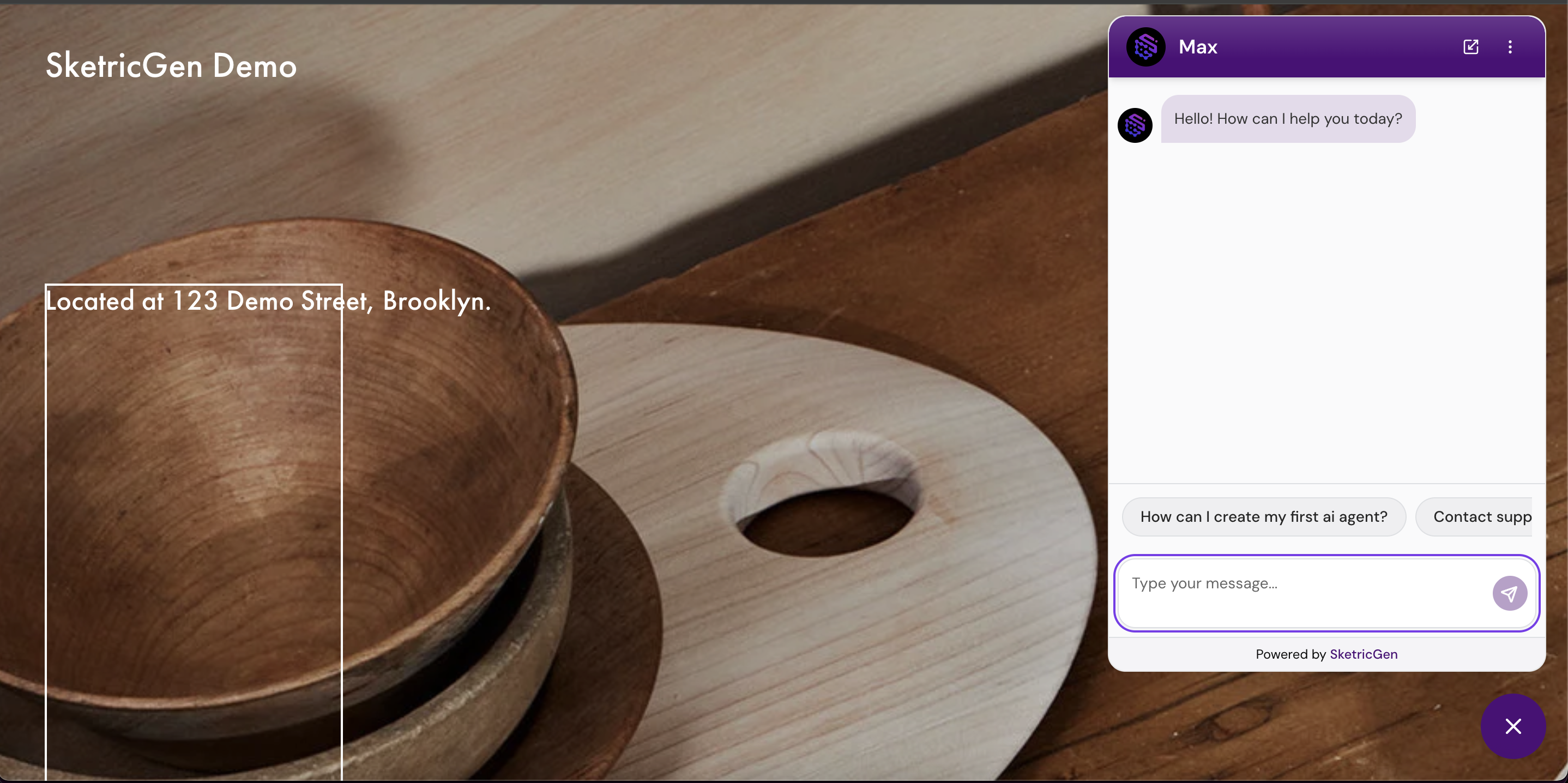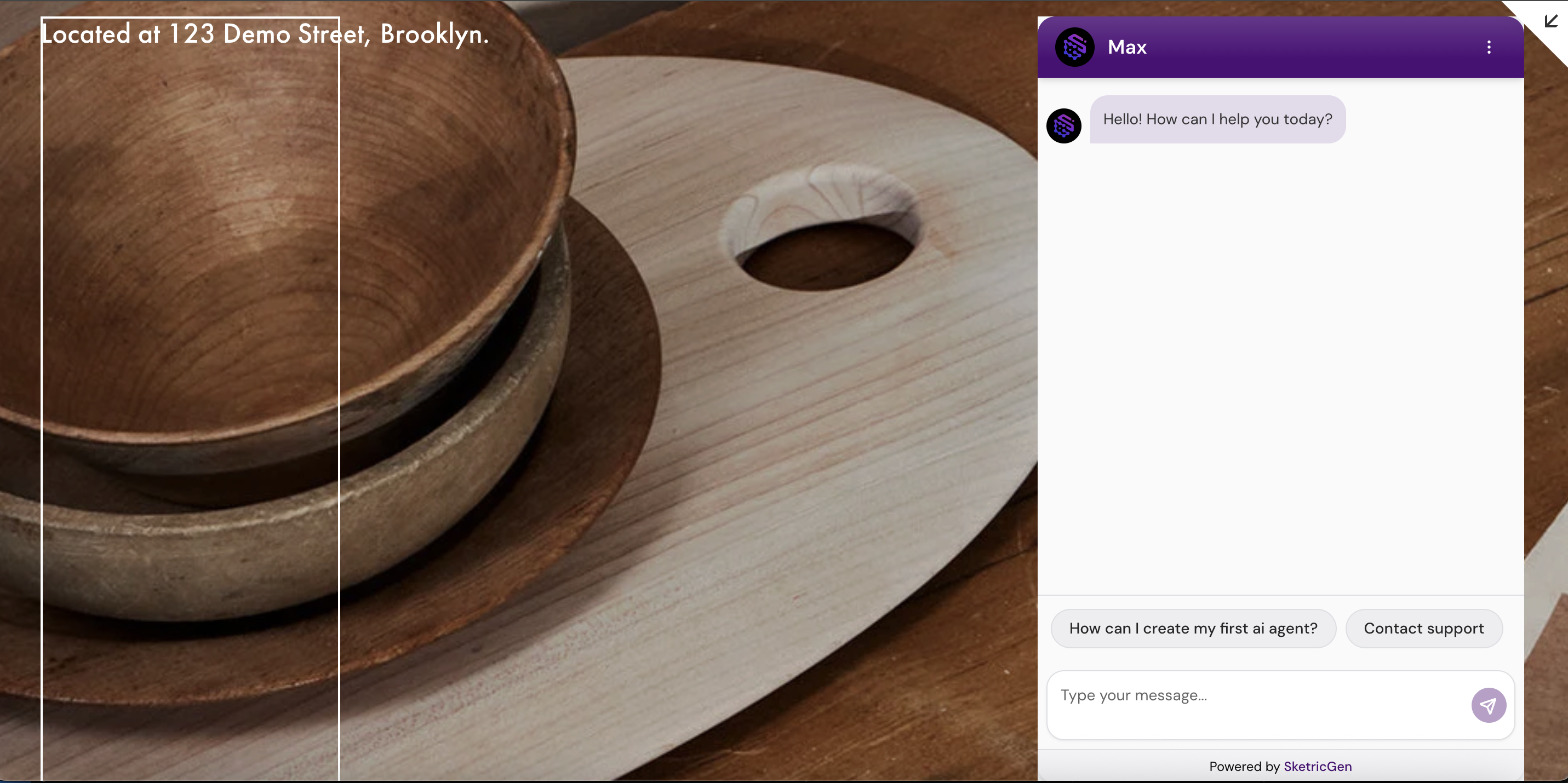

- Floating Chat Bubble
- Inline iFrame Embed
Step 1: Create your SketricGen account
To get started with the integration, sign in to your SketricGen account. If you don’t have an account yet, you can create one for free. Once you’re logged in, begin setting up your Brand Agent by uploading your data sources. These can include files, text snippets, websites, or Q&A pairs, which will serve as the knowledge base for your Brand Agent.Use this path when you want a Squarespace website chatbot for lead capture, support intake, product guidance, or visitor questions.If you need assistance with setting up a working SketricGen Brand Agent, refer to the step-by-step guide for creating and deploying your Brand Agent.Step 2: Copy the SketricGen Brand Agent Embed Code
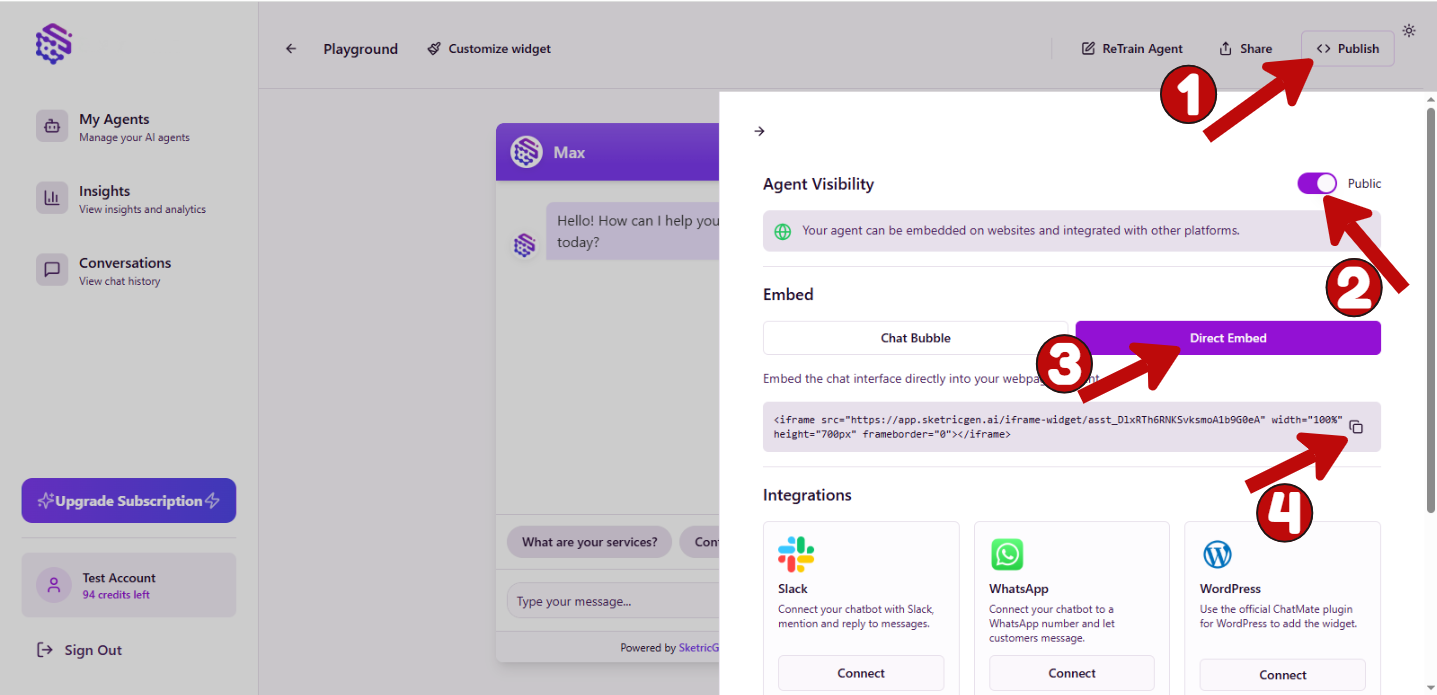
After configuring your Brand Agent, go to the dashboard and click Publish to copy the embed code.Note: Make sure your Brand Agent is set to Public to embed it on your Squarespace site.
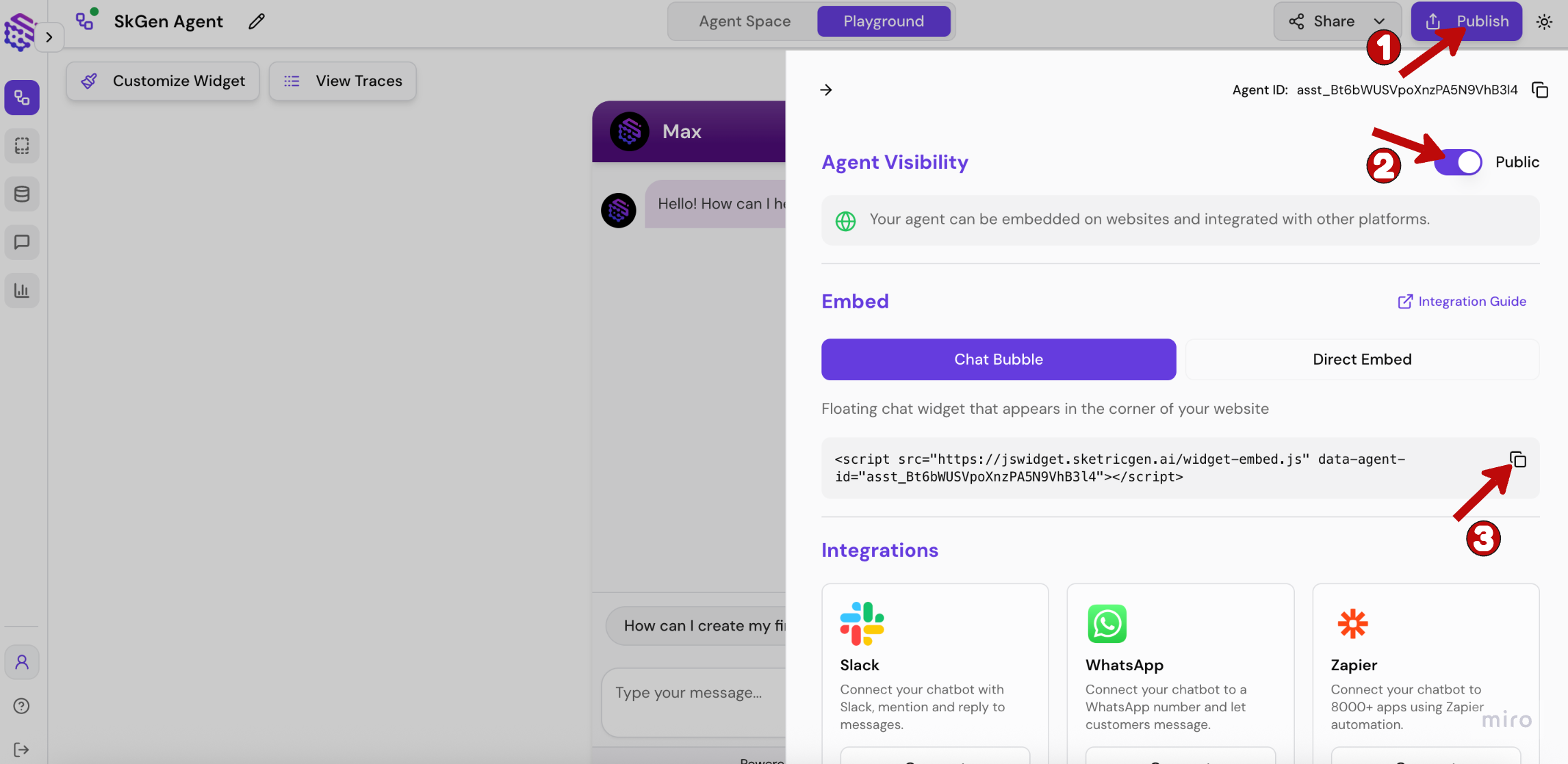
Step 3: Sign in to your Squarespace account and embed your Brand Agent
1. Sign in to your Squarespace account and open the dashboard
2. Select the site you want to embed the Brand Agent on
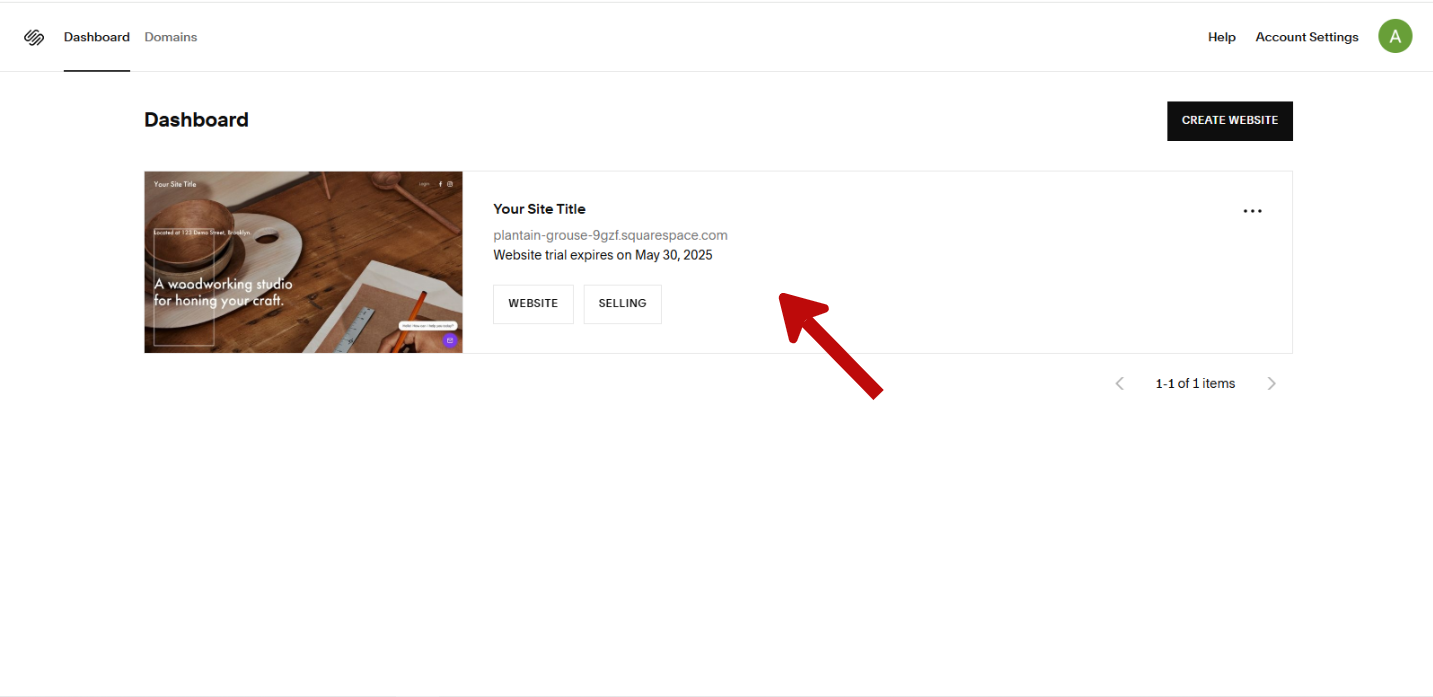
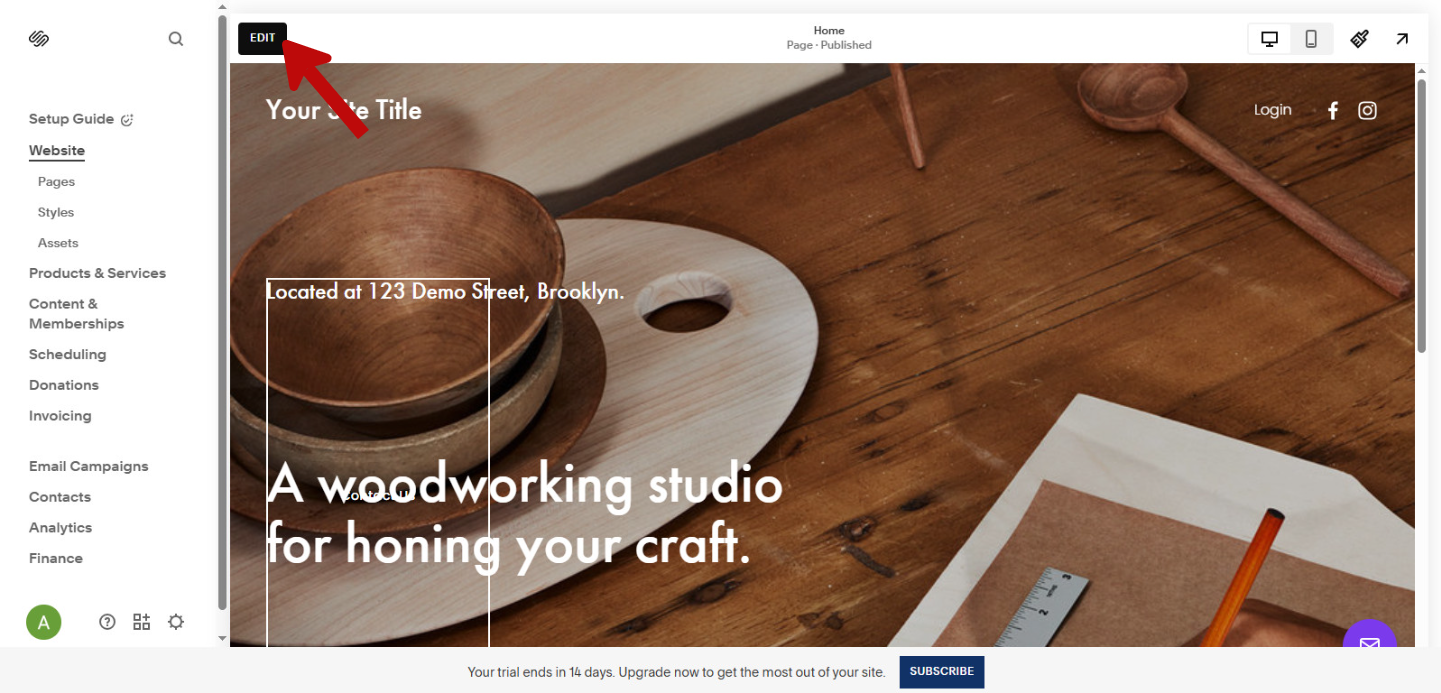
3. Click Edit
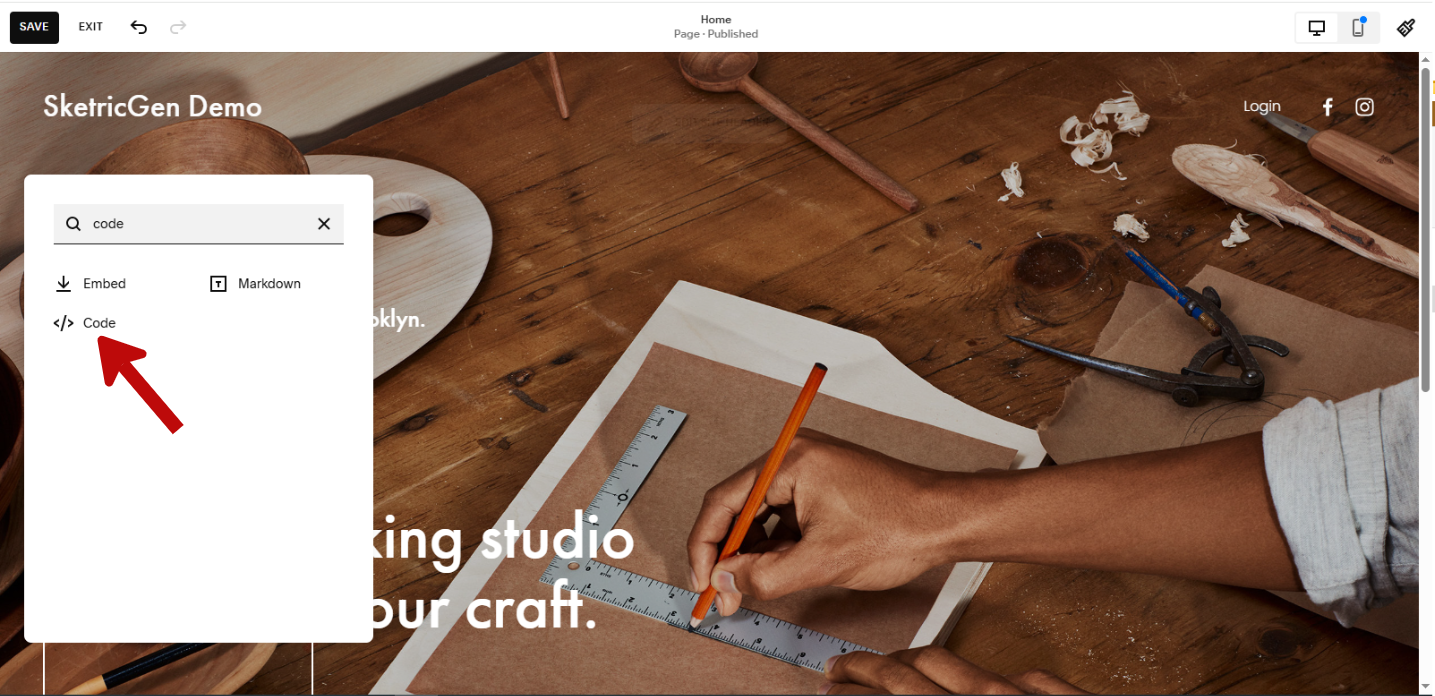
4. Click Add Block
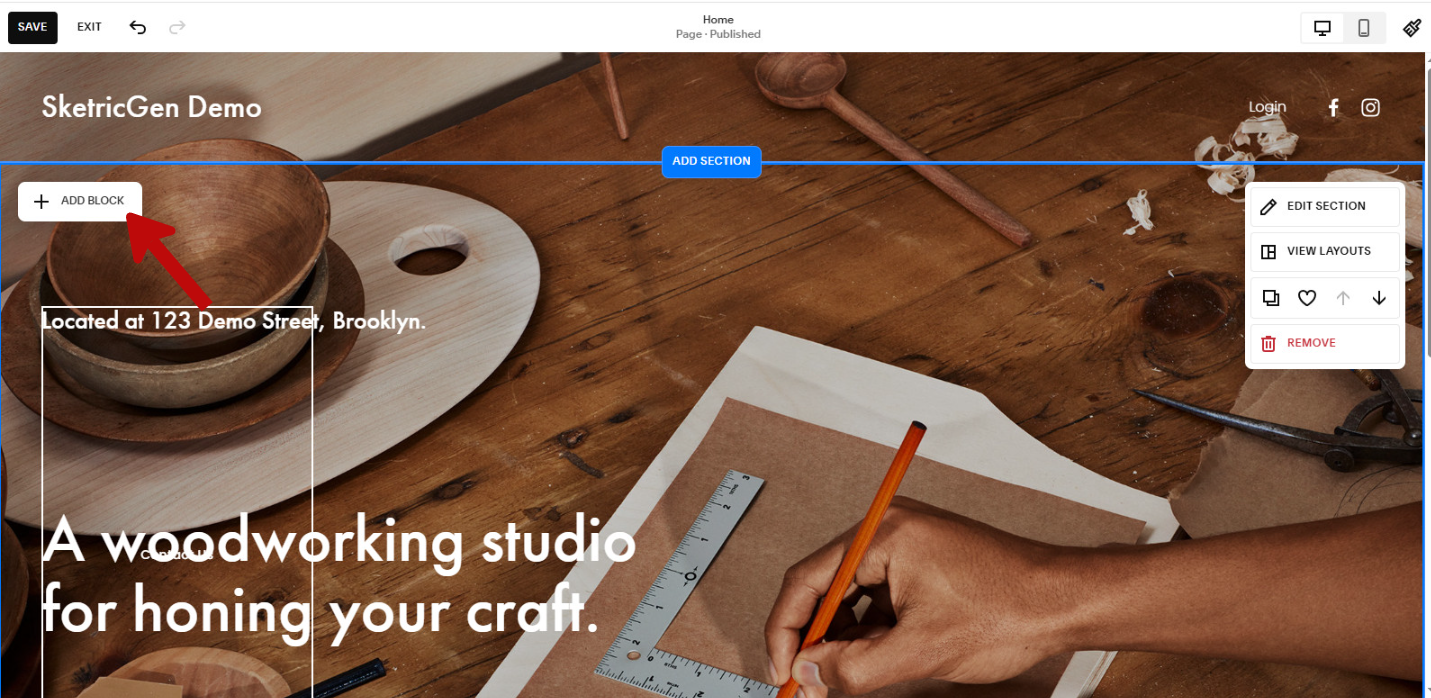
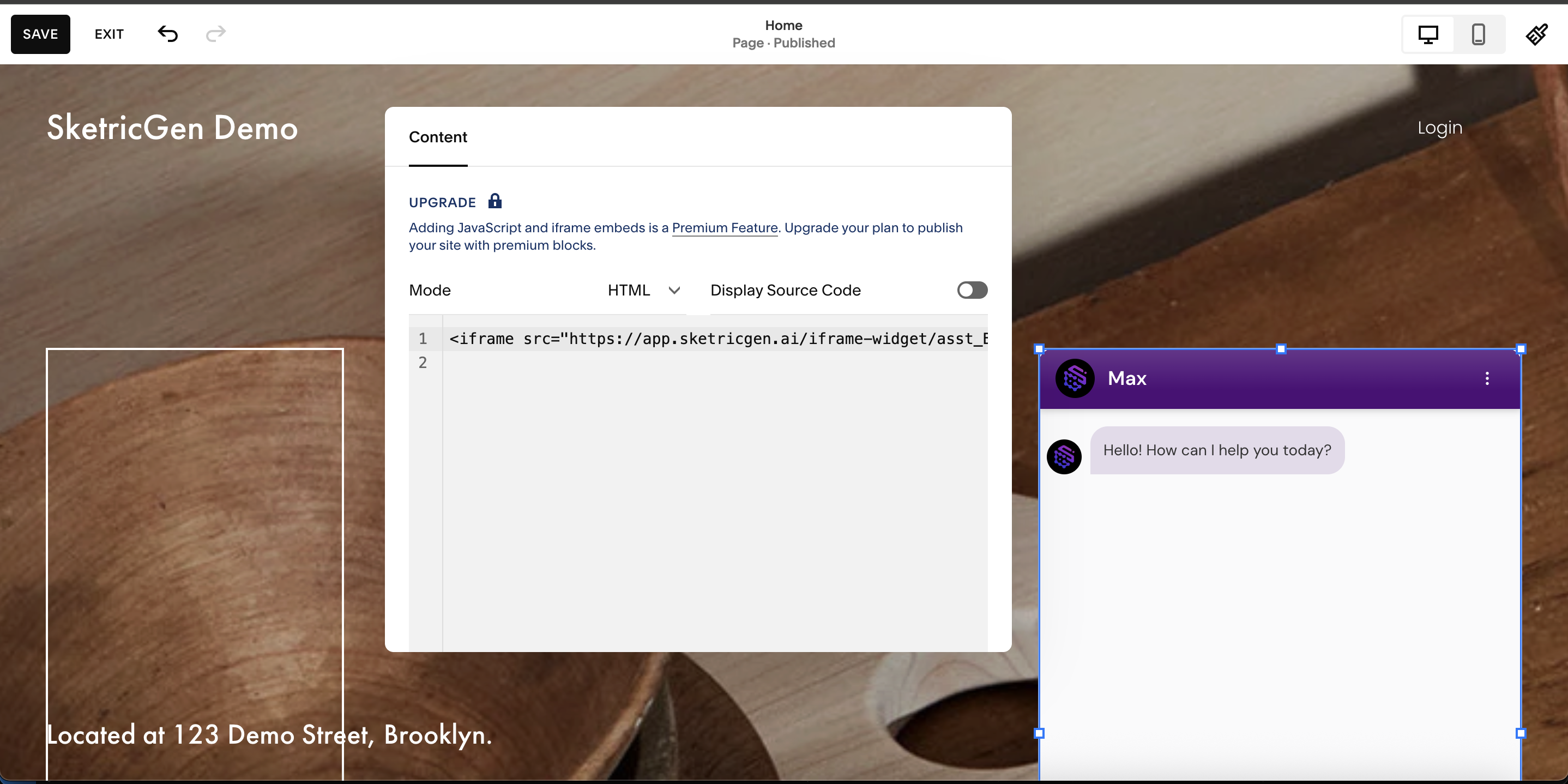
5. Select Code and paste the embed code you copied in Step 2
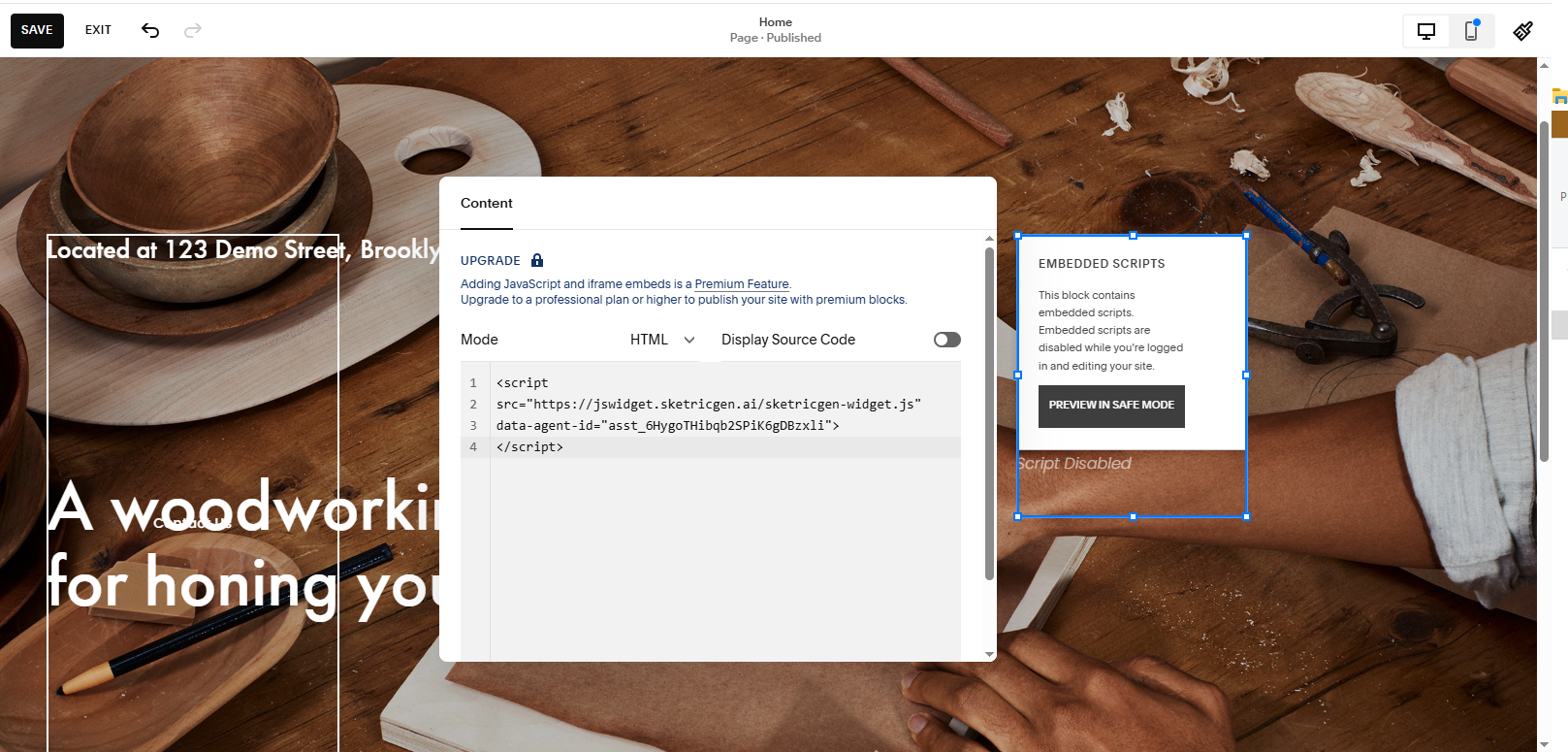
6. Adjust the position of the widget and click Save
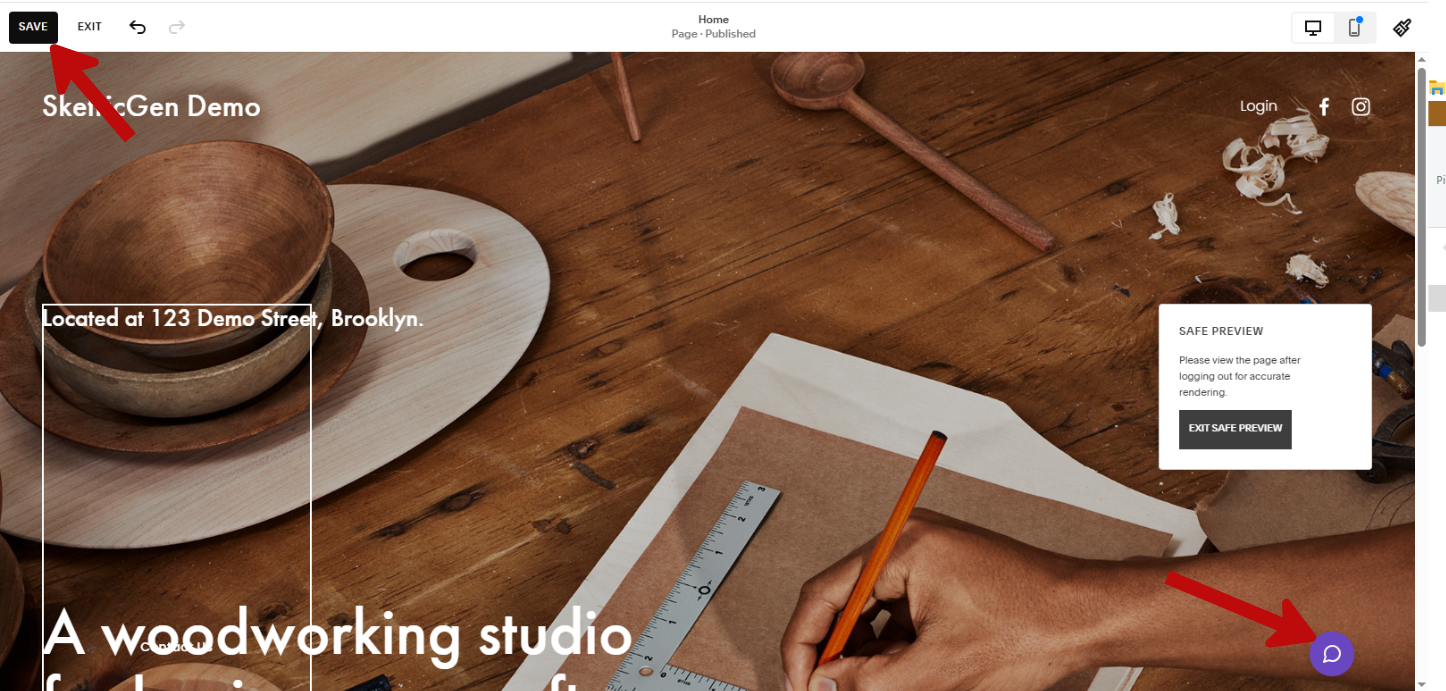
Step 4: Test your widget after publishing