Documentation Index
Fetch the complete documentation index at: https://docs.sketricgen.ai/llms.txt
Use this file to discover all available pages before exploring further.
Overview
This guide covers the model configuration options available for fine-tuning agent behavior. These settings allow you to balance between creativity, consistency, and performance.
Model Settings Overview
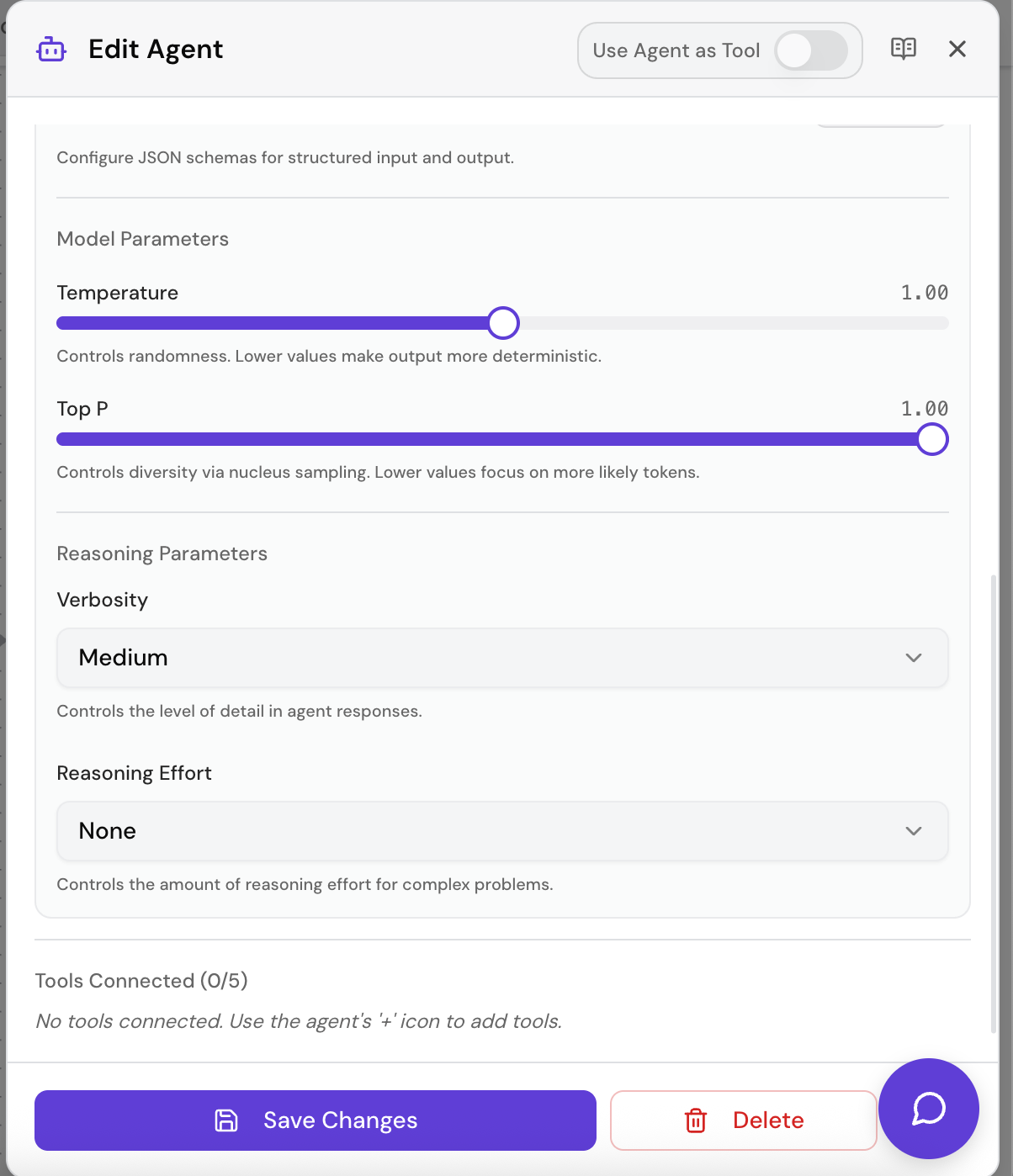
Each agent in SketricGen can be configured with specific model settings that control how the underlying LLM generates responses. You can adjust these in the agent node’s settings panel within the AgentSpace.
Temperature
What it does: Controls the randomness/creativity of the model’s output.
| Value | Behavior |
|---|
0.0 | Deterministic — always picks the most likely token. Best for factual, consistent responses. |
0.3 - 0.5 | Low creativity — slightly varied but mostly predictable. Good for customer support, data extraction. |
0.7 | Balanced (default for many models) — moderate variety. Good for general conversation. |
1.0 | High creativity — more random and diverse outputs. Good for brainstorming, creative writing. |
0.0 to 1.0
When to use low temperature (0.0 - 0.3):
- Customer support agents that need consistent answers
- Data extraction tasks
- Compliance-sensitive responses
- Structured output generation (JSON)
- Agents that call tools frequently
When to use high temperature (0.7 - 1.0):
- Creative writing agents
- Brainstorming assistants
- Varied response generation
- Conversational agents where variety is desired
Top P (Nucleus Sampling)
What it does: Controls diversity by limiting the token selection pool to the top cumulative probability mass.
| Value | Behavior |
|---|
0.1 | Very focused — only considers tokens in the top 10% probability mass |
0.5 | Moderate focus — considers top 50% probability mass |
0.9 | Broad sampling — considers most likely tokens up to 90% cumulative probability |
1.0 | No filtering — all tokens are considered (default) |
0.0 to 1.0
Temperature vs Top P
Both settings control output diversity, but in different ways:
| Setting | How it works |
|---|
| Temperature | Adjusts the probability distribution — makes unlikely tokens more or less likely |
| Top P | Cuts off the distribution — only considers tokens within a probability threshold |
- If you want predictable, focused outputs → Lower temperature to 0.0-0.3, keep top_p at 1.0
- If you want creative, varied outputs → Raise temperature to 0.7-1.0, or lower top_p to 0.9
Reasoning Effort (GPT-5.2 only)
What it does: Controls how much “thinking” effort the model applies before responding.
| Value | Behavior | Best For |
|---|
minimal | Quick responses with minimal reasoning chain | Simple lookups, quick Q&A |
low | Light reasoning — suitable for straightforward tasks | Standard conversations, simple instructions |
medium | Balanced reasoning depth (default) | General-purpose agents |
high | Deep reasoning — extensive thinking before responding | Complex analysis, multi-step problems |
When to use high reasoning effort:
- Complex analytical tasks
- Multi-step problem solving
- Code generation and debugging
- Mathematical reasoning
When to use low/minimal reasoning effort:
- Simple Q&A and quick lookups
- Straightforward instructions
- Cost-sensitive applications (higher reasoning = more tokens = higher cost)
Verbosity (GPT-5.2 only)
What it does: Controls the length and detail level of the model’s responses.
| Value | Behavior |
|---|
low | Concise, brief responses — just the essentials |
medium | Balanced detail level (default) |
high | Detailed, comprehensive responses with explanations |
When to use low verbosity:
- API-style agents that return structured data
- Agents that feed into other agents (keeps context lean)
- Quick-response chatbots
When to use high verbosity:
- Educational or explainer agents
- Documentation generators
- Detailed customer-facing responses
Configuration in AgentSpace
Model settings are configured per-agent on the AgentSpace:
- Select an agent node
- Toggle Advanced Mode
- Adjust the model settings:
- All models: Temperature slider (0.0 - 1.0), Top P slider (0.0 - 1.0)
- GPT-5.2 only: Reasoning Effort dropdown (minimal / low / medium / high), Verbosity dropdown (low / medium / high)
- Settings are saved with the workflow
Best Practices
-
Start with defaults — Only adjust settings when you observe specific issues or have clear requirements.
-
Change one setting at a time — Makes it easier to understand the impact of each change.
-
Test with representative inputs — Model behavior can vary significantly based on input type and length.
-
Match settings to task type:
| Task Type | Temperature | Top P | Reasoning (GPT-5.2) | Verbosity (GPT-5.2) |
|---|
| Data extraction | Low (0.0-0.2) | 1.0 | Medium | Low |
| Creative writing | High (0.7-1.0) | 0.9 | Medium | High |
| Customer support | Low-Medium (0.3-0.5) | 1.0 | Low | Medium |
| Complex analysis | Low (0.1-0.3) | 1.0 | High | High |
| Quick Q&A | Low (0.0-0.3) | 1.0 | Minimal | Low |
-
Consider downstream agents — If your agent hands off to another agent, lower verbosity (on GPT-5.2) keeps context manageable.
-
Monitor costs — Higher reasoning effort and more complex models increase token usage and costs.