

Two Ways to Collaborate
Join the same conversation
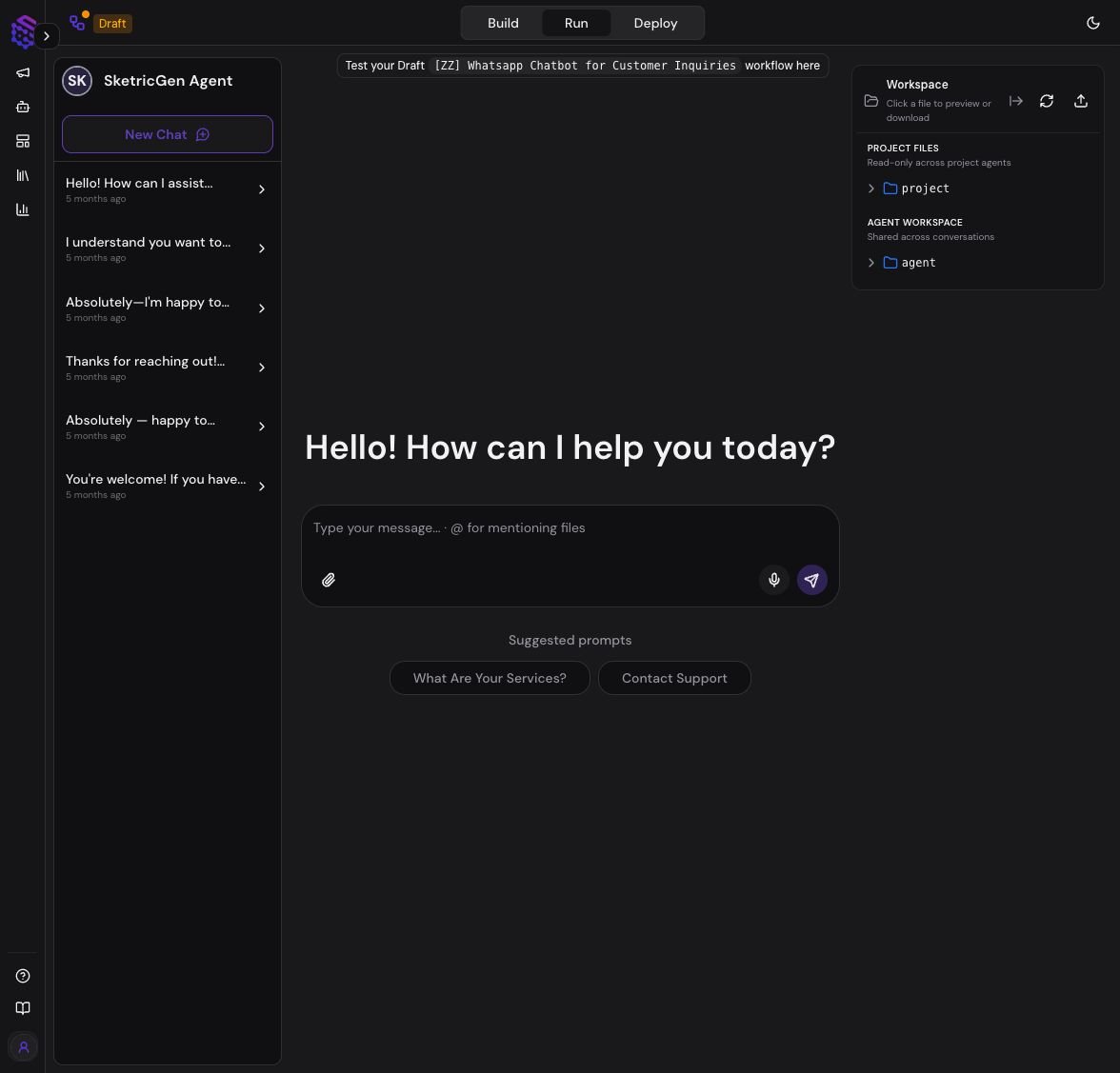
Use a shared conversation when teammates need the same context and want to review one continuous thread.- One teammate opens an agent and starts a Playground session.
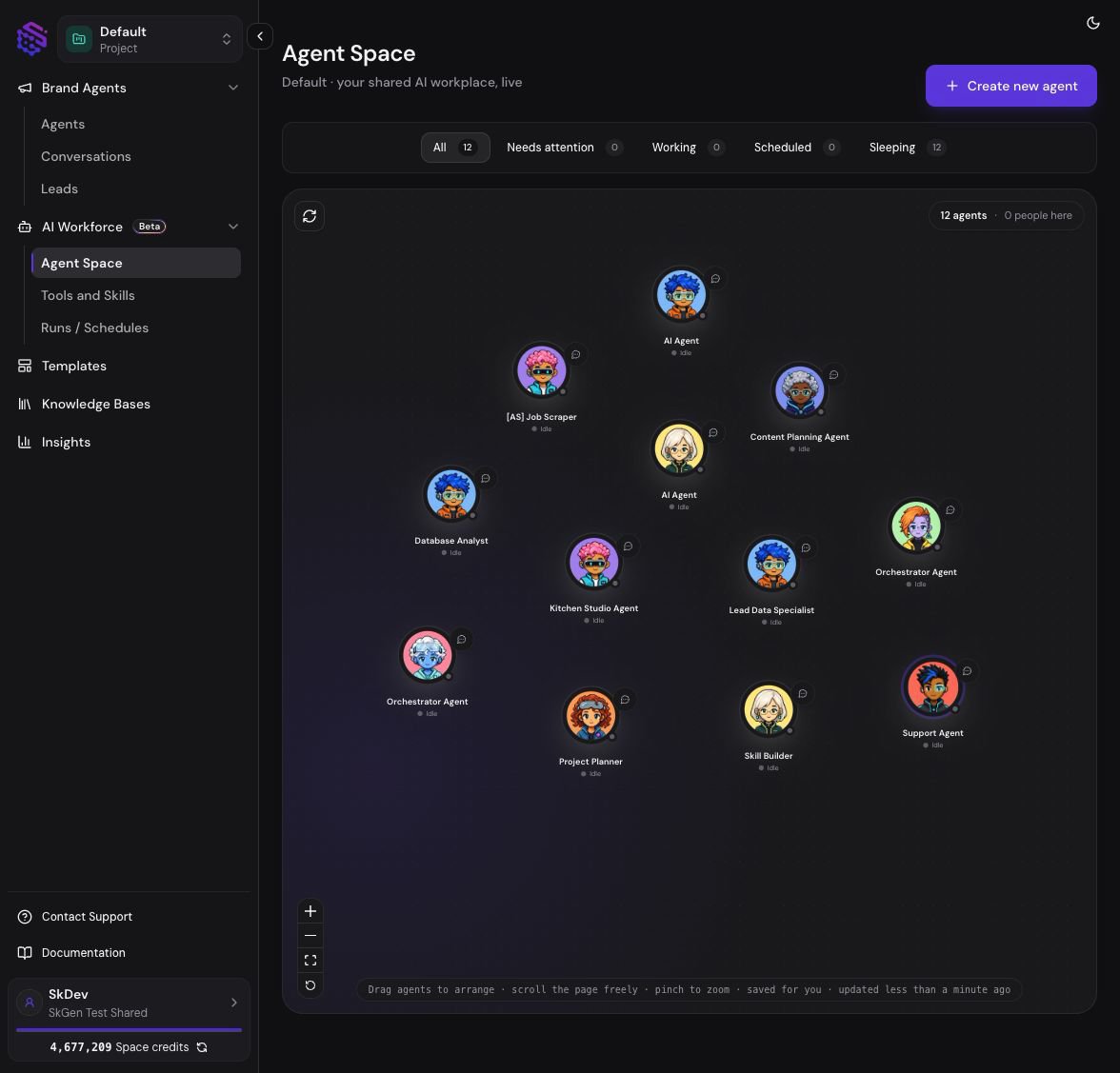
- Agent Space shows that a person is working with the agent.
- Another teammate selects the person’s avatar or opens the agent details.
- Select Join conversation to open that conversation.
- Participants in the same conversation can see teammate presence and typing indicators.
- The active agent response streams in the Playground session, and the saved conversation remains available to authorized Project members.
Conversations in a shared Project are Public by default, so authorized teammates with access to the agent can view and join them. If a conversation should stay personal, click Public in Playground to make it Private. Only you can read the private conversation you started; other Project members cannot view or join it.
Use parallel sessions
Use separate conversations when teammates want the same agent to perform different tasks concurrently. Each conversation keeps its own chat context and run, while Agent Space groups the people and activity under the same agent. Examples include:- Two marketers asking the research agent about different campaigns
- A support lead reviewing one escalation while an operator handles another
- Several teammates generating separate reports from the same approved Agent Build
- One teammate testing the draft while another reviews a published workflow
What Teammates Can See
Agent Space can show:- How many people are currently working with each agent
- Teammate initials around the agent
- Whether a teammate is viewing or typing
- Which conversation the teammate has open
- Live runs associated with that teammate and agent
- A Join conversation action when a shared conversation is available
Presence and Typing
Playground sends a lightweight presence update while the page is visible. Other authorized teammates can then see:- A presence bubble when someone else is viewing the agent
- A teammate typing indicator when both people are in the same conversation
- The teammate’s display name or initials
Typing status is scoped to the same conversation. A teammate working in a different conversation can still appear under the agent’s overall presence without appearing as a typing participant in your thread.
Live Responses and Shared Context
Every conversation has its own saved history and live run state:- Joining a shared conversation uses that conversation’s existing context.
- When an active run can be reattached, Playground resumes the live run instead of starting a duplicate.
- Separate conversations can run in parallel without sharing their chat history.
- Project files are read-only across Project agents.
- Agent workspace files can be reused across conversations for that agent.
- Conversation files remain scoped to the relevant conversation or run unless promoted to a broader workspace.
Human Input and Handoffs
When a run needs clarification or approval, Agent Space places the agent under Needs attention. An authorized teammate can open the waiting conversation and provide the requested input. Use the conversation and presence indicators to avoid duplicate approvals. The run continues after an allowed user answers, rejects, or cancels the request.Access and Privacy
Multiplayer access follows the selected Teamspace, Project, and agent permissions:- A user must be an authorized Teamspace and Project member.
- Opening Agent Space does not reveal conversations the user cannot access.
- Presence records describe current activity; they do not grant additional permissions.
- Joining a conversation uses the same agent authorization checks as starting a session.
- Public website visitors do not appear as internal Teamspace collaborators.
Troubleshooting
A teammate does not appear in Agent Space
Confirm that the teammate has the Playground open for the same agent and that both users are in the same Teamspace and Project. Wait a few seconds, then select Refresh Agent Space.The typing indicator does not appear
Typing indicators only appear when both teammates are in the same conversation. Someone using the same agent in a separate conversation may still appear as present.Join conversation is not available
The teammate may be viewing the agent without an active conversation, or your membership may not allow access to that conversation. Select Open chat to start your own session.Presence is temporarily unavailable
Agent runs and saved conversations can continue even when the live presence service is unavailable. Refresh Agent Space before assuming the teammate left.Capability Facts
- Product surface: Agent Space and Playground
- Presence scope: agent, Teamspace, Project, and authorized user
- Typing scope: participants viewing the same conversation
- Conversation modes: shared thread or independent parallel sessions
- Live work: agent responses, run state, files, and human-input requests
- Primary controls: open chat, join conversation, start a separate session, or manage Agent Build
- Does not change: agent instructions, models, tools, or permissions
- Related guides: Agent Space, Playground, and Agent Build