> ## Documentation Index
> Fetch the complete documentation index at: https://docs.sketricgen.ai/llms.txt
> Use this file to discover all available pages before exploring further.
# Deploy to WordPress
> Embed a SketricGen Brand Agent as an AI chatbot for your WordPress website with the SketricGen chat widget plugin.
## **Step 1: Sign Into SketricGen and Set Up Your Brand Agent**
To get started with the integration, **[sign in to your SketricGen account](https://www.sketricgen.ai)**. If you don’t have an account yet, you can create one for **[free](https://www.sketricgen.ai)**. Once you're logged in, begin setting up your Brand Agent by uploading your data sources. These can include files, text snippets, websites, or Q\&A pairs, which will serve as the knowledge base for your Brand Agent.
Use this guide when you want to add a WordPress chatbot for visitor questions, lead capture, support intake, or product guidance.
If you need assistance with setting up a working SketricGen Brand Agent, refer to the **[step-by-step guide](https://docs.sketricgen.ai/getting-started/quickstart)** for creating and deploying your Brand Agent.
## **Step 2: Install SketricGen Chat Widget on Your WordPress Website**
### 1. Log in to your WordPress admin dashboard
You can usually access your dashboard by visiting `yourdomain.com/wp-admin/`. Alternatively, you may be able to log in via your web hosting provider’s control panel.
### 2. Install and Enable the SketricGen Chat Widget
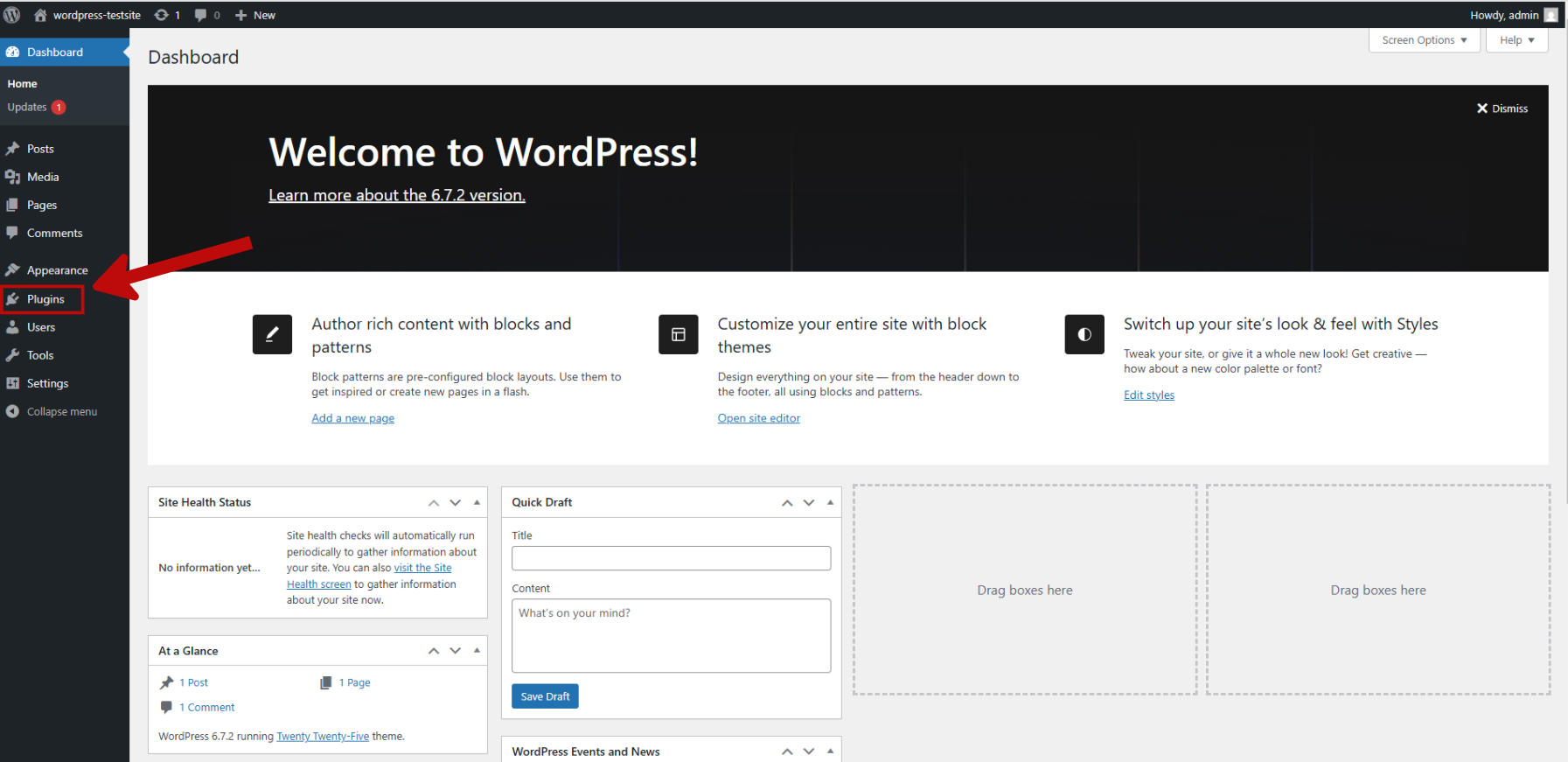
* In the left sidebar of your WordPress admin dashboard, click on **Plugins**.
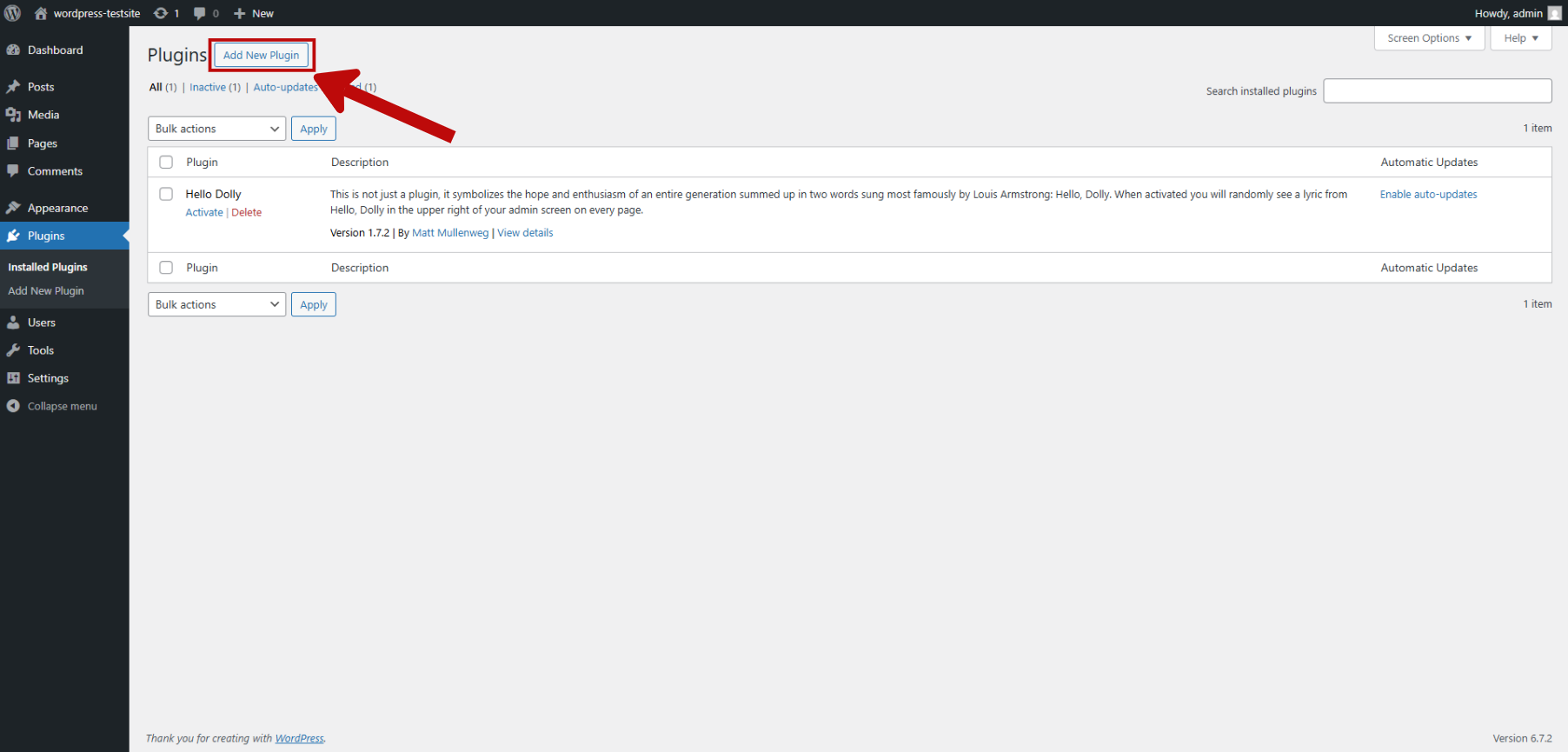
 * Click **Add New Plugin** at the top of the next page.
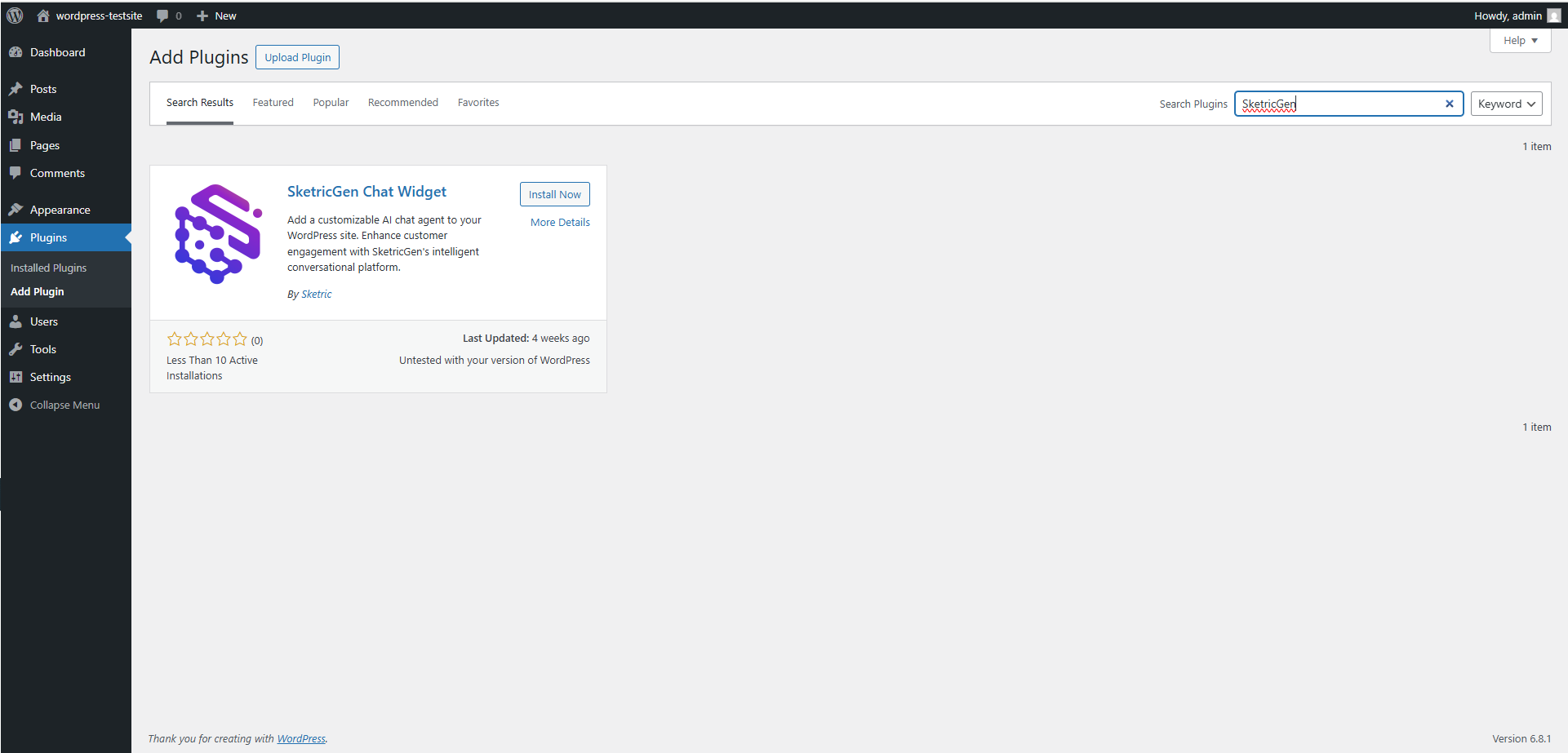
 * In the search bar on the next page, type “**SketricGen**” to search for the **SketricGen** plugin.\
Click **Install Now**, then **Activate**.
* In the search bar on the next page, type “**SketricGen**” to search for the **SketricGen** plugin.\
Click **Install Now**, then **Activate**.
 ### 3. Get your Agent ID from the SketricGen Brand Agent dashboard
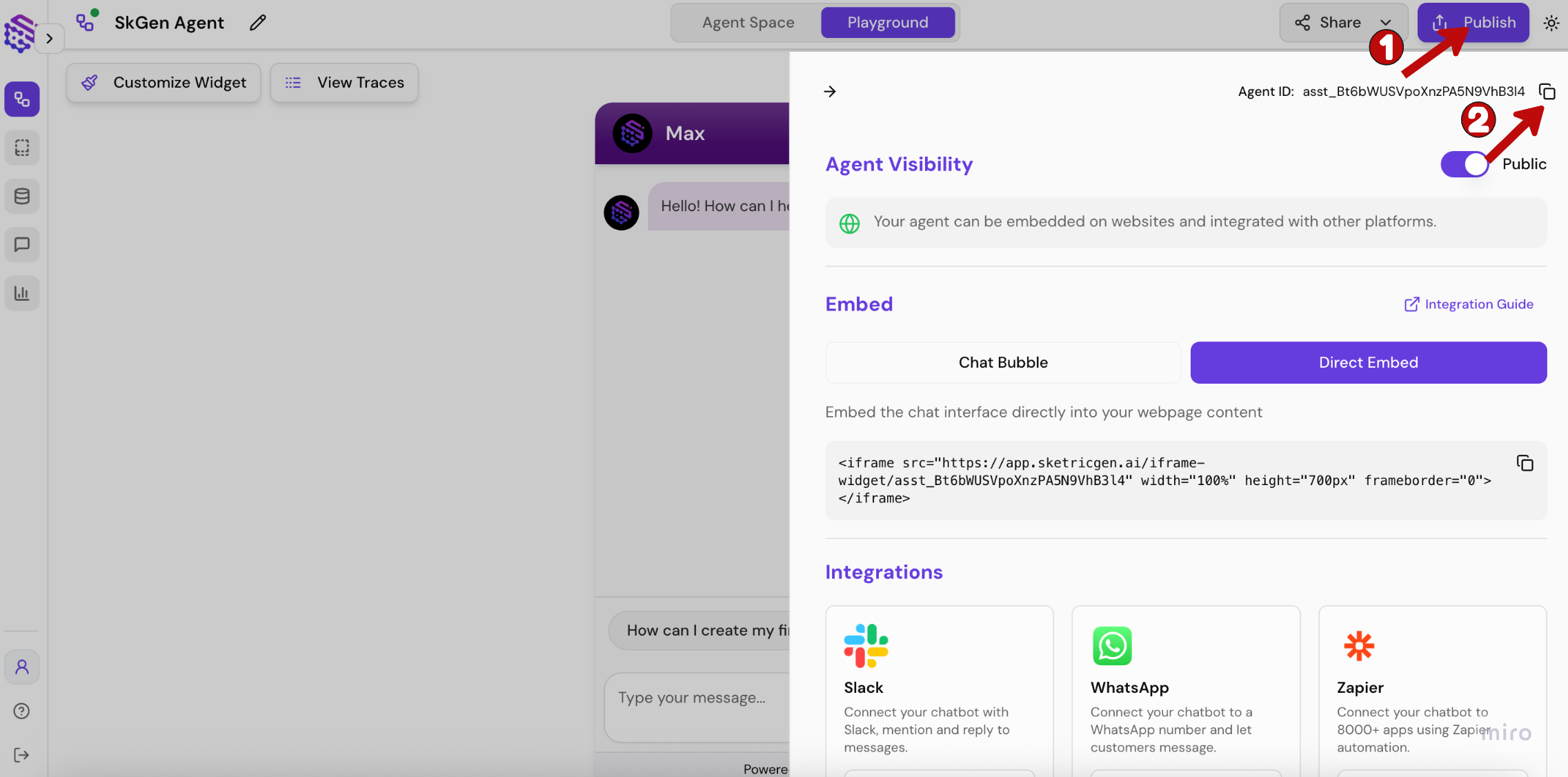
Go to your Brand Agent playground and in the **Publish** sidebar copy the Agent ID — it should look like **“asst\_…”**
### 3. Get your Agent ID from the SketricGen Brand Agent dashboard
Go to your Brand Agent playground and in the **Publish** sidebar copy the Agent ID — it should look like **“asst\_…”**
 ### 4. Add your Agent ID
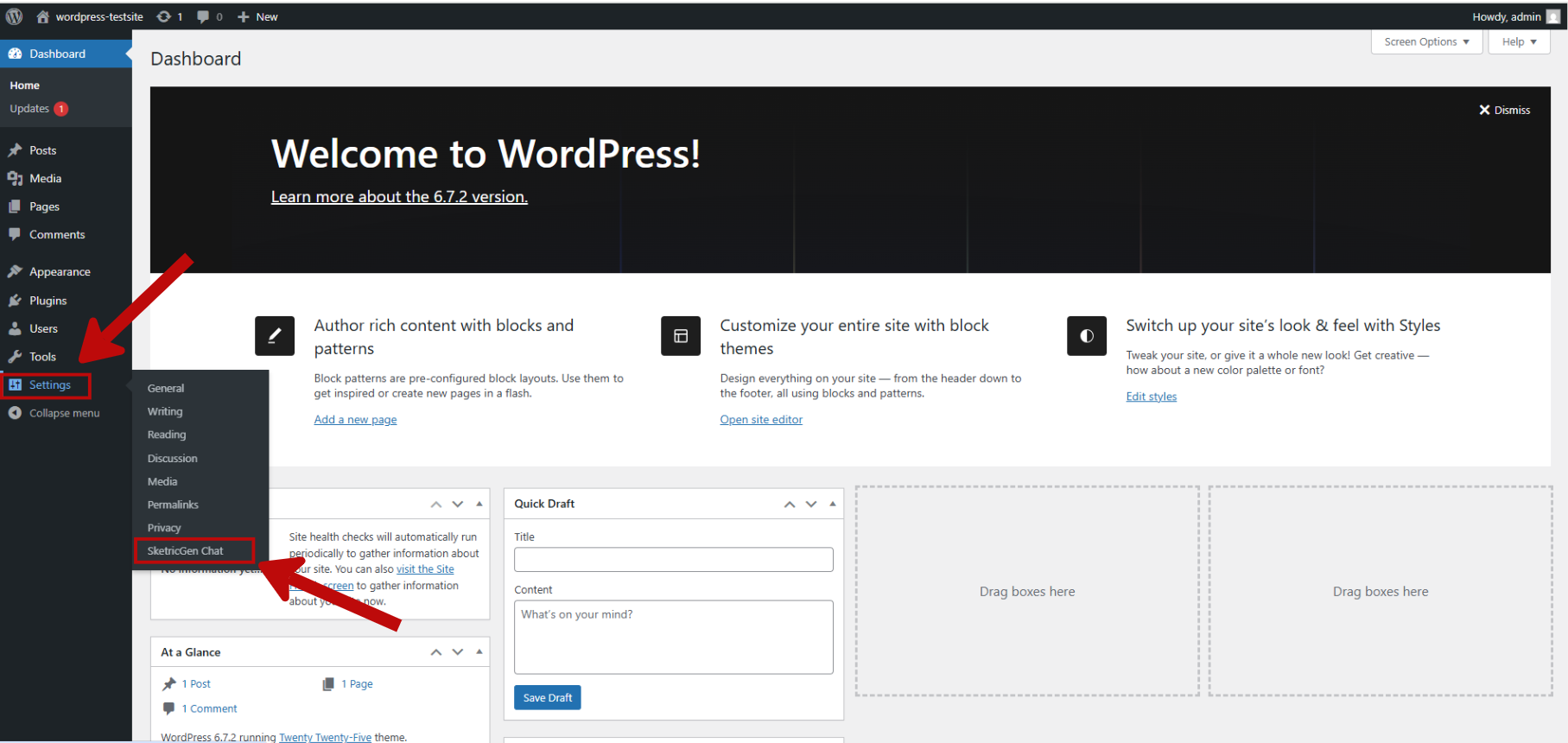
* In the left sidebar on your admin dashboard, click **SketricGen Chat** under **Settings**.
### 4. Add your Agent ID
* In the left sidebar on your admin dashboard, click **SketricGen Chat** under **Settings**.
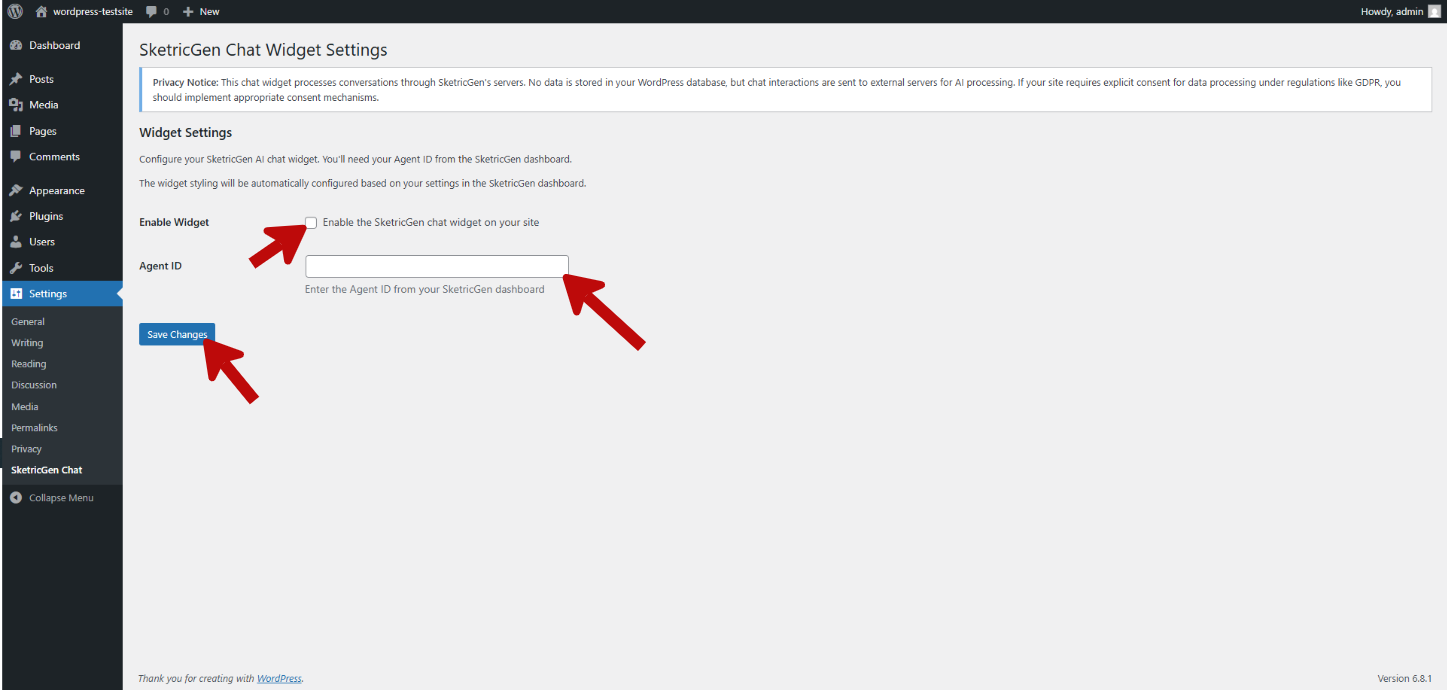
 * Enter your **Agent ID**, enable the chat widget, and click **“Save Changes”**.
 ## **Step 3: Test your widget on live website**
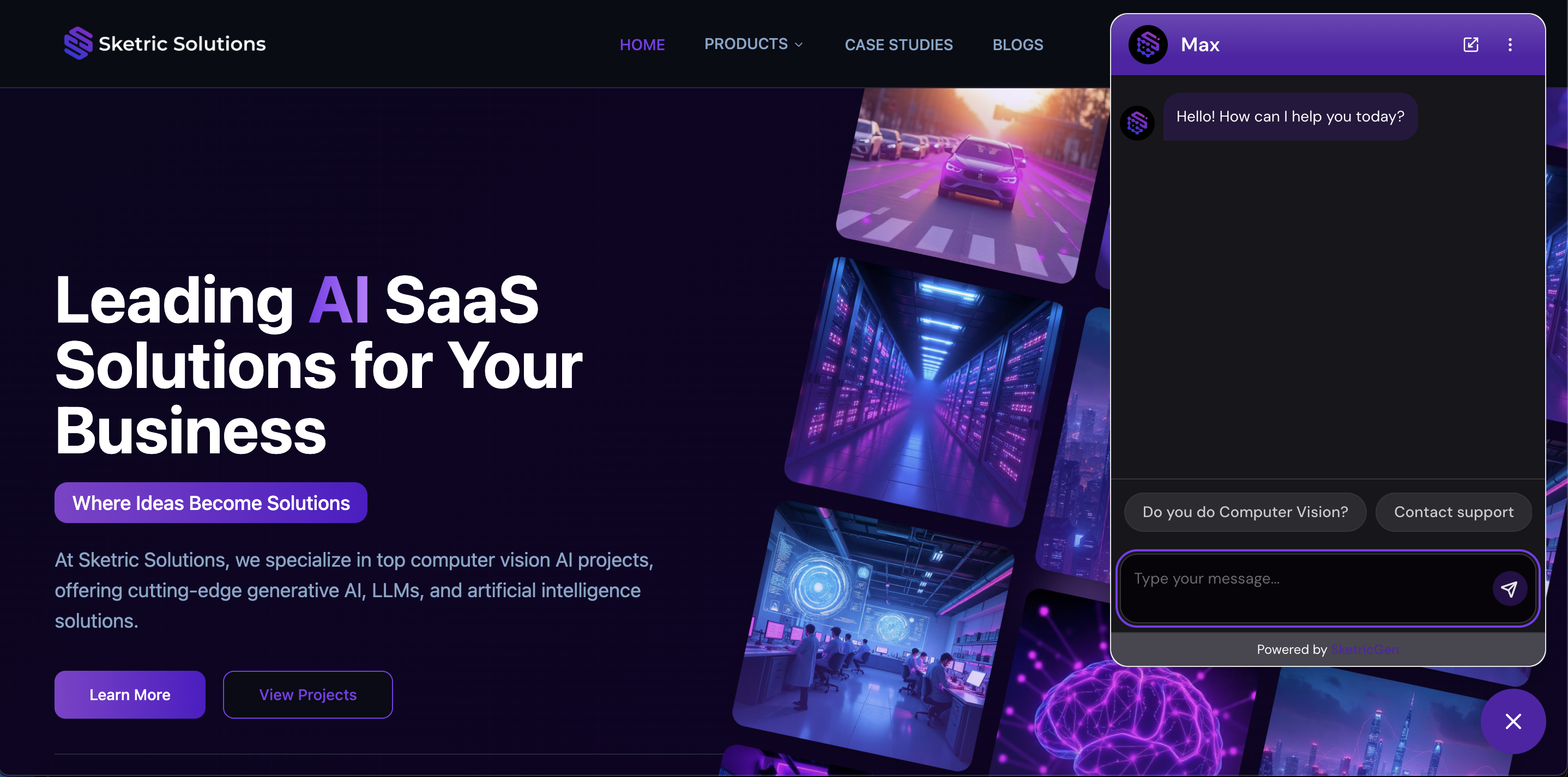 **Success:** Your WordPress website now has the SketricGen Brand Agent widget integrated.