> ## Documentation Index
> Fetch the complete documentation index at: https://docs.sketricgen.ai/llms.txt
> Use this file to discover all available pages before exploring further.
# Deploy to Slack
> Connect your SketricGen Brand Agent to Slack.
## **Step 1: Sign Into SketricGen and Set Up Your Brand Agent**
To get started with the integration, **[sign in to your SketricGen account](https://www.sketricgen.ai)**. If you don’t have an account yet, you can create one for **[free](https://www.sketricgen.ai)**. Once you're logged in, begin setting up your Brand Agent by uploading your data sources. These can include files, text snippets, websites, or Q\&A pairs, which will serve as the knowledge base for your Brand Agent.
If you need assistance with setting up a working SketricGen Brand Agent, refer to the **[step-by-step guide](https://docs.sketricgen.ai/getting-started/quickstart)** for creating and deploying your Brand Agent.
## **Step 2: Connect your Slack Workspace**
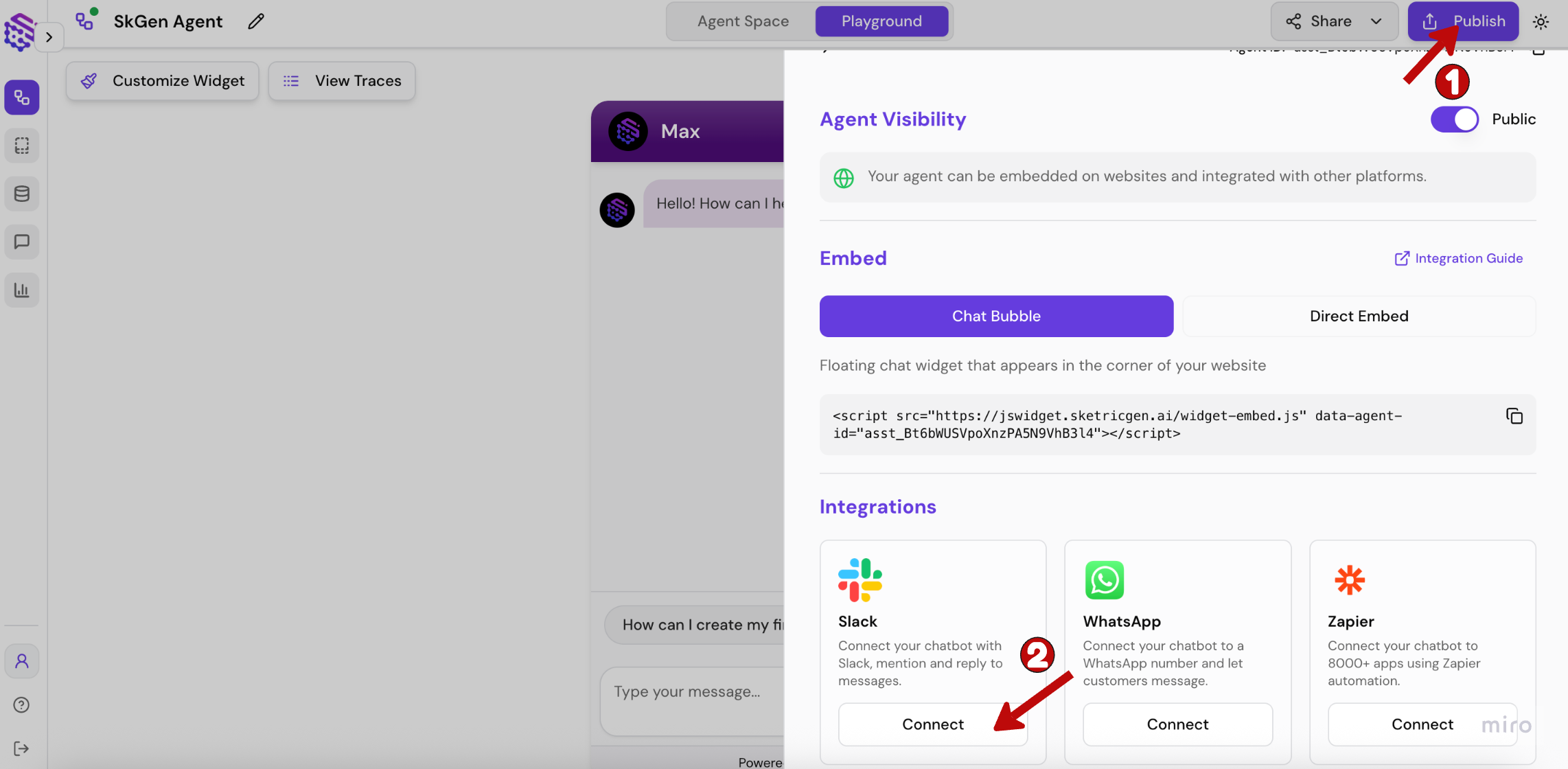
After configuring your Brand Agent, click the **Connect** button on the Slack integration panel in the **Publish** sidebar.
 ## **Step 3: Grant Permissions**
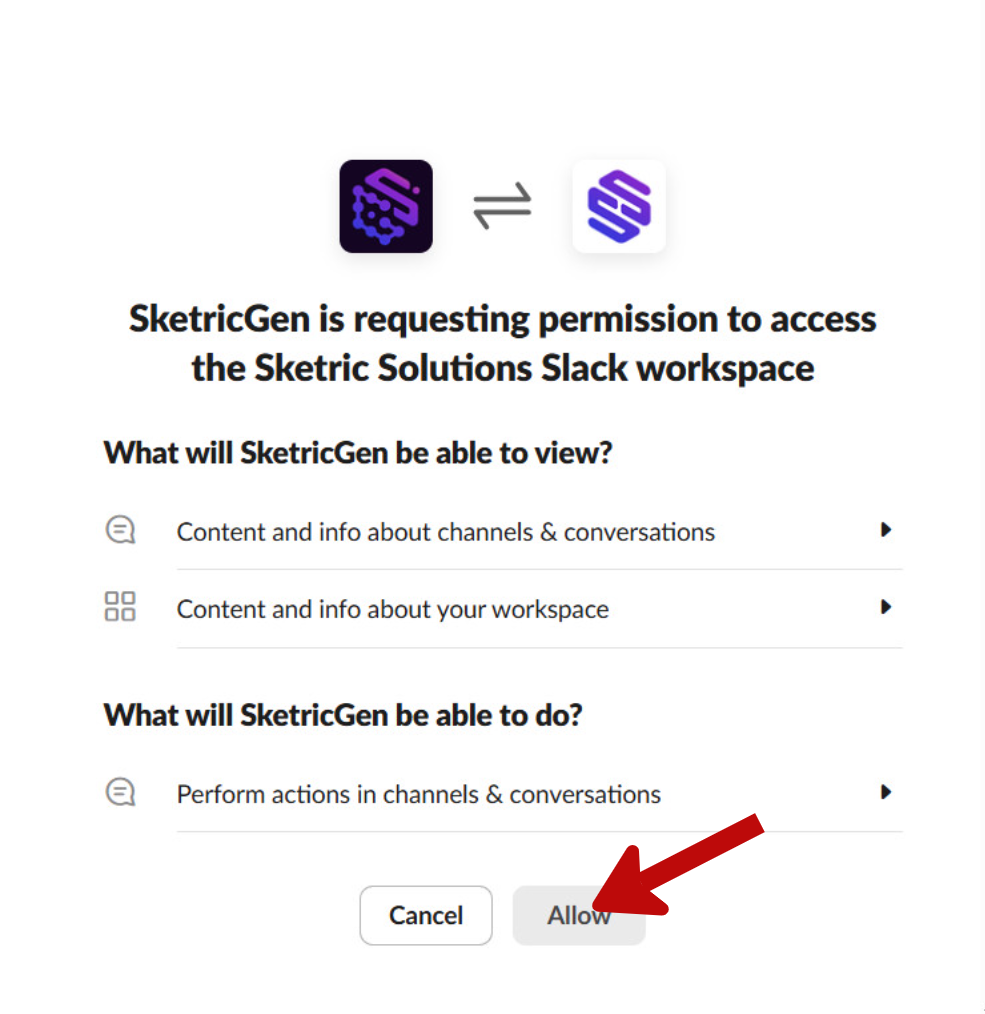
### 1. Grant SketricGen the required permissions to access your Slack account and workspace.
## **Step 3: Grant Permissions**
### 1. Grant SketricGen the required permissions to access your Slack account and workspace.
 ### 2. After success, you will get a message:
**“SketricGen has been successfully added to your workspace.”**
## **Step 4: Check Integration Details**
### 1. If everything is smooth, the **Connect** button in the Slack panel of the Publish sidebar will change to **Manage**.
### 2. After success, you will get a message:
**“SketricGen has been successfully added to your workspace.”**
## **Step 4: Check Integration Details**
### 1. If everything is smooth, the **Connect** button in the Slack panel of the Publish sidebar will change to **Manage**.
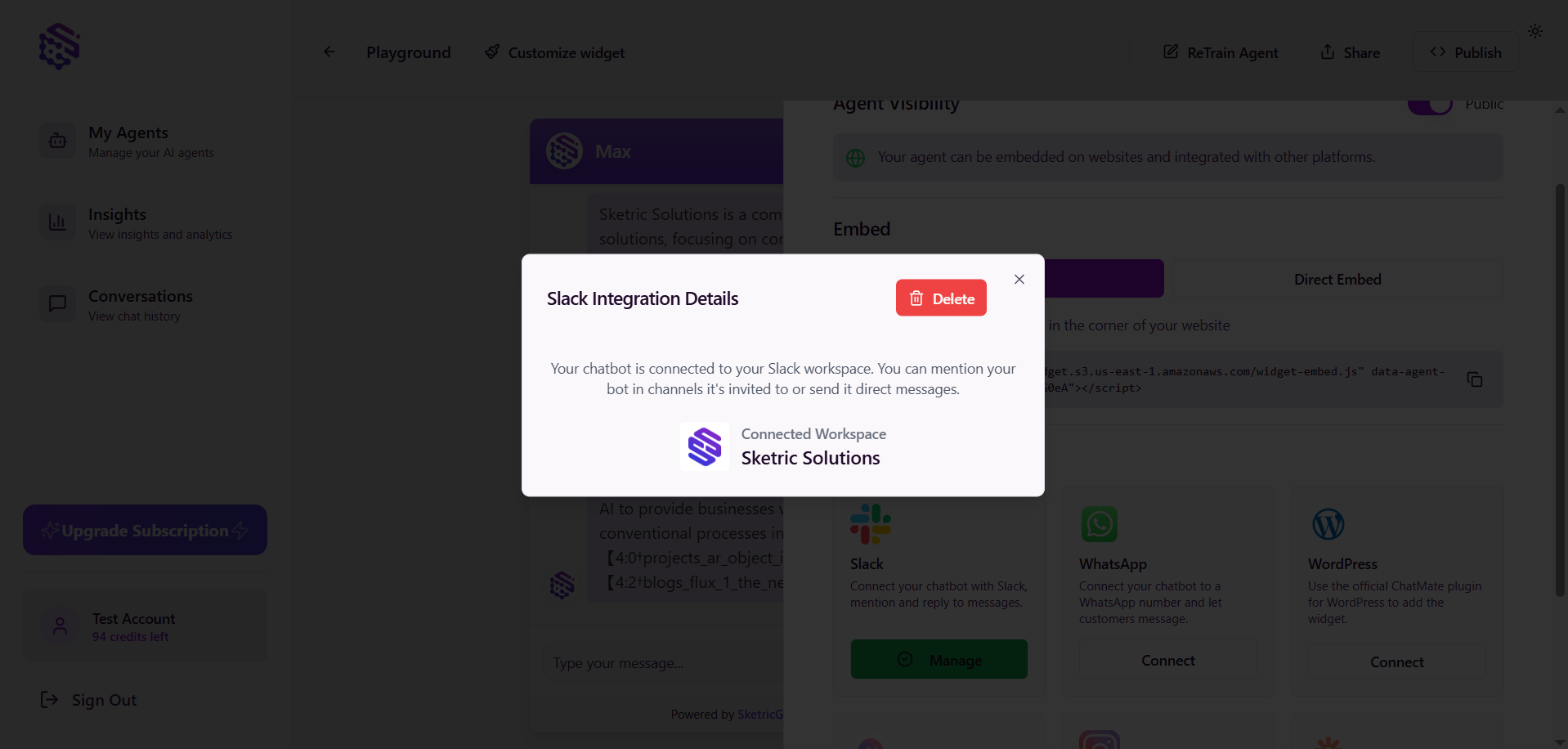
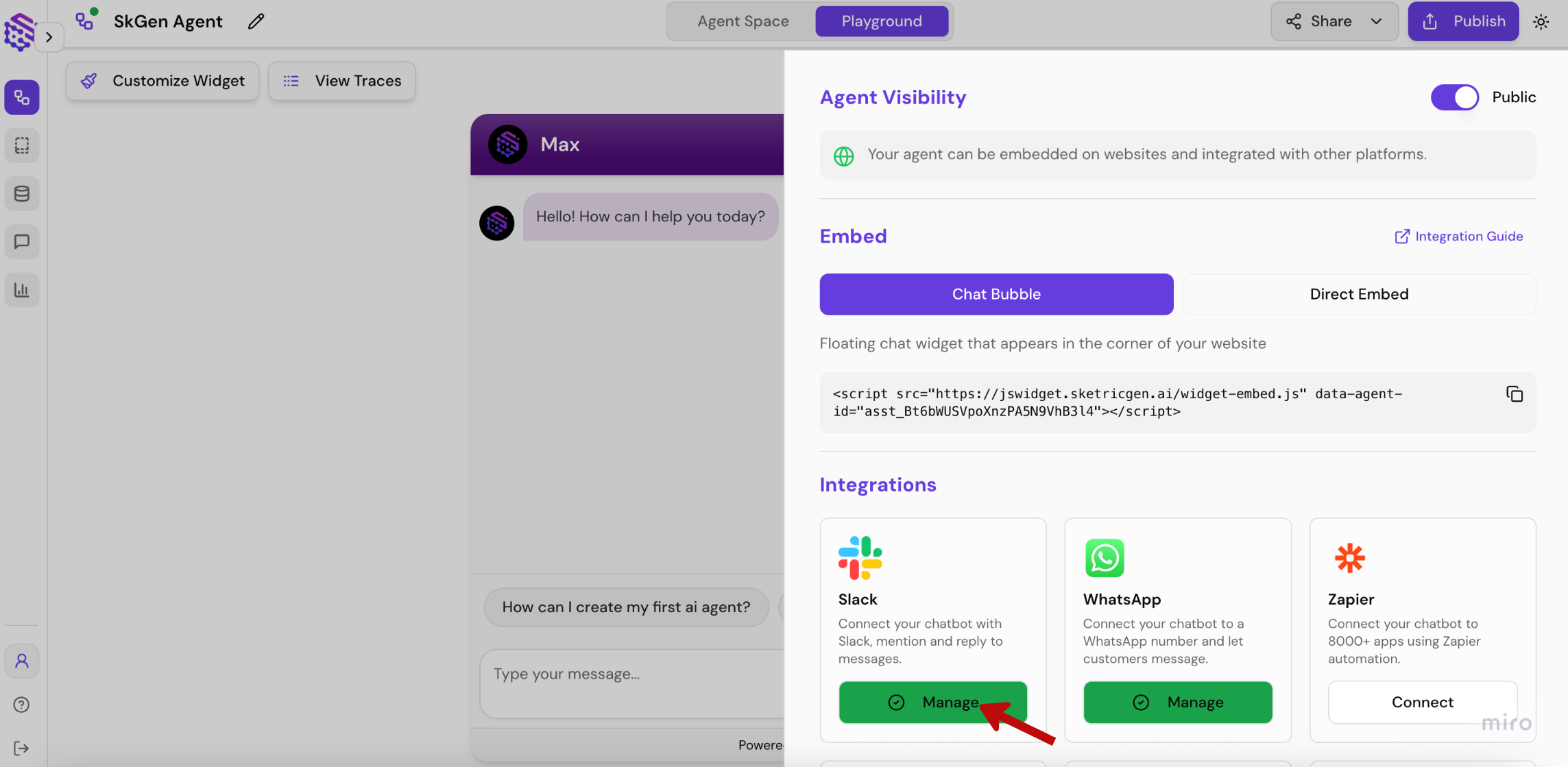 ### 2. Click on the **Manage** button to view your integration details.
 ## Step 5: Open Slack and Message Your Bot
### 1. Open any channel in your Slack workspace and type **@sketricgen** followed by a question related to your Brand Agent’s purpose.
Slack will then prompt you to either invite the bot to the channel or take no action.
## Step 5: Open Slack and Message Your Bot
### 1. Open any channel in your Slack workspace and type **@sketricgen** followed by a question related to your Brand Agent’s purpose.
Slack will then prompt you to either invite the bot to the channel or take no action.
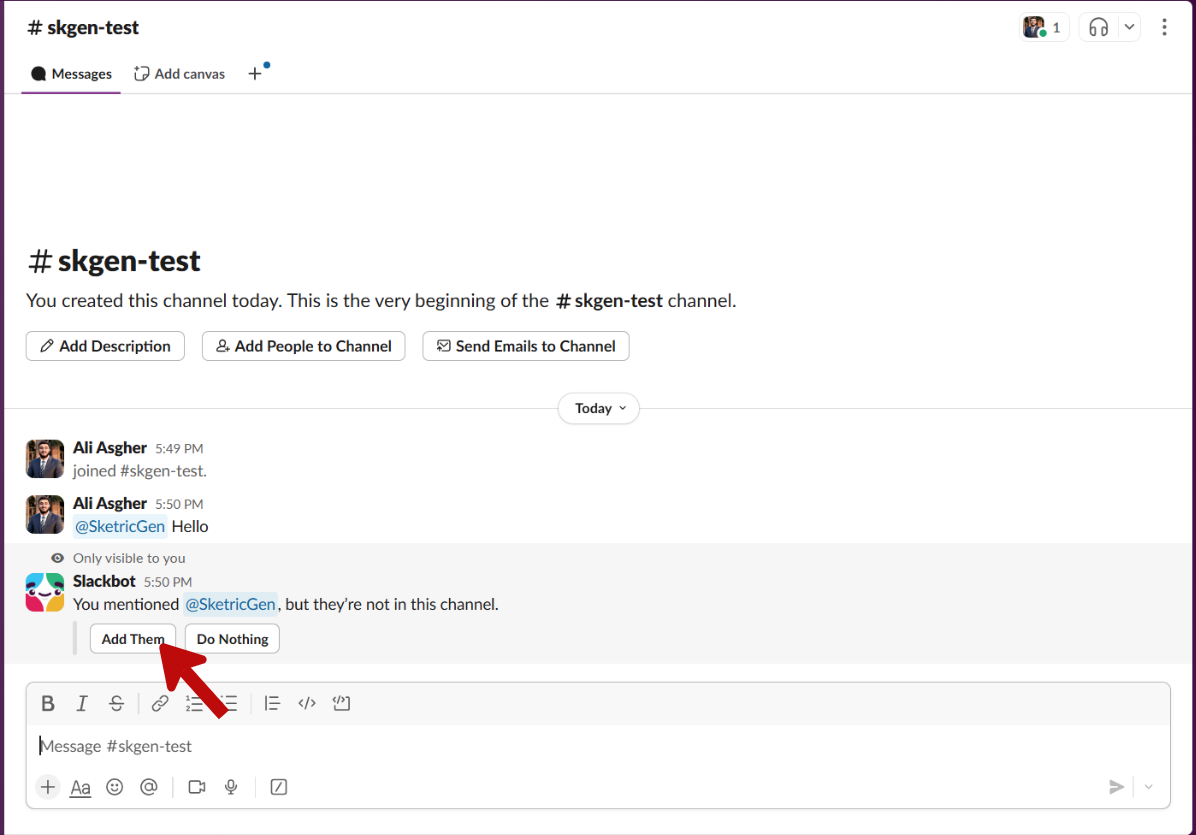 ### 2. Click on **Add Them**.
The Brand Agent will then be available in the channel to answer any questions you might have.
## Step 6: Start Chatting
You're all set! The SketricGen Brand Agent is now connected and ready to enhance collaboration within your Slack workspace.
Whenever you or your teammates have a question, simply mention `@sketricgen` along with your query, and the bot will provide an answer.
### 2. Click on **Add Them**.
The Brand Agent will then be available in the channel to answer any questions you might have.
## Step 6: Start Chatting
You're all set! The SketricGen Brand Agent is now connected and ready to enhance collaboration within your Slack workspace.
Whenever you or your teammates have a question, simply mention `@sketricgen` along with your query, and the bot will provide an answer.
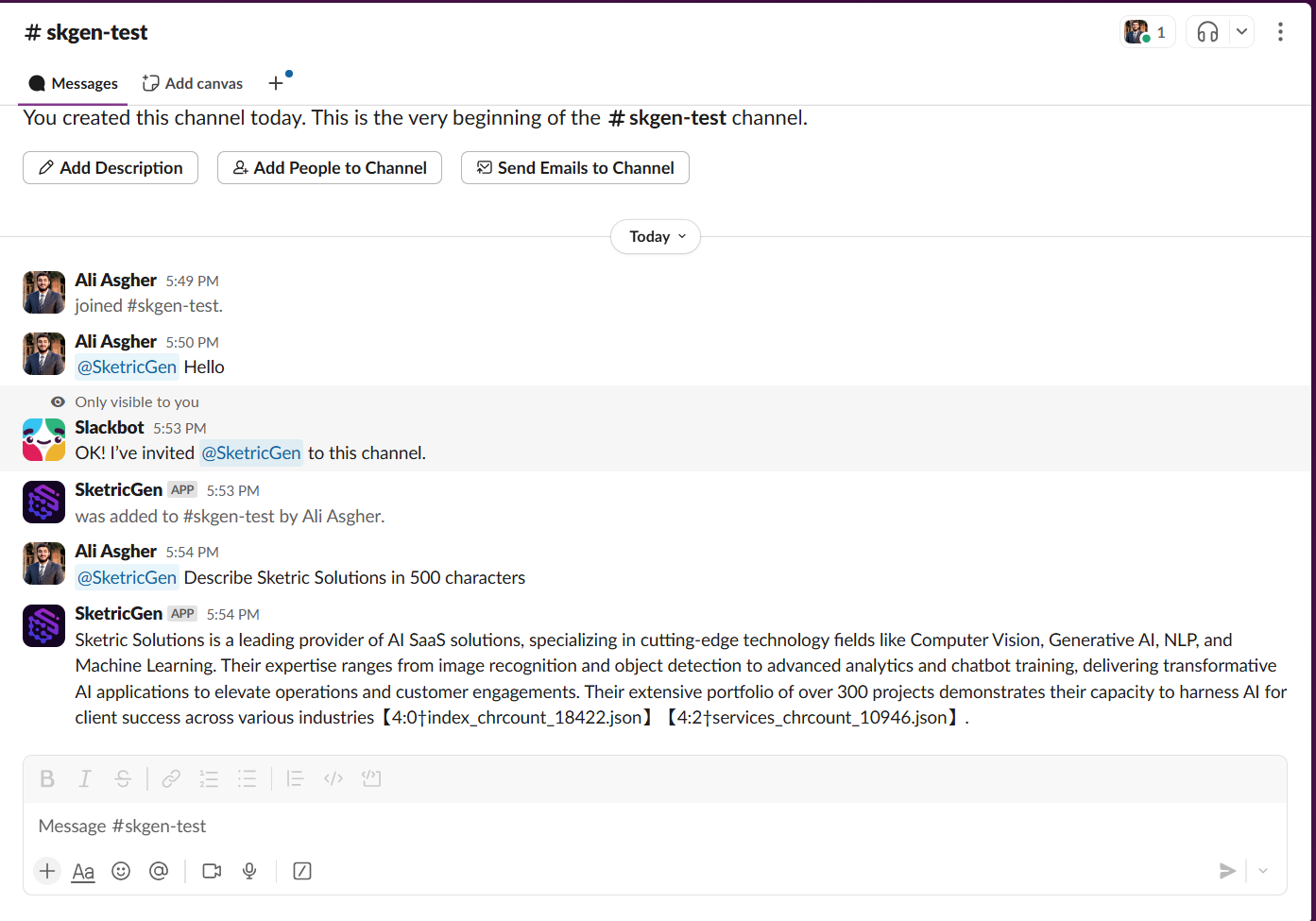 ### Success: Slack is connected with your Brand Agent
Your team can now ask questions in any Slack channel or DM where the bot is active. The Brand Agent will answer based on the knowledge and instructions you configured in SketricGen.
### Success: Slack is connected with your Brand Agent
Your team can now ask questions in any Slack channel or DM where the bot is active. The Brand Agent will answer based on the knowledge and instructions you configured in SketricGen.