> ## Documentation Index
> Fetch the complete documentation index at: https://docs.sketricgen.ai/llms.txt
> Use this file to discover all available pages before exploring further.
# Deploy to Instagram
> Connect your SketricGen Brand Agent to Instagram DMs.
## **Step 1: Sign Into SketricGen and Set Up Your Brand Agent**
To get started with the integration, **[sign in to your SketricGen account](https://www.sketricgen.ai)**. If you don’t have an account yet, you can create one for **[free](https://www.sketricgen.ai)**. Once you're logged in, begin setting up your Brand Agent by uploading your data sources. These can include files, text snippets, websites, or Q\&A pairs, which will serve as the knowledge base for your Brand Agent.
If you need assistance with setting up a working SketricGen Brand Agent, refer to the **[step-by-step guide](https://docs.sketricgen.ai/getting-started/quickstart)** for creating and deploying your Brand Agent.
## **Step 2: Connect Instagram Account to Your SketricGen Agent**
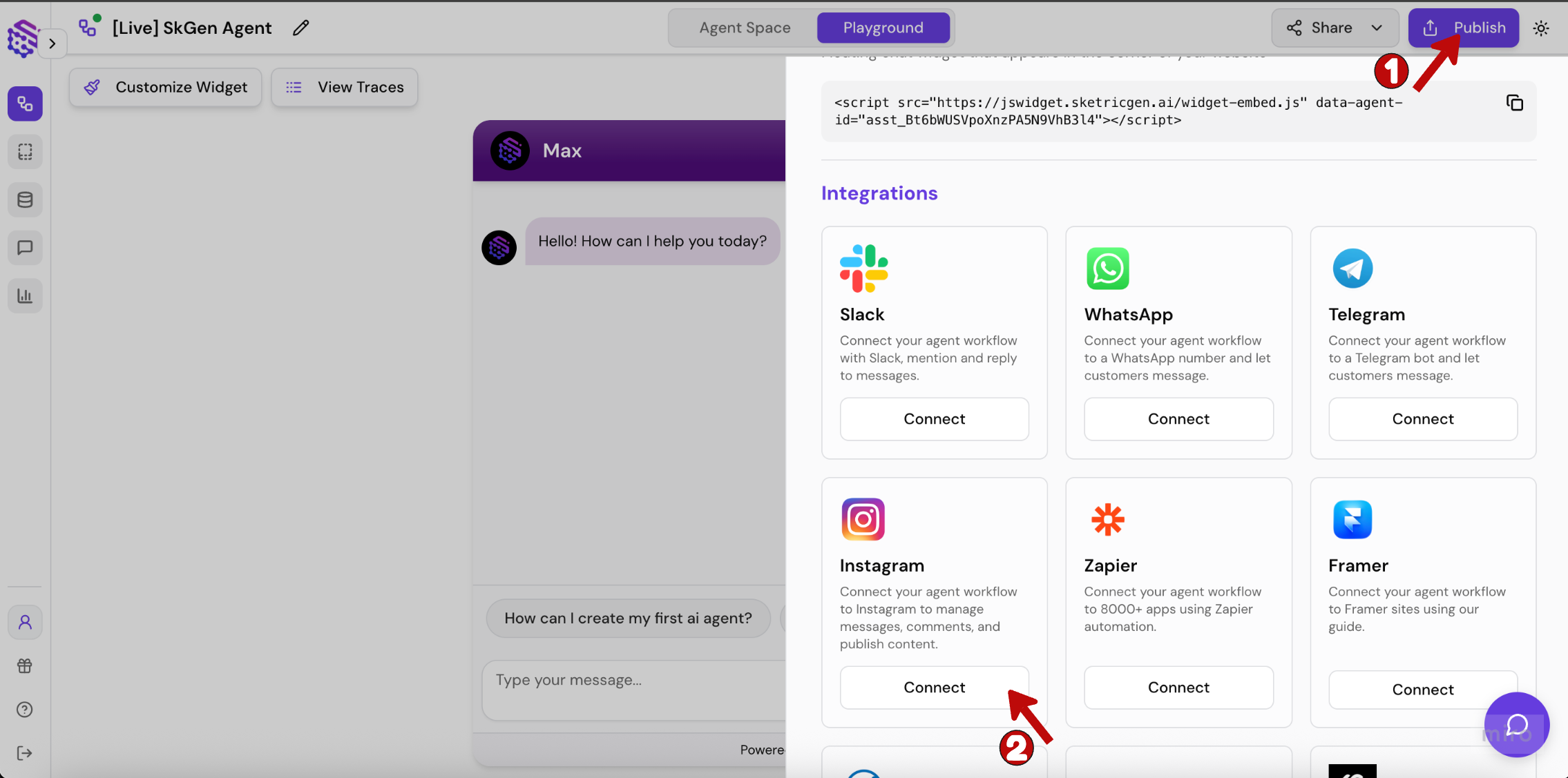
Go to the **Publish** section of your Brand Agent and press **Connect** on the Instagram integration card.
 ## **Step 3: Grant Permissions to Your Instagram Account**
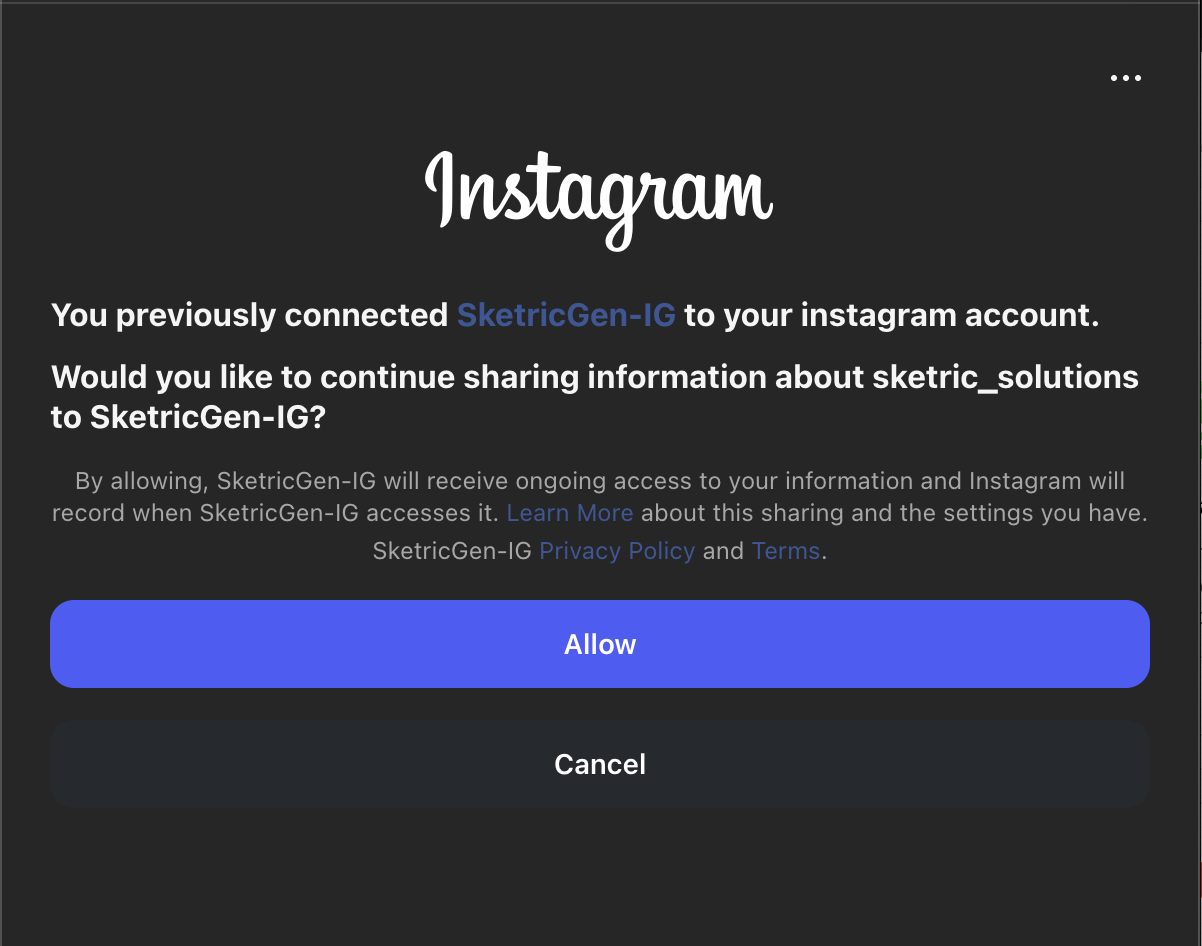
Log in to your Instagram account when prompted and click **Allow** to grant the requested permissions to SketricGen.
## **Step 3: Grant Permissions to Your Instagram Account**
Log in to your Instagram account when prompted and click **Allow** to grant the requested permissions to SketricGen.
 ## **Step 4: Confirm a Successful Connection**
Once your Instagram account is successfully connected, the **Connect** button will switch to **Manage** inside the Publish sidebar. Click **Manage** to view or update the connected account details.
## **Step 4: Confirm a Successful Connection**
Once your Instagram account is successfully connected, the **Connect** button will switch to **Manage** inside the Publish sidebar. Click **Manage** to view or update the connected account details.
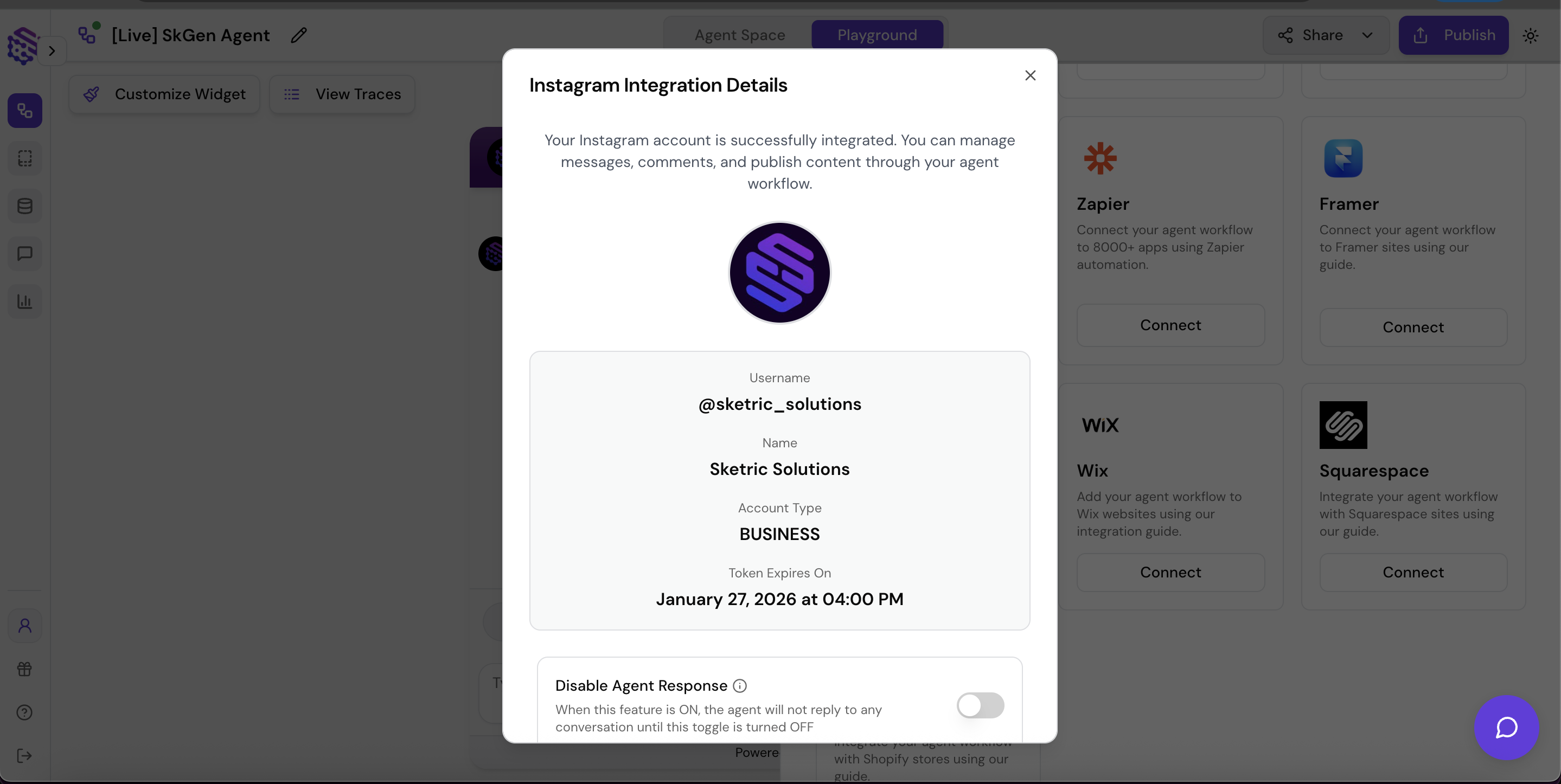 **Success:** Your Instagram account is now linked to **SketricGen**. Your Brand Agent can now handle Instagram conversations automatically.
**Note:** Instagram has a 1000 character limit per message. If your Brand Agent produces responses longer than this limit, the message will be automatically split into multiple chunks and sent sequentially.
We recommend instructing the agents to give short replies if you plan to connect to Instagram.
**Success:** Your Instagram account is now linked to **SketricGen**. Your Brand Agent can now handle Instagram conversations automatically.
**Note:** Instagram has a 1000 character limit per message. If your Brand Agent produces responses longer than this limit, the message will be automatically split into multiple chunks and sent sequentially.
We recommend instructing the agents to give short replies if you plan to connect to Instagram.