> ## Documentation Index
> Fetch the complete documentation index at: https://docs.sketricgen.ai/llms.txt
> Use this file to discover all available pages before exploring further.
# Playground: Run and Test an AI Agent
> Use SketricGen Playground to test agent drafts, manage conversations, upload files, review live work, provide human input, and inspect artifacts.
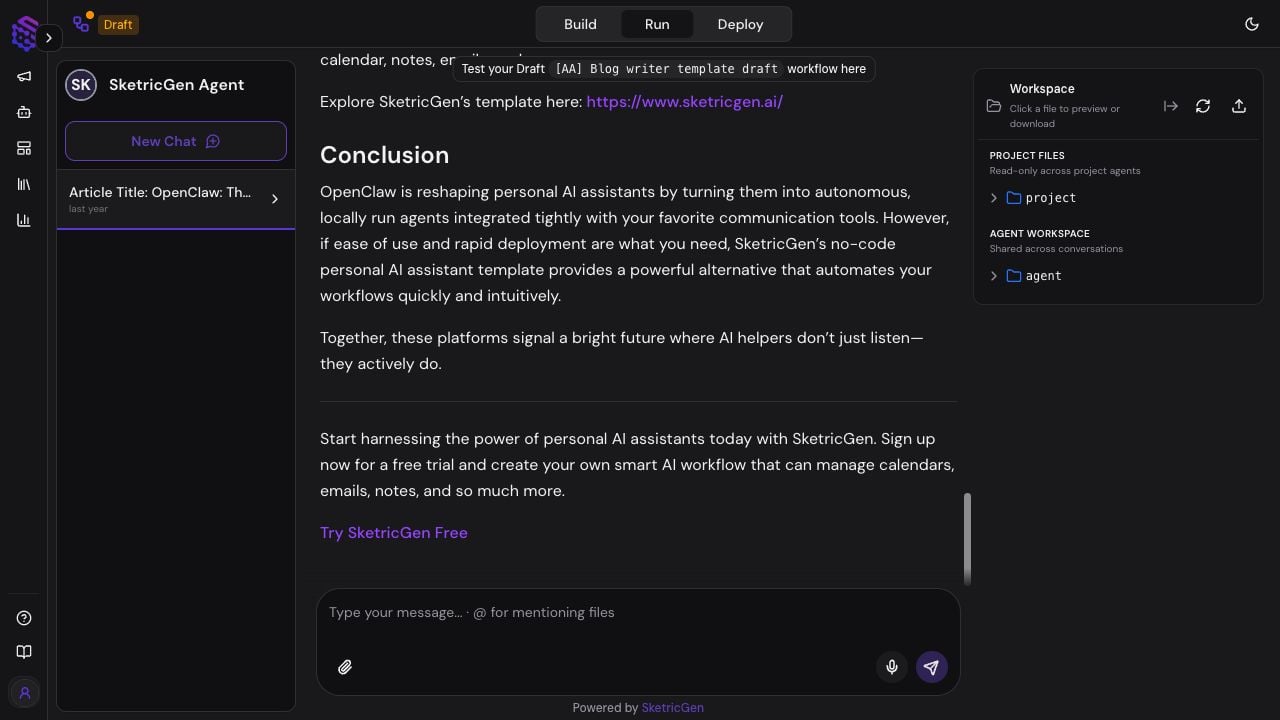
Playground is the **Run** experience inside Agent Build. It lets you test the current agent, continue saved conversations, attach files, review generated artifacts, and respond when a run asks for human input.
Playground is also where Agent Space sends you when you select **Start Session** or open a request under **Needs attention**.
 ## Start a Test Conversation
1. Open an agent from Agent Space.
2. Select **Start Session**, or open Agent Build and select **Run**.
3. Confirm whether the header says you are testing the Draft or published workflow.
4. Select **New Chat** for a clean conversation.
5. Enter a realistic prompt that requires the behavior you want to verify.
6. Review the response, live activity, files, and trace before changing the Agent Build.
Suggested prompts come from the Agent Build and help teammates test the intended use case consistently.
## Conversations
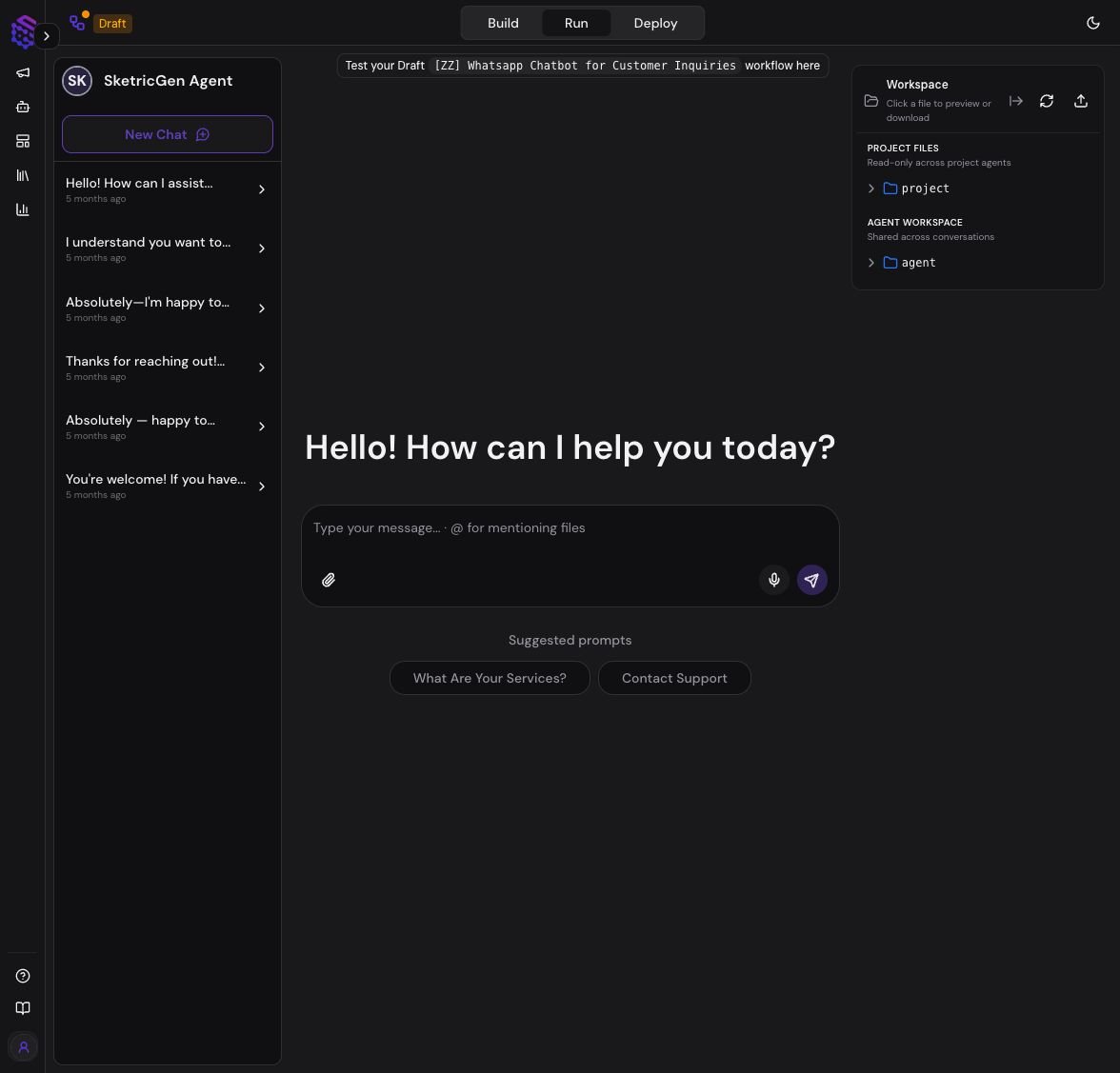
The left panel lists conversations for the current agent. Conversations started from Playground, Agent Space, or a schedule can appear in the same signed-in history.
Use a new conversation when you want to test without relying on earlier chat context. Reopen an existing conversation when the agent should continue work with that history.
Conversation visibility can depend on Project membership and whether the conversation or automation is shared or private. A visible conversation does not grant permission to change the Agent Build.
## Prompt and File Input
The composer supports:
* Text instructions
* File attachments
* Voice input when available in the browser
* File mentions using `@`
* Suggested prompts defined for the agent
Only attach files that the selected Project and agent are allowed to use. File access does not automatically give the agent access to unrelated connected apps.
## Workspace Files and Artifacts
The Workspace panel separates reusable files by scope:
## Start a Test Conversation
1. Open an agent from Agent Space.
2. Select **Start Session**, or open Agent Build and select **Run**.
3. Confirm whether the header says you are testing the Draft or published workflow.
4. Select **New Chat** for a clean conversation.
5. Enter a realistic prompt that requires the behavior you want to verify.
6. Review the response, live activity, files, and trace before changing the Agent Build.
Suggested prompts come from the Agent Build and help teammates test the intended use case consistently.
## Conversations
The left panel lists conversations for the current agent. Conversations started from Playground, Agent Space, or a schedule can appear in the same signed-in history.
Use a new conversation when you want to test without relying on earlier chat context. Reopen an existing conversation when the agent should continue work with that history.
Conversation visibility can depend on Project membership and whether the conversation or automation is shared or private. A visible conversation does not grant permission to change the Agent Build.
## Prompt and File Input
The composer supports:
* Text instructions
* File attachments
* Voice input when available in the browser
* File mentions using `@`
* Suggested prompts defined for the agent
Only attach files that the selected Project and agent are allowed to use. File access does not automatically give the agent access to unrelated connected apps.
## Workspace Files and Artifacts
The Workspace panel separates reusable files by scope:
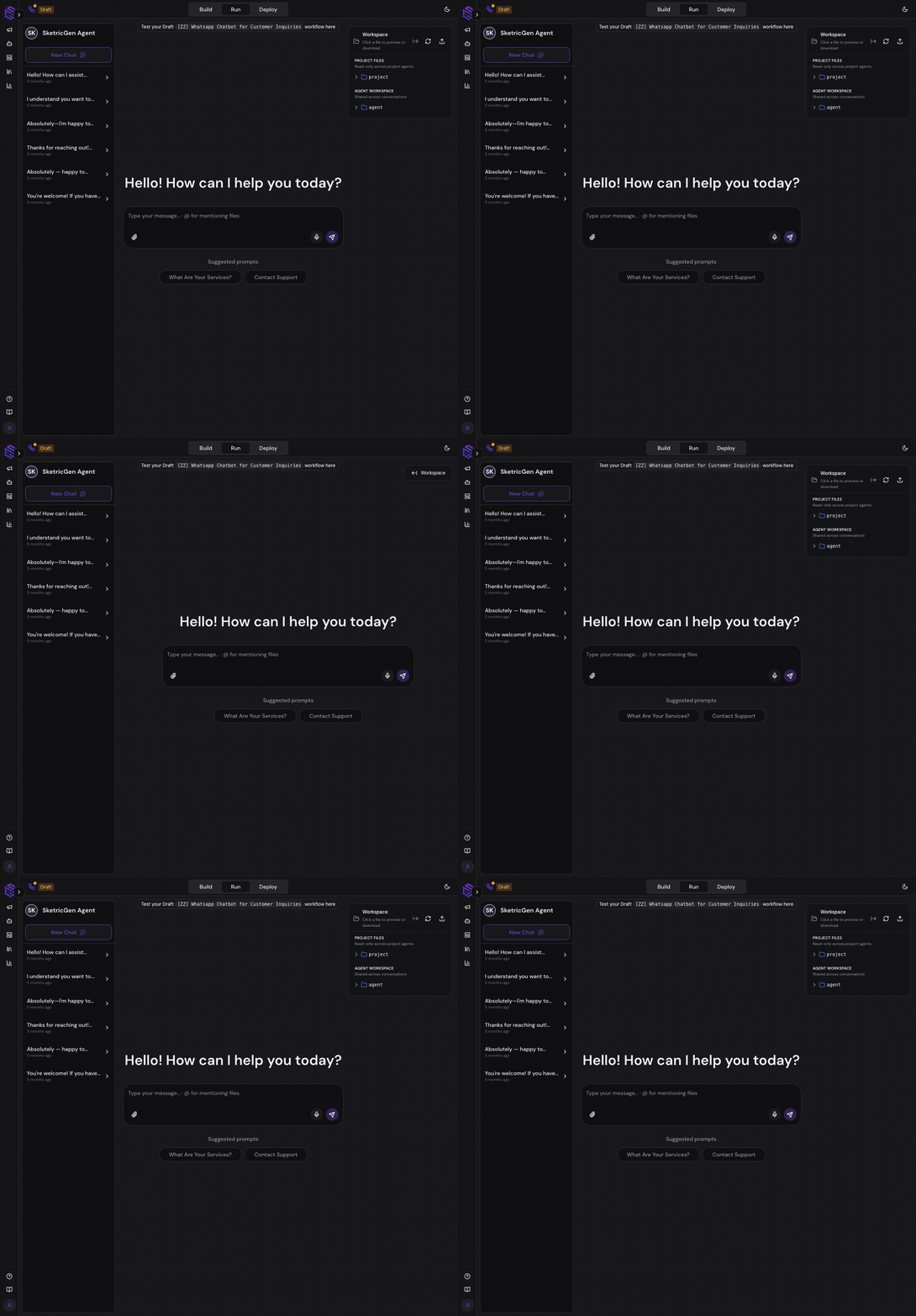 * **Project files:** read-only files available across agents in the selected Project.
* **Agent workspace:** files shared across conversations for the current agent.
* **Conversation or run files:** files created or used for a specific conversation or run when shown in the artifact view.
Select a file to preview or download it. Review generated reports, spreadsheets, images, documents, and other artifacts before sending or publishing them elsewhere.
* **Project files:** read-only files available across agents in the selected Project.
* **Agent workspace:** files shared across conversations for the current agent.
* **Conversation or run files:** files created or used for a specific conversation or run when shown in the artifact view.
Select a file to preview or download it. Review generated reports, spreadsheets, images, documents, and other artifacts before sending or publishing them elsewhere.
 ## Live Activity and Human Input
During a run, Playground can show agent activity such as model work, tool calls, sub-agent delegation, and generated files. A longer task may continue after the first visible step.
When an agent requests human input, the run pauses. The request may ask you to:
* Choose one of several options
* Provide missing information
* Confirm a proposed action
* Approve or reject a sensitive external step
* Enter a custom response
Respond in the same conversation. Agent Space shows the agent under **Needs attention** until the request is answered, cancelled, or superseded.
## Inspect and Improve
If the result is wrong or incomplete:
1. Open the trace for the run.
2. Check which agent handled the request.
3. Review tools, sub-agent calls, errors, latency, and credit usage.
4. Check the files and evidence used by the agent.
5. Change one part of the Agent Build.
6. Repeat the same test in a new conversation.
See [Traces and Optimization](/user-guides/traces-and-optimizations) for deeper debugging.
## Capability Facts
* **Product surface:** Playground, shown as the Run tab in Agent Build
* **Purpose:** test and work with an agent through conversations
* **Inputs:** text, supported files, voice input, and human-input responses
* **Outputs:** messages, tool activity, traces, and workspace artifacts
* **Conversation sources:** Playground, Agent Space, and scheduled runs
* **Human control:** a run can pause for a choice, clarification, confirmation, or approval
* **File scopes:** Project, agent, and conversation/run workspace
* **Configuration source:** current draft or published Agent Build, as shown in the header
## Troubleshooting
### A conversation appears to keep running after navigation
Return to the same conversation. When detached-run support is available, Playground can reattach to the active run instead of starting a duplicate.
### A file is not available to another agent
Confirm its workspace scope. An agent-workspace or conversation file is not automatically a Project file.
### The agent is waiting but no new response appears
Check Agent Space for **Needs attention** and inspect the conversation for a human-input request. Refresh the conversation before starting another run.
## Live Activity and Human Input
During a run, Playground can show agent activity such as model work, tool calls, sub-agent delegation, and generated files. A longer task may continue after the first visible step.
When an agent requests human input, the run pauses. The request may ask you to:
* Choose one of several options
* Provide missing information
* Confirm a proposed action
* Approve or reject a sensitive external step
* Enter a custom response
Respond in the same conversation. Agent Space shows the agent under **Needs attention** until the request is answered, cancelled, or superseded.
## Inspect and Improve
If the result is wrong or incomplete:
1. Open the trace for the run.
2. Check which agent handled the request.
3. Review tools, sub-agent calls, errors, latency, and credit usage.
4. Check the files and evidence used by the agent.
5. Change one part of the Agent Build.
6. Repeat the same test in a new conversation.
See [Traces and Optimization](/user-guides/traces-and-optimizations) for deeper debugging.
## Capability Facts
* **Product surface:** Playground, shown as the Run tab in Agent Build
* **Purpose:** test and work with an agent through conversations
* **Inputs:** text, supported files, voice input, and human-input responses
* **Outputs:** messages, tool activity, traces, and workspace artifacts
* **Conversation sources:** Playground, Agent Space, and scheduled runs
* **Human control:** a run can pause for a choice, clarification, confirmation, or approval
* **File scopes:** Project, agent, and conversation/run workspace
* **Configuration source:** current draft or published Agent Build, as shown in the header
## Troubleshooting
### A conversation appears to keep running after navigation
Return to the same conversation. When detached-run support is available, Playground can reattach to the active run instead of starting a duplicate.
### A file is not available to another agent
Confirm its workspace scope. An agent-workspace or conversation file is not automatically a Project file.
### The agent is waiting but no new response appears
Check Agent Space for **Needs attention** and inspect the conversation for a human-input request. Refresh the conversation before starting another run.