> ## Documentation Index
> Fetch the complete documentation index at: https://docs.sketricgen.ai/llms.txt
> Use this file to discover all available pages before exploring further.
# Agent Space: Your Live AI Workplace
> Use SketricGen Agent Space to see AI agents, live work, schedules, teammates, quick conversations, and requests that need human attention.
Agent Space is the live operational view for the selected Project. It shows which agents exist, what they are doing, who is working with them, and whether any run needs human attention.
Agent Space is not the workflow editor. To change an agent's instructions, model, tools, skills, or sub-agents, open [Agent Build](/ai-workforce/agent-build).
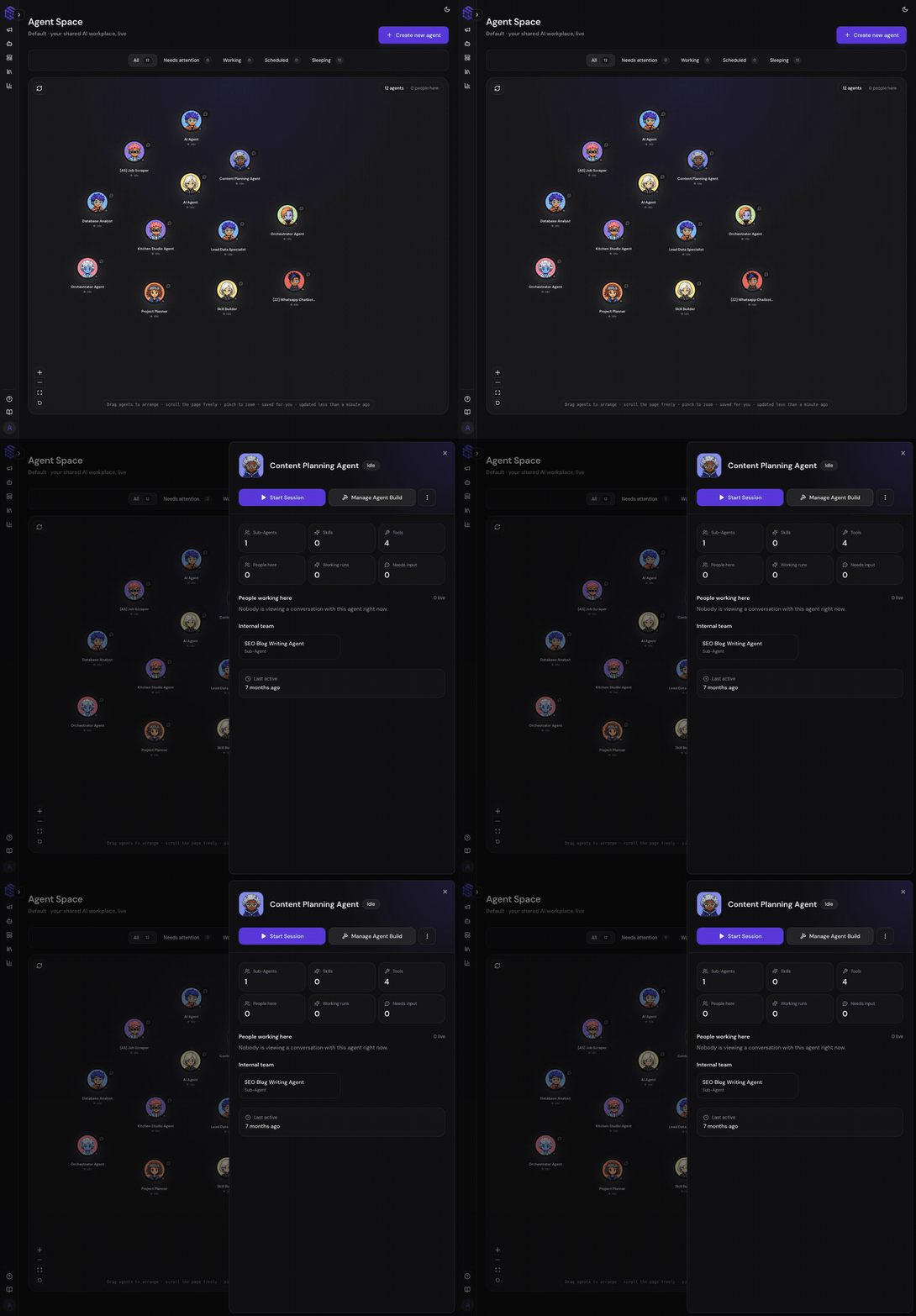 This short tour shows the operational sequence: view every Project agent, focus on a status, then open one agent for live details and actions.
## Understand the Agent Space
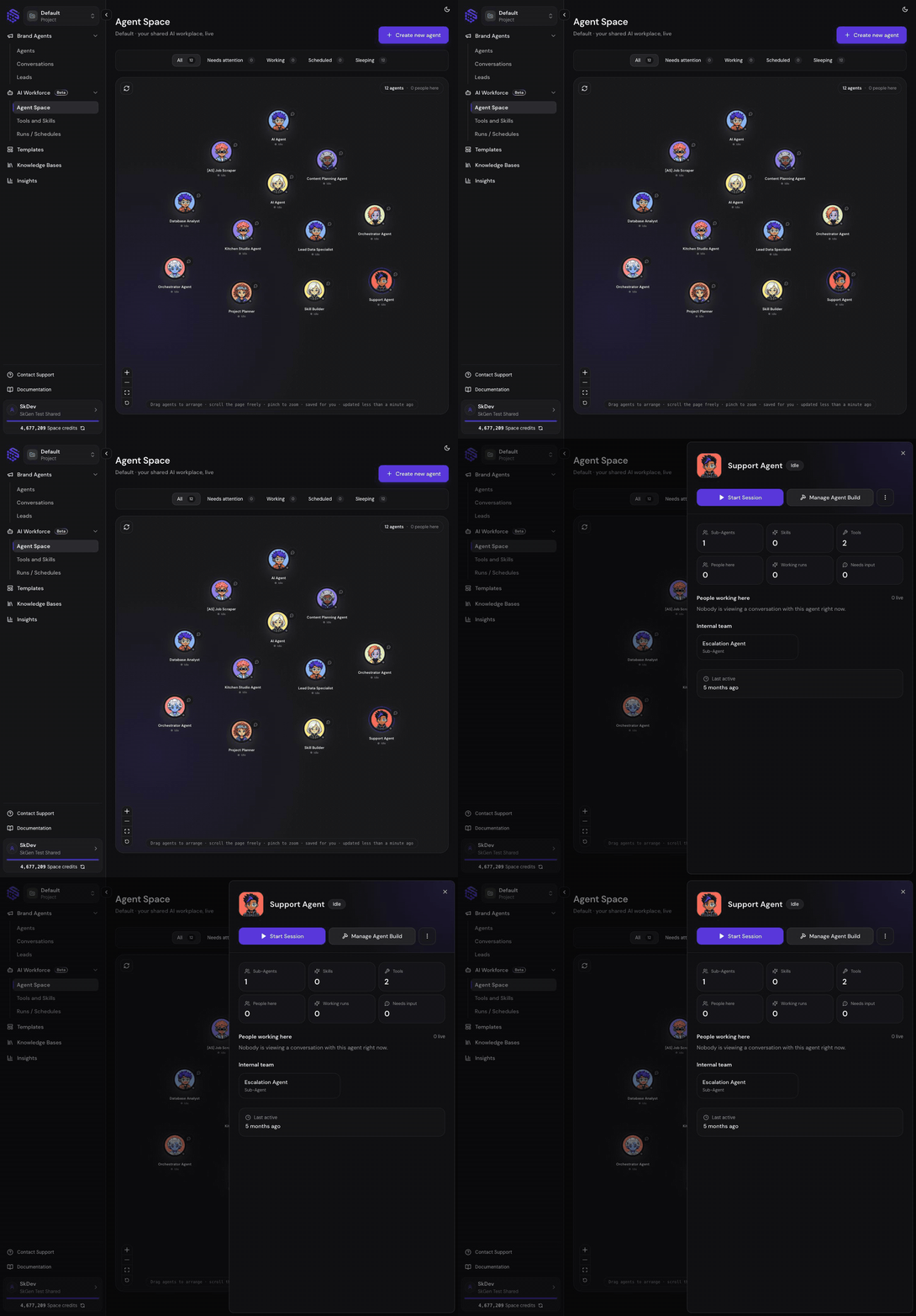
Each agent appears as a movable card on the Project floor. Your layout is saved for you, so teammates can arrange the same Project differently without changing the agents themselves.
Use the filters at the top to focus on operational state:
| Filter | Meaning |
| ------------------- | ------------------------------------------------------- |
| **All** | Every agent in the selected Project |
| **Needs attention** | A run is paused and waiting for human input or approval |
| **Working** | The agent has one or more active runs |
| **Scheduled** | The agent has a deployed schedule or active automation |
| **Sleeping** | The agent has no active work and no deployed schedule |
An agent may display **Runtime unavailable** when live runtime status cannot be reached. That does not automatically mean the saved Agent Build was deleted.
This short tour shows the operational sequence: view every Project agent, focus on a status, then open one agent for live details and actions.
## Understand the Agent Space
Each agent appears as a movable card on the Project floor. Your layout is saved for you, so teammates can arrange the same Project differently without changing the agents themselves.
Use the filters at the top to focus on operational state:
| Filter | Meaning |
| ------------------- | ------------------------------------------------------- |
| **All** | Every agent in the selected Project |
| **Needs attention** | A run is paused and waiting for human input or approval |
| **Working** | The agent has one or more active runs |
| **Scheduled** | The agent has a deployed schedule or active automation |
| **Sleeping** | The agent has no active work and no deployed schedule |
An agent may display **Runtime unavailable** when live runtime status cannot be reached. That does not automatically mean the saved Agent Build was deleted.
 ## Open Agent Details
Select an agent to open its operational details.
## Open Agent Details
Select an agent to open its operational details.
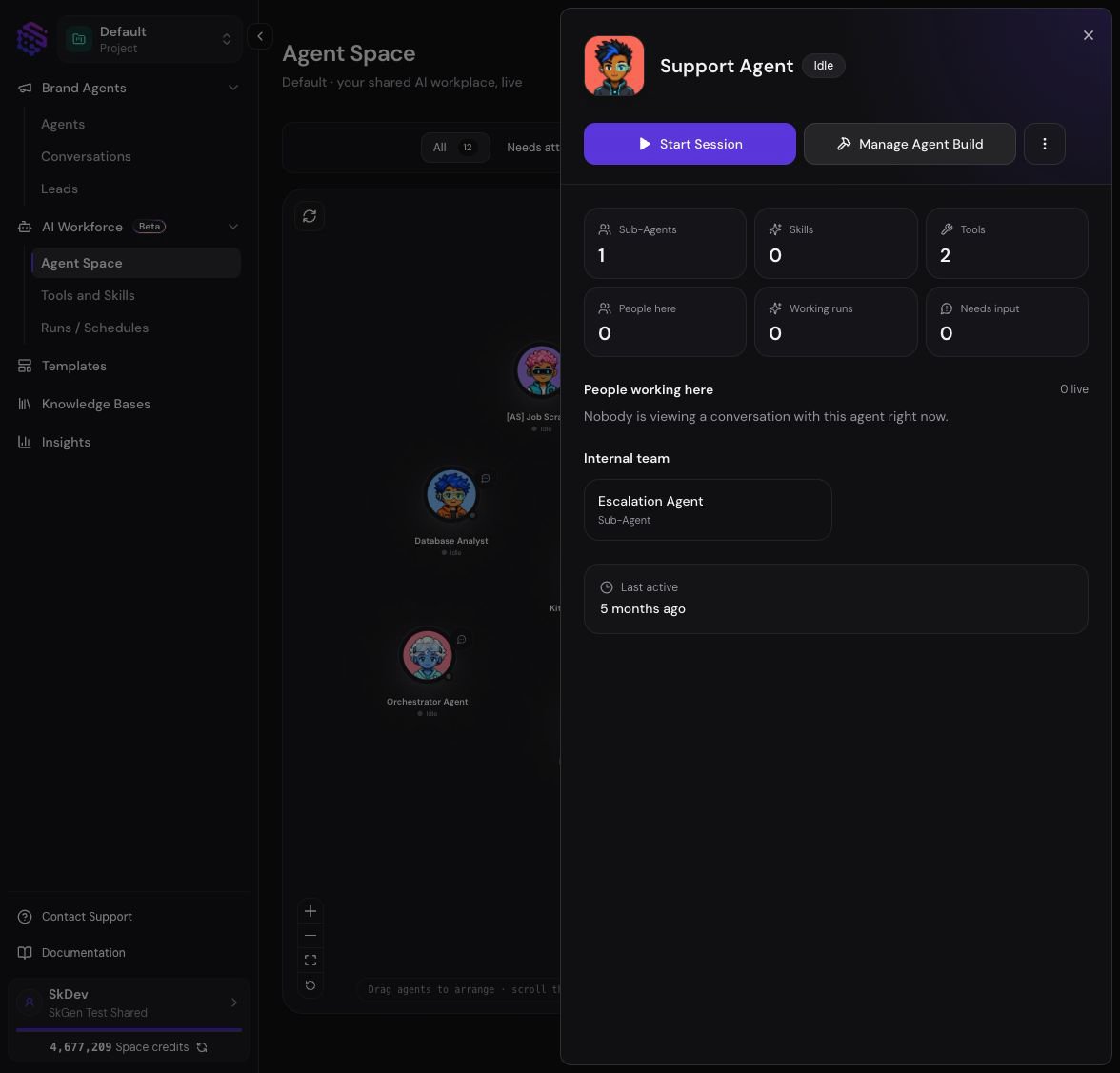 The details panel can show:
* Current operational status
* Number of sub-agents, skills, and tools
* People currently working with the agent
* Active runs
* Requests waiting for human input
* The agent's internal sub-agent team
* Last activity
* Deployed schedules and automations
From this panel, select **Start Session** to open the Run experience or **Manage Agent Build** to change the agent's internal configuration.
## Work With Agents and Teammates
Agent Space combines agent activity with human presence:
* A teammate avatar means that person is viewing or working in a conversation with the agent.
* Quick message opens a lightweight conversation entry point from the Project floor.
* Selecting a teammate shows which agents and live runs they are working with.
* Presence is informational; it does not grant additional Project permissions.
For shared conversations, typing indicators, and parallel sessions with the same agent, see [Multiplayer AI and Team Collaboration](/ai-workforce/team-collaboration).
## Respond to "Needs attention"
An agent enters **Needs attention** when a run pauses for a human-input request. Open the agent, select the waiting request, and continue in the associated Playground conversation.
Human input can be a choice, clarification, confirmation, or approval. The run stays paused until an allowed user responds or cancels it.
## Create or Configure an Agent
Select **Create new agent** to start a new Agent Build or choose a template. Creating an agent adds it to the selected Project and Agent Space.
Use **Manage Agent Build** when you need to change:
* Main-agent or sub-agent instructions
* Model selection
* Tools and connected apps
* Skills
* Knowledge access
* Agent handoffs
* Draft and published configuration
## Capability Facts
* **Product surface:** Agent Space
* **Purpose:** monitor and enter work across all agents in a Project
* **Scope:** selected Teamspace and Project
* **Shows:** agents, status, schedules, active runs, pending human input, and live collaborators
* **Does not edit:** instructions, models, tools, skills, or the agent graph
* **Layout behavior:** agent positions and viewport are saved per user
* **Primary actions:** create an agent, start a session, quick message, open a request, or manage Agent Build
* **Related surface:** [Agent Build](/ai-workforce/agent-build)
## Troubleshooting
### "The Agent Space could not be loaded"
Refresh Agent Space. If the error continues, confirm that a Teamspace and Project are selected and that your membership has access to the Project.
### An agent does not appear under Scheduled
The schedule must be deployed or the automation must be active. A draft schedule alone does not move the agent into the Scheduled filter.
### Live people or run status is unavailable
The saved agents can still appear when live presence or runtime status is temporarily unavailable. Refresh the page before changing an Agent Build.
The details panel can show:
* Current operational status
* Number of sub-agents, skills, and tools
* People currently working with the agent
* Active runs
* Requests waiting for human input
* The agent's internal sub-agent team
* Last activity
* Deployed schedules and automations
From this panel, select **Start Session** to open the Run experience or **Manage Agent Build** to change the agent's internal configuration.
## Work With Agents and Teammates
Agent Space combines agent activity with human presence:
* A teammate avatar means that person is viewing or working in a conversation with the agent.
* Quick message opens a lightweight conversation entry point from the Project floor.
* Selecting a teammate shows which agents and live runs they are working with.
* Presence is informational; it does not grant additional Project permissions.
For shared conversations, typing indicators, and parallel sessions with the same agent, see [Multiplayer AI and Team Collaboration](/ai-workforce/team-collaboration).
## Respond to "Needs attention"
An agent enters **Needs attention** when a run pauses for a human-input request. Open the agent, select the waiting request, and continue in the associated Playground conversation.
Human input can be a choice, clarification, confirmation, or approval. The run stays paused until an allowed user responds or cancels it.
## Create or Configure an Agent
Select **Create new agent** to start a new Agent Build or choose a template. Creating an agent adds it to the selected Project and Agent Space.
Use **Manage Agent Build** when you need to change:
* Main-agent or sub-agent instructions
* Model selection
* Tools and connected apps
* Skills
* Knowledge access
* Agent handoffs
* Draft and published configuration
## Capability Facts
* **Product surface:** Agent Space
* **Purpose:** monitor and enter work across all agents in a Project
* **Scope:** selected Teamspace and Project
* **Shows:** agents, status, schedules, active runs, pending human input, and live collaborators
* **Does not edit:** instructions, models, tools, skills, or the agent graph
* **Layout behavior:** agent positions and viewport are saved per user
* **Primary actions:** create an agent, start a session, quick message, open a request, or manage Agent Build
* **Related surface:** [Agent Build](/ai-workforce/agent-build)
## Troubleshooting
### "The Agent Space could not be loaded"
Refresh Agent Space. If the error continues, confirm that a Teamspace and Project are selected and that your membership has access to the Project.
### An agent does not appear under Scheduled
The schedule must be deployed or the automation must be active. A draft schedule alone does not move the agent into the Scheduled filter.
### Live people or run status is unavailable
The saved agents can still appear when live presence or runtime status is temporarily unavailable. Refresh the page before changing an Agent Build.